State-Level Paid Family Leave
Minnesota PFML
The state of Minnesota has a Paid Family Leave (PFML) program that went into effect on January 1st, 2026. If you have Minnesota employees, there is configuration needed to calculate US payroll taxes properly:
Enter Minnesota PFML profile details
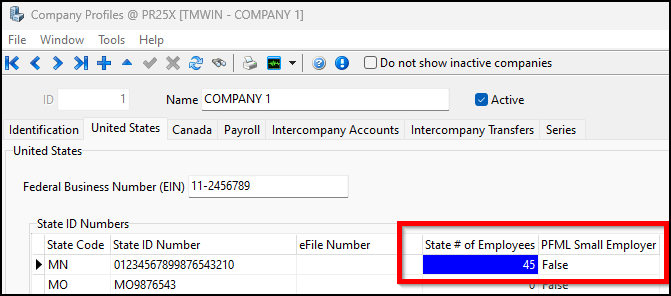
In Company Profiles, there are two columns related to Minnesota PFML:
-
State # of Employees
Indicates the number of employees you have in the state. -
PFML Small Employer
Indicates whether you are a PFML small employer. For Minnesota, set this to True if you have 30 or fewer employees in the state.
These columns need to have values to properly calculate payroll for Minnesota employees.
-
Open Company Profiles (Company.exe).
-
Navigate to the company profile that has Minnesota employees.
-
Select United States.
-
Do one of the following:
-
If the company already has a Minnesota State Code, go to Step 5.
-
If the company does not already have a Minnesota State Code, go to Step 9.
-
-
Select
 Insert Record below the State ID Numbers grid.
 -
Double-click in the State Code column. The Select State window opens.
-
Select MN and then select OK. The Select State window closes.
-
In the State ID Number column, enter the ID number the company uses for each state.
-
In the State # of Employees column, enter the number of employees the company has in Minnesota.
-
If the company has 30 or fewer employees in Minnesota, double-click in the PFML Small Employer column to toggle it to True.
-
Select
 Post Edit.
Set up employee contribution percentage
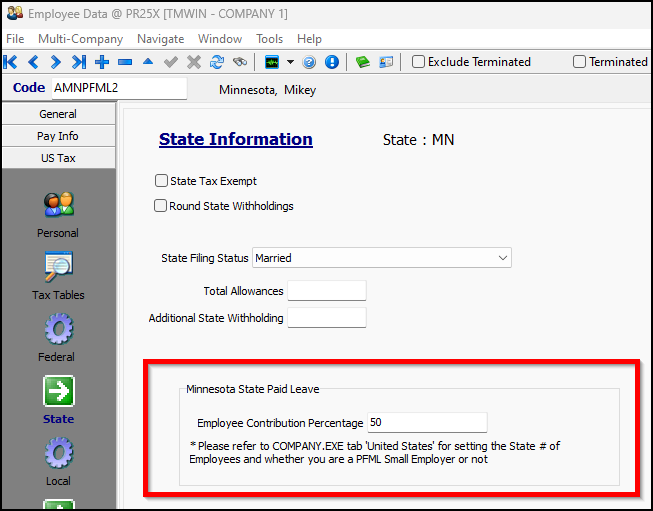
The employee contribution percentage is set up in Employee Data.
-
Open Employee Data (Employee.exe).
-
Navigate to the Minnesota employee’s profile.
-
Go to US Tax > State.
-
Enter a value in the Employee Contribution Percentage field.
-
Select
Post. -
Repeat these steps for each Minnesota employee.
Set up pay codes
In Payroll Configuration you need to set up three tax codes and one benefit code.
The three tax codes include:
-
A main code for the employee tax.
-
A code for the employer’s portion.
-
A matching expense entry code.
In 2025 the IRS stated that, when an employer pays part of an employee’s portion of state-level Paid Family & Medical Leave, it is now a taxable benefit. To calculate this benefit properly, you need to set up a taxable benefit code for MN PFML.
Repeat these steps for each of the four required codes:
-
Open Payroll Configuration (PRConfig.exe).
-
On the Pay Codes tab, select
Insert Record. A blank pay code record appears on the grid. -
Enter a value in the Code field:
-
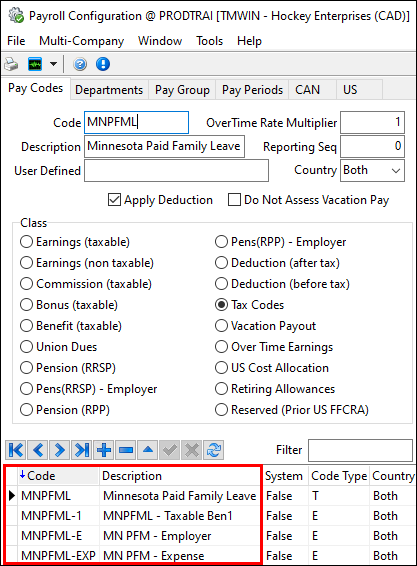
For the main employee code, enter MNPFML.
-
For the employer code, enter MNPFML-E.
-
For the expense code, enter MNPFML-EXP.
-
For the taxable benefit code, enter MNPFML-1.
-
-
Enter a value in the Description field:
-
For the main employee code, enter MN PFML - Employee.
-
For the employer code, enter MN PFML - Employer.
-
For the expense code, enter MN PFML - Expense.
-
For the taxable benefit code, enter MN PFML - Taxable Ben1.
-
-
Select a Class:
-
For the employee, employer, and expense codes, select Tax Codes.
-
For the taxable benefit code, select Benefit (taxable).
-
-
Select
Post Edit.
After completing these steps, you should have four MNPFML codes on the grid:
Associate local tax code with MNPFML tax code
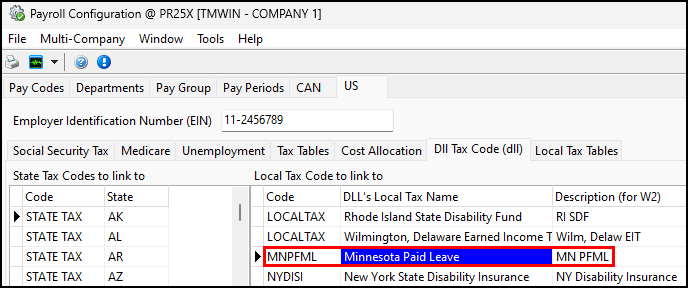
The Minnesota Paid Leave local tax needs to be associated with the MNPFML tax code.
-
In Payroll Configuration, go to US > Dll Tax Code (dll).
-
Select Insert Record below the Local Tax Code to link to grid.
-
Double-click in the Code column. The Select Pay Code window opens.
-
Select MNPFML and then select OK. The Select Pay Code window closes.
-
Double-click in the DLL’s Local Tax Name column. The Local Deduction codes used with Payroll DLL window opens.
-
Select Minnesota Paid Leave and then select OK. The Local Deduction codes used with Payroll DLL window closes.
-
Enter MN PFML in the Description (for W2) column.
-
Set values for the Calculate from Wages Only, Deduct Pension, and Use SUTA columns:
-
Calculate from Wages Only
If set to True, the values for the Federal Unemployment Tax Act will be taken strictly from the client’s wages. If set to False, the client’s deductions will be taken into account. -
Deduct Pension
If set to False, then pension will not be deducted from wages before local tax calculation. If set to True, pension will be deducted before local tax calculation. The logic applies to calculations with or without use of US Payroll DLL. -
Use SUTA
If set to True, the wage base will be the same as SUTA (State Unemployment Tax) wages.
-
-
Select
Post Edit.