Account Settings
The Account Settings screen is where you view and select global settings for Account Manager. It has three sections: Account Settings, Fleet Contact Information, and Asset Invite Defaults.
Account Settings
-
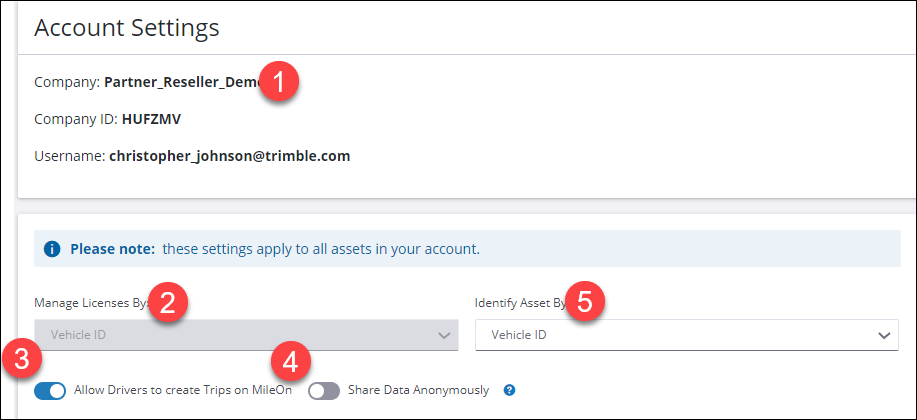
Your company information, including your Company ID assigned by Trimble.
-
Whether you are assigning your licenses to Vehicles, Drivers or Mobile Devices. This is set at the time that you purchased your licenses.
-
A slider bar to set whether to Allow Drivers to create Trips on MileOn or only use trips sent to them by a fleet administrator. (Deprecated)
-
A slider bar to set whether to share anonymized location and route information with Trimble to help improve the future accuracy of maps, routing and ETA calculations. (Available in CoPilot 10.19 and Higher)
-
The way you want to identify your assets in the Account Manager. Options may include Email, Inventory ID, Phone, Driver ID/Employee ID, and Vehicle ID. (The choices available depend on whether you are assigning licenses to drivers, vehicles or mobile devices.)
Fleet Contact Information
-
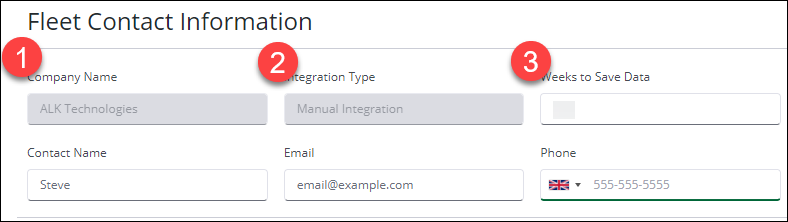
Information about the primary contact for a fleet’s account.
-
The way routes are sent to CoPilot.
-
Sets the number of weeks to retain route compliance information. This value defaults to 52 weeks, which is also the maximum setting.
Asset Invite Defaults
-
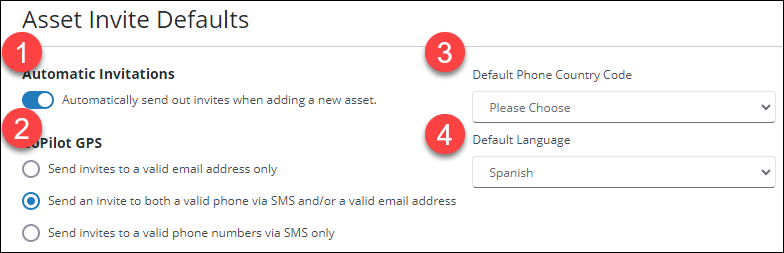
Toggle on to automatically send invites to download and install CoPilot to new assets added to the account.
-
Select a default setting for how invites are sent.
-
Set a Default Phone Country Code to help ensure SMS text invites are sent properly.
-
Set a Default Language for messages that invite drivers to install CoPilot. Options are: English, German, Spanish, French, Italian, Swedish.