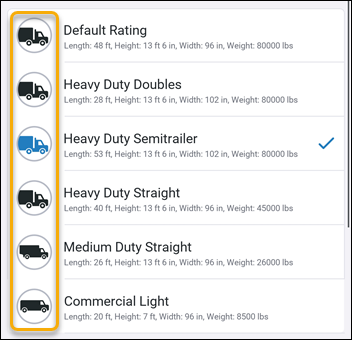
Check vehicle dimensions
Before starting a trip, the driver should double-check that CoPilot has the correct Vehicle Routing Profile for the vehicle they are driving. CoPilot uses the profile to generate a route that is safe and legal based on the vehicle’s dimensions.
Before tapping Start to begin the trip:
-
Tap the vehicle icon at the bottom of the navigation screen. The Vehicle Routing Profile screen opens.
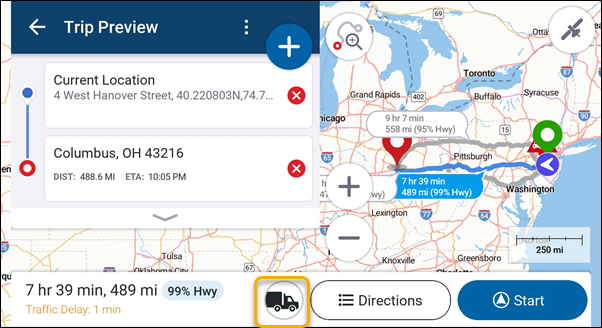
-
Check that the profile’s dimensions match those of your vehicle.
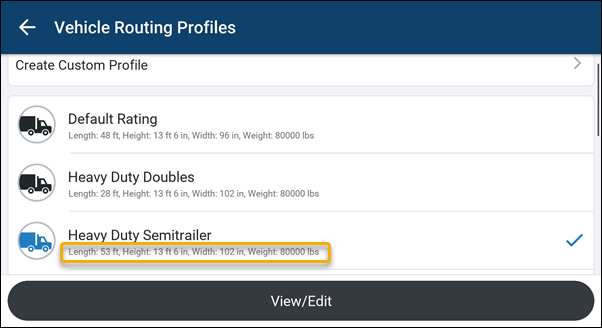
-
If the dimensions are incorrect, select the correct profile from the list or create a custom profile with the correct dimensions. See: Vehicle Routing Profile settings for more information on how to do this.