Mileage Reports
(Not available in all regions)
CoPilot can collect and report state-by-state mileage information based on your driving history while using the application. To enable:
-
Tap the bar at the top of the center display button to open the map drawer.
-
Scroll down and tap Settings > Mileage Reports.
-
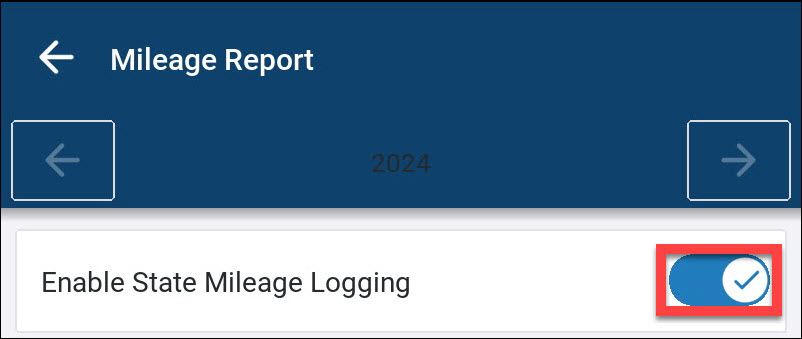
Tap the slider bar to turn it on. You will see a check mark.
View a log
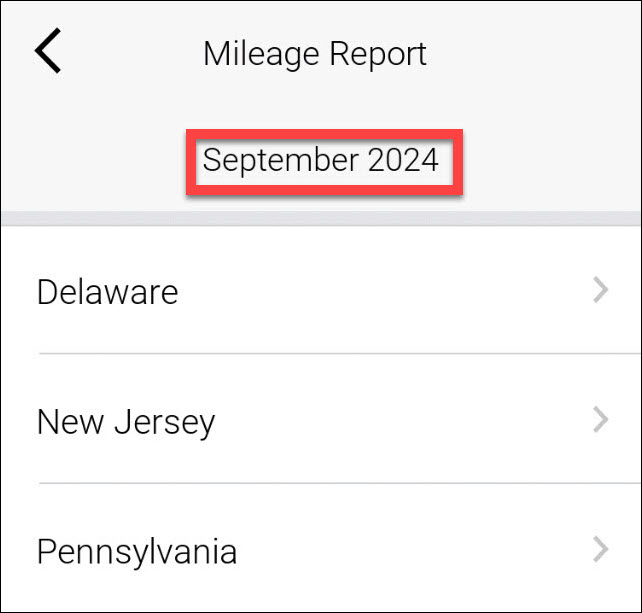
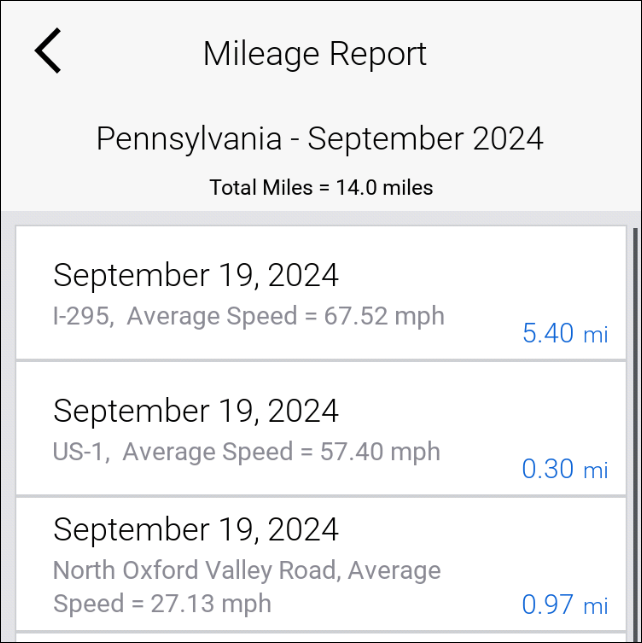
CoPilot creates logs by month and by state. To view a log:
-
Tap the month you want to view.
-
Tap the state you want to view.
Export a log
Tap Export Logs at the bottom of any Mileage Reports screen to export a log as a .csv file, saved on your device.
The device displays the name of the exported .csv file and the location where the file is saved.
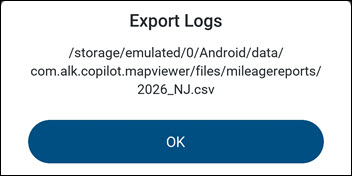
Figure 1. Android device
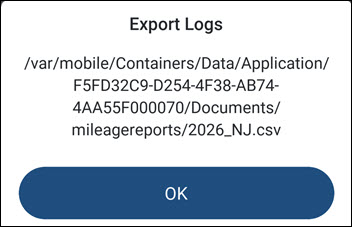
Figure 2. iOS device
View exported logs
To access the exported .csv file, connect your device to a computer: