Assets
| This page is only displayed if you are using Account Manager to manage licenses. If you are only using Account Manager to Configure Fleet Settings (formerly CoPilot FleetPortal settings), it will not be displayed. |
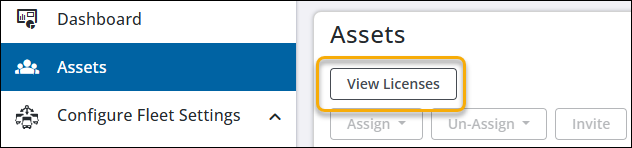
On the Assets screen, you can click the View Licenses button to view information about your app licenses, including the number of licenses you own, how many you have left to distribute, and when they were purchased.
The Assets screen may be empty until you add assets. The screen capture below highlights the main features on the page.
If you purchased CoPilot through your ELD provider, your assets may automatically be imported into Account Manager.

-
Check boxes to select assets. Checking the top box selects all assets.
-
Assign, Un-Assign, Invite, Set Password, Notify Users, or Delete one or multiple assets at the same time. These buttons only appear if you have checked at least one asset. (No. 1 above.)
-
Filter the display of Assets in the table.
-
Add Assets, Import multiple new assets in a .csv file or Export assets to a .csv file.
-
Search for assets by name or email.
-
Edit the columns you want to view in the table.