Enter a stop as GPS coordinates
To add a stop to your trip using GPS coordinates:
-
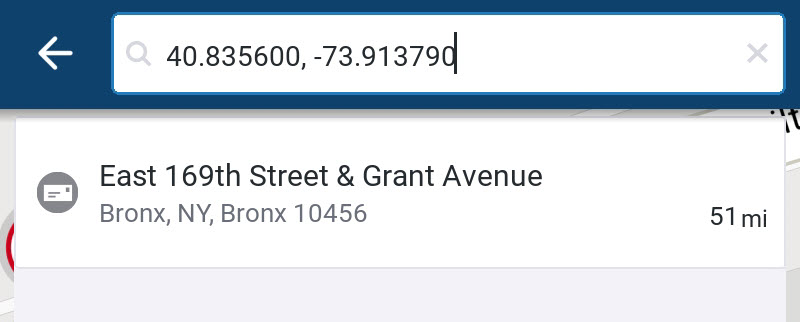
Enter the coordinates directly into the Search bar, just as you would enter an address. For best accuracy, use decimal degrees with at least six digits after the decimal point (e.g., 38.897709, -77.036511).
-
CoPilot searches for the location and displays it below the Search bar. Note: You may see an error message at first, until CoPilot recognizes that you are entering coordinates.
-
Tap the location to view its details on the Location Info screen.
-
Tap Add Stop to include it in your trip.
Classic Search Option
If you need help formatting coordinates, you can switch to Classic Search:
-
On the home screen, tap the center display arrow (Plan Trip bar) to open the drawer.
-
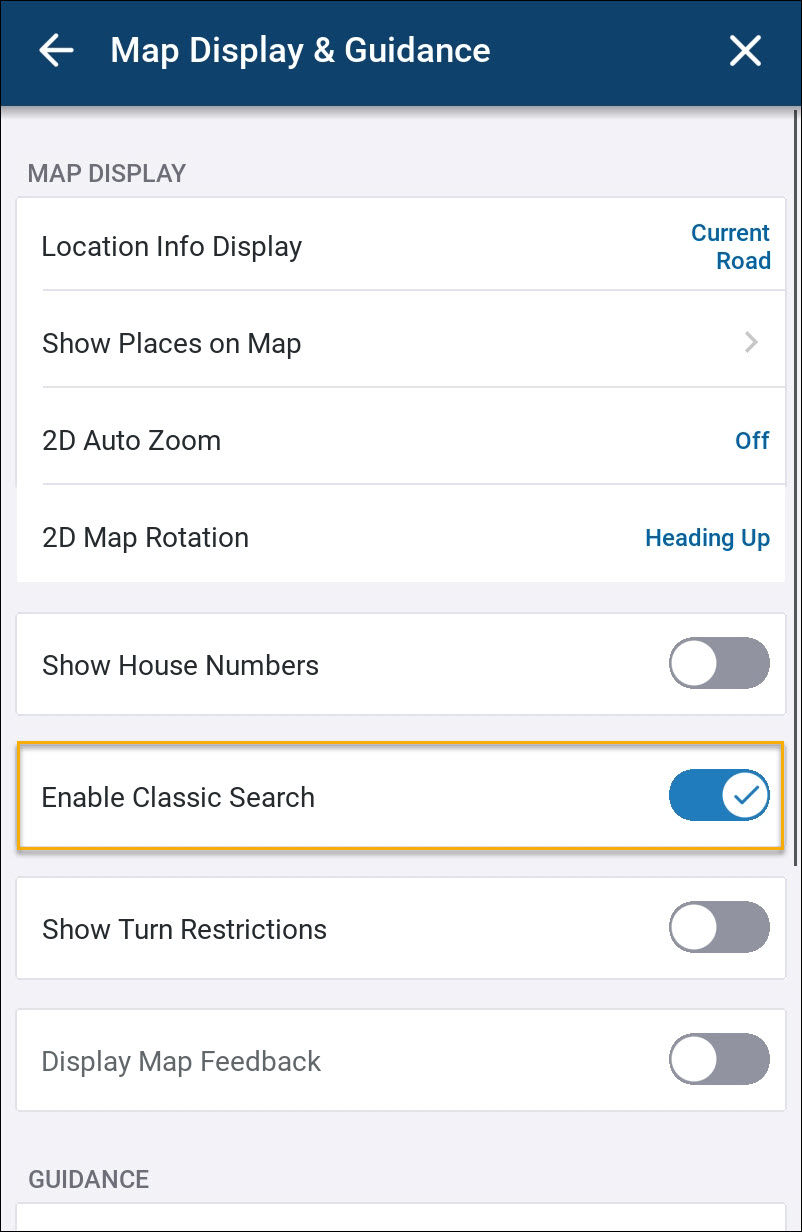
Select Settings > Map Display & Guidance.
-
The Map Display & Guidance screen opens.
-
Tap the toggle next to Enable Classic Search to turn it on.
-
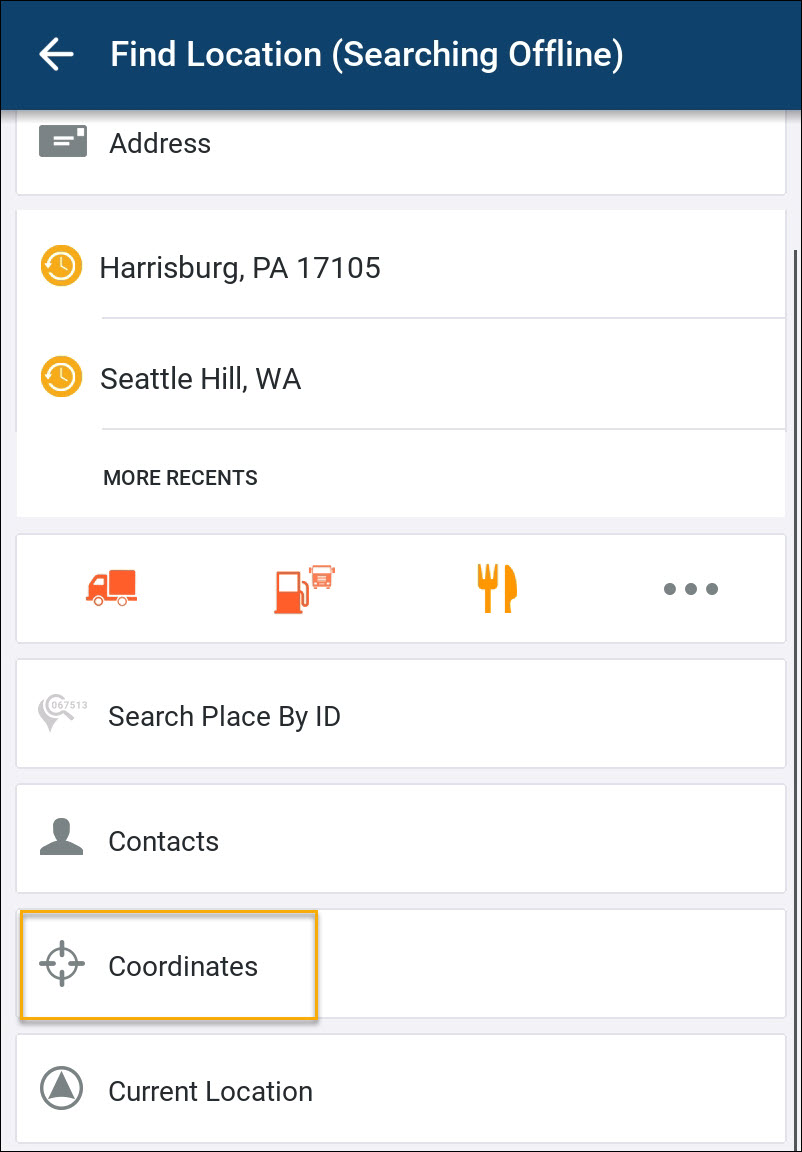
The next time you enter a stop location, you will see the Coordinates button.
-
Tap it and enter coordinates in your preferred format.