Home screen
CoPilot 11 provides a map view on virtually every screen to improve trip planning and help drivers better understand their route and surroundings. Trip planning, settings, and other features are opened via menus and "drawers" that slide in from the top or bottom of the screen.
Home screen features
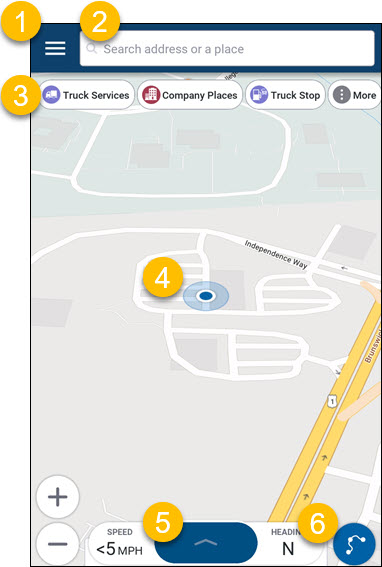
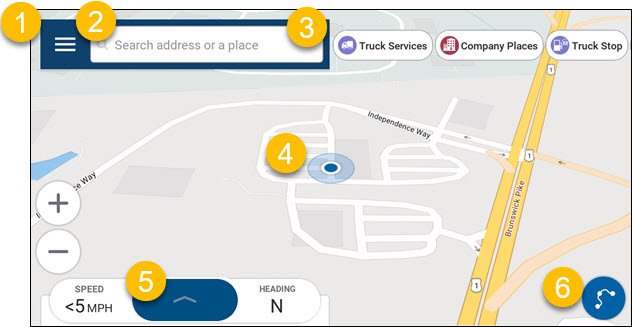
The CoPilot home screen display varies slightly depending on whether you are running the app in portrait mode or landscape mode. The available features are the same.
-
Open the Main menu.
-
Search for a location to add as a stop to your trip.
-
Search for a nearby Place by category (Truck Services, Truck Stop, Restaurant, and More) to add as a stop to your trip.
-
View your current location and nearby streets.
-
Tap the arrow to open a drawer where you can change the map settings.
-
Tap to open the Trip Preview screen to plan a trip. After the trip is calculated, tap the left or right info displays to change the information they display. (In this example, the left display shows the current speed and the right display shows the heading.)
Main menu
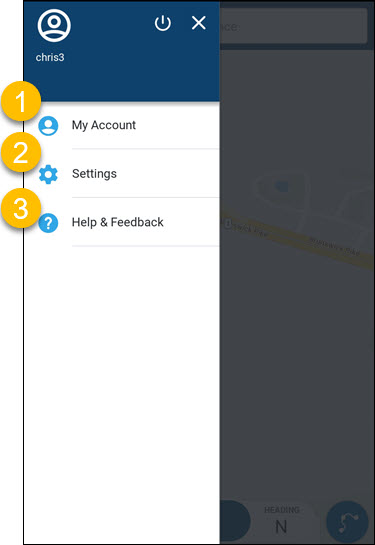
The main menu opens as a side drawer.
-
View account information and change your password.
-
Open the Settings menu. Settings include everything from languages and alerts to vehicle-specific settings for safe and legal routing.
-
Read CoPilot how-to articles (this website) or contact our support team.
Search for locations by name
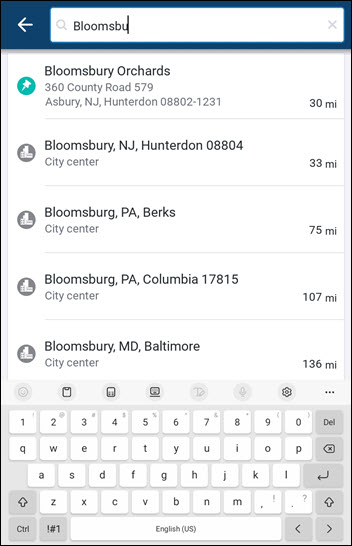
Tap the search bar to begin your search for a location. As you type, suggested locations appear beneath the search bar. The search feature works either online with Wi-Fi or a mobile internet connection or offline with the map data loaded on the device. Online search is shown below.
Search nearby places
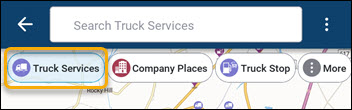
Tap one of the Places buttons to search for nearby places of that type. To search:
-
Tap a place type.
-
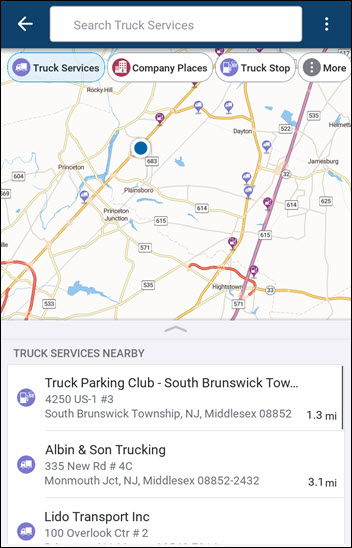
A map and a list of nearby places displays. Select a place.
-
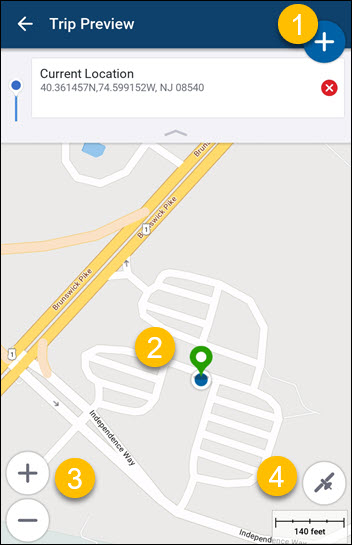
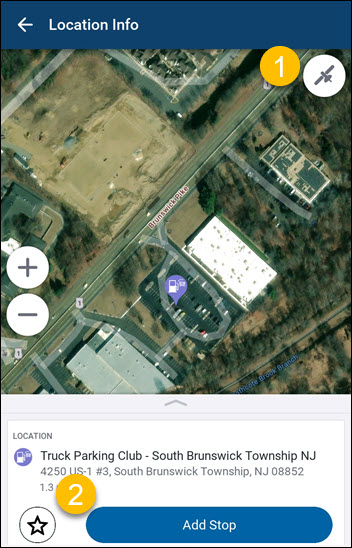
The selected location opens in the Location Info page. You can tap the satellite button (1) to view the location in satellite mode or (2) tap Add Stop to add the place to your trip.
Customize maps to your surroundings
With satellite maps, 3D buildings, and traffic flow (requires a traffic license), CoPilot allows you to explore your current surroundings, the area around your next stop, or anywhere in between.
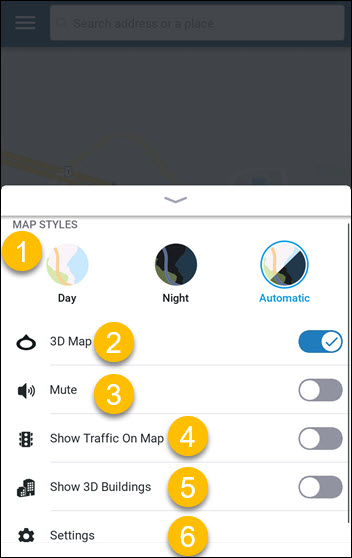
To switch your map settings, tap the arrow at the top of the button at the bottom of the Home screen.
-
Select whether the background of the CoPilot map screen always appears light or dark or automatically switches at sunset and sunrise.
-
Display maps in 3D during planning and navigation.
-
Mute all sounds in CoPilot.
-
Show the flow of traffic ahead with color-coded lines on the map.
-
Show 3D buildings on the map. (Standard maps only. Does not work with satellite maps.)
-
Open the Settings menu.