A new PC*Miler Web Services Spreadsheets update is now available
The latest update to PC*Miler Web Services Spreadsheets introduces two new functions designed to significantly enhance your ability to customize routes for distance and toll cost calculations.
Additionally, you can add a new configuration (.ini) file to boost performance by allowing you to set default values for the PC*Miler data region, data version, and country used in your calculations.
New Functions
The two new functions are:
-
=MilesWSV2(Origin, Destination, Route Options). It returns the mileage between two points (origin to the destination).
-
=TollsWSV2(Origin, Destination, Route Options). It calculates accurate, up-to-date toll charges in the U.S. and Canada.
These new functions give you the same information as the legacy functions (=MilesWS and =TollsWS). But they let you customize routes a lot more, and you don’t need to be as exact when you type them into Excel.
How do the new functions work?
You type in a starting point (Origin) and an ending point (Destination), just like before. But the third thing you add is a string of “route options.” These options follow the flexible format used by PC*Miler Web Services.
Example
=MilesWSV2("Boston, MA", "Columbus, OH","hwyOnly=true&ProfileName=Heavy Duty Doubles")
-
(Required argument) "Boston, MA" is the origin. Locations can be entered in several formats.
-
(Required argument) "Columbus, OH" is the destination. Locations can be entered in several formats.
-
(Optional argument) "hwyOnly=true&ProfileName=Heavy Duty Doubles" is the string with the route options. In this case, we are telling PC*Miler to calculate mileage based on a Heavy Duty Doubles truck routing on highways only. Dozens of options are possible. If you don’t enter route options, Spreadsheets will use PC*Miler default values.
| =TollsWSV2 follows the same format but returns tolls costs instead of distances. |
Build a route options string
The route options string can include any of the available PC*Miler Web Services route options.
The string should follow the format: {Option parameter name}={Option parameter value}, with each option separated by an ampersand (&). Options can be in any order, and you do not need to include any options if you want to use PC*Miler defaults.
A full list of available route options, including parameter names and parameter values, is available on the Trimble Maps Developer portal.
Generate and copy route options strings using interactive documentation
You can use our interactive documentation to construct your route options string.
-
Navigate to the mileage report page.
-
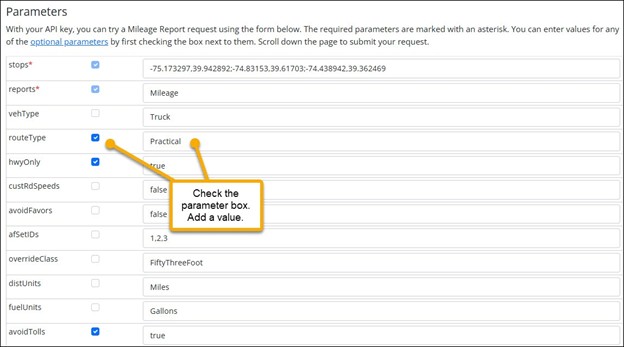
Check the boxes next to all of the route options (parameter names) you would like to include in your spreadsheets miles or tolls requests.
-
Add parameter values next to the boxes you have checked.
-
Scroll down the page to the GET box. The GET URL displays the entire request that is sent to Web Services.
-
For Spreadsheets, you only need the last part of the string, which shows the route options you have selected. The options are everything after the report name. In this example, it’s “routeType=Practical&hwyOnly=true&avoidTolls=true.” (Select image to enlarge)

-
Cut and paste this as the Route Options string in your spreadsheets function. (e.g. =MilesWSV2("Boston, MA", "Columbus, OH","routeType=Practical&hwyOnly=true&avoidTolls=true")
Simplify with the .ini
The latest update to Web Services Spreadsheets can read a user-created text file titled pcmwebserve.ini with four default settings that simplify requests for mileage, tolls, or location data.
In the .ini file, you can preset default values used by every spreadsheet function. This improves results and reduces the number of arguments needed in your spreadsheet calls. The four settings and their “out-of-the-box” defaults are:
-
LOGGING=ENABLE. This setting should be left alone. It is used to log issues with the software in the event that you need help from our technical support team.
-
REGION=NA. The default region is North America “NA.” This value can be set to any two-letter region code your API key is licensed to use. AF - Africa; AS - Asia; EU - Europe; OC - Oceania; SA - South America; ME - Middle East
-
PCMVERSION=CURRENT. This is the PC*Miler version used for route (and mileage) calculation. The versions available include PCM18-Current.
-
COUNTRY=US. The two-letter (ISO2) country code. Selecting a country is important for more precise matching of locations.
To use an .ini file,
-
On your computer, search for and make a copy of the pcmwebserve.ini file. This should be located in the PCM_EXCEL_WebServices download folder.
-
Open the file in a text editor (like Notepad), and below LOGGING=ENABLE, add the three other settings you want to customize (REGION, PCMVERSION, COUNTRY) on separate lines.
-
Save your new .ini file in the folder on your computer where you have saved Excel WebServices Add-In.xlam (that’s the PC*Miler Spreadsheet add-in file).
-
You can change any value you need for your spreadsheets by editing and re-saving the file.