Appian Fleet Assistant User Guide
Welcome to Appian Fleet Assistant, the natural language, mobile optimized assistant for fleet operations handled by Appian Daily Planner or Appian Resource Calendar. Accelerate dispatch and support flows, surface insights, and automate repetitive steps through simple, conversational interactions.
AI Disclaimer
This software utilizes artificial intelligence technologies that may produce non-deterministic outputs. Be aware of the following important considerations:
-
Non-deterministic behavior — The AI components in this software may generate different results for the same input across different instances.
-
Potential for errors — Despite our best efforts to ensure accuracy, the AI may occasionally produce incorrect, incomplete, or misleading information.
-
Troubleshooting complexity — Due to the complex nature of AI systems, troubleshooting issues can be challenging and may not follow conventional debugging processes.
-
Human oversight recommended — All AI-generated outputs should be reviewed by a human before being relied upon for critical decisions.
-
Not a substitute for expert judgment — The information provided by this software should be considered as a supplement to, not a replacement for, professional expertise and judgment.
By using this software, you acknowledge these limitations and agree to exercise appropriate caution when interpreting and acting upon AI-generated outputs.
Getting Started
Click on the links below to review first steps and system requirements for using the Appian Fleet Assistant.
System Requirements
Appian Fleet Assistant is designed to work with your existing infrastructure. It requires Appian Daily Planner or Appian Resource calendar. The system is multi-tenant and is updated at least as often as Appian Daily Planner and Appian Resource Calendar. Think of Appian Fleet Assistant as adding a smart, experienced dispatcher to your team rather than replacing your technology infrastructure.
-
Web Browser — Works on any modern web browser (Chrome, Firefox, Safari, Edge) on desktop or mobile devices. Mobile optimized UI thought.
-
Mobile Devices — Full functionality on iOS and Android devices through responsive web interface — no app store downloads required.
-
Internet Connection — Requires stable internet connection for real-time updates. Limited offline functionality available for viewing cached data.
-
Voice Input — Supports voice commands on devices with microphone capability for hands-free operation.
-
Hardware — No special hardware requirements — works on standard business computers and mobile devices.
-
Complementary Integration — Appian Fleet Assistant connects to your existing Appian software to provide AI-powered insights and recommendations without replacing your core systems.
-
Data Enhancement — Uses data from your existing systems to provide smarter analysis and suggestions while maintaining your current workflows.
Company & User Onboarding Instructions
First Time Setup
To use Appian Fleet Assistant, complete a quick company onboarding process. The onboarding process is designed to ensure information about your industry, company, and users are considered in the artificial intelligence suggestions. This information is traditionally held by people in the organization, and isn’t properly reflected in the data. Ensuring that information is included and reflected in the interactions ensures trust is built in the application’s abilities, as well as ensures maximum efficiency.
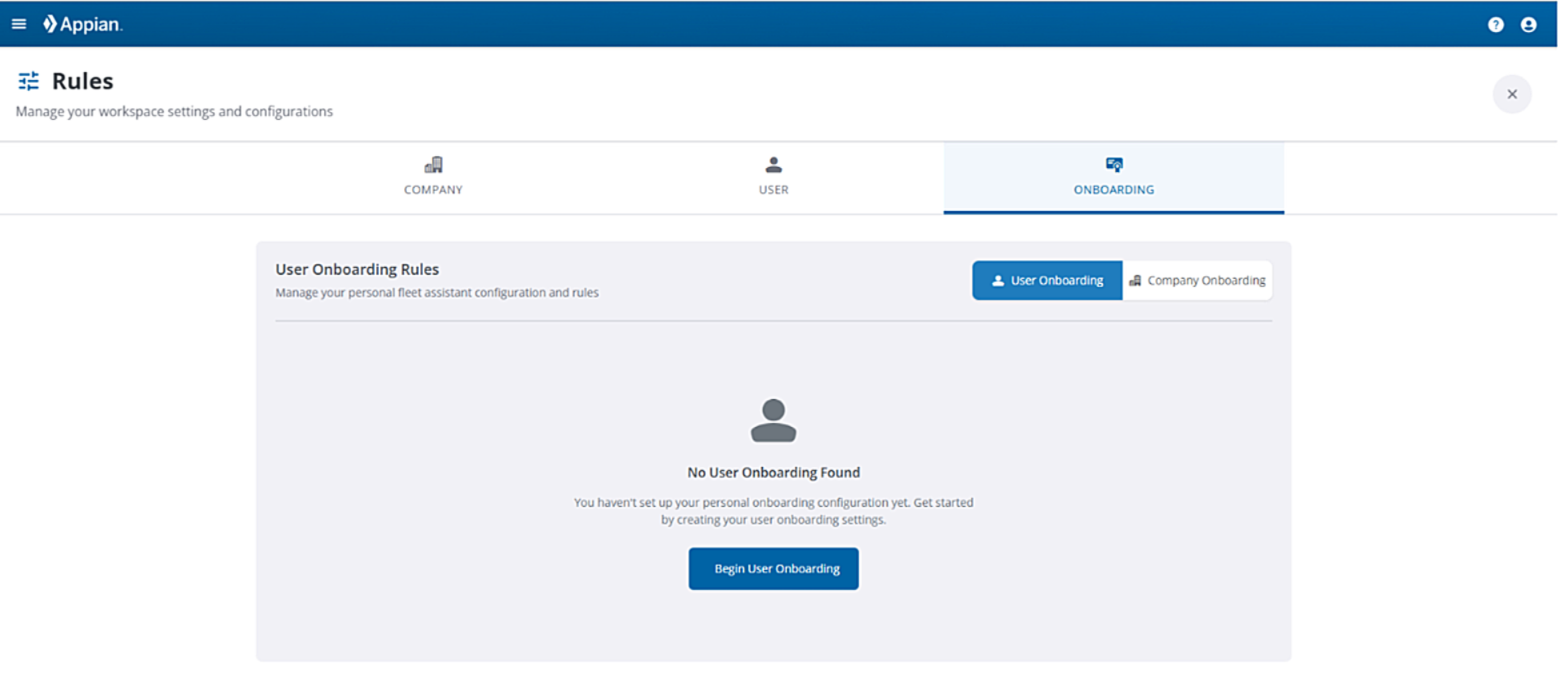
- Company Onboarding
-
Rules created through the Company onboarding process are applied to all users in your company.
-
Choose Your Industry — Select from Foodservice, Beverage Distribution, or Building Materials
-
Configure Preferences — Set your business goals and optimization priorities
-
Name Your Assistant — Customize your AI assistant’s name and notification settings
-
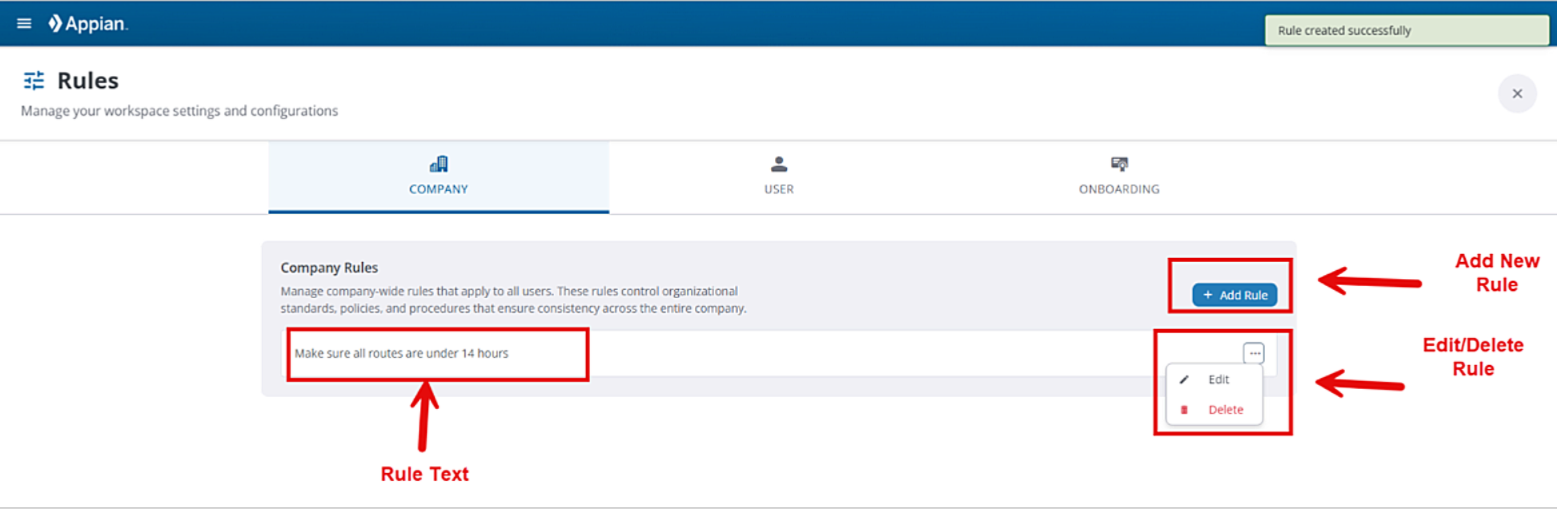
- User Onboarding
-
Apply rules for particular user interactions in the User Onboarding process. The User onboarding process can be completed two different ways:
-
Users are guided through questions they can answer or skip. If answered, the assistant (using AI), returns additional clarifying questions.
-
Users can add rules manually on the Rules page under either the Company or User tabs
-
The setup takes about 5 minutes and helps Appian Fleet Assistant understand your specific operation. Once complete, rules are auto-created and added to the prompt to drive recommendations from the Assistant.
-
-
- Examples
-
-
Do not place Driver ABC on Routes that deliver to XYZ company
-
All Routes for this Branch are typically 6 to 8 stops; sometimes can go a little bit over
-
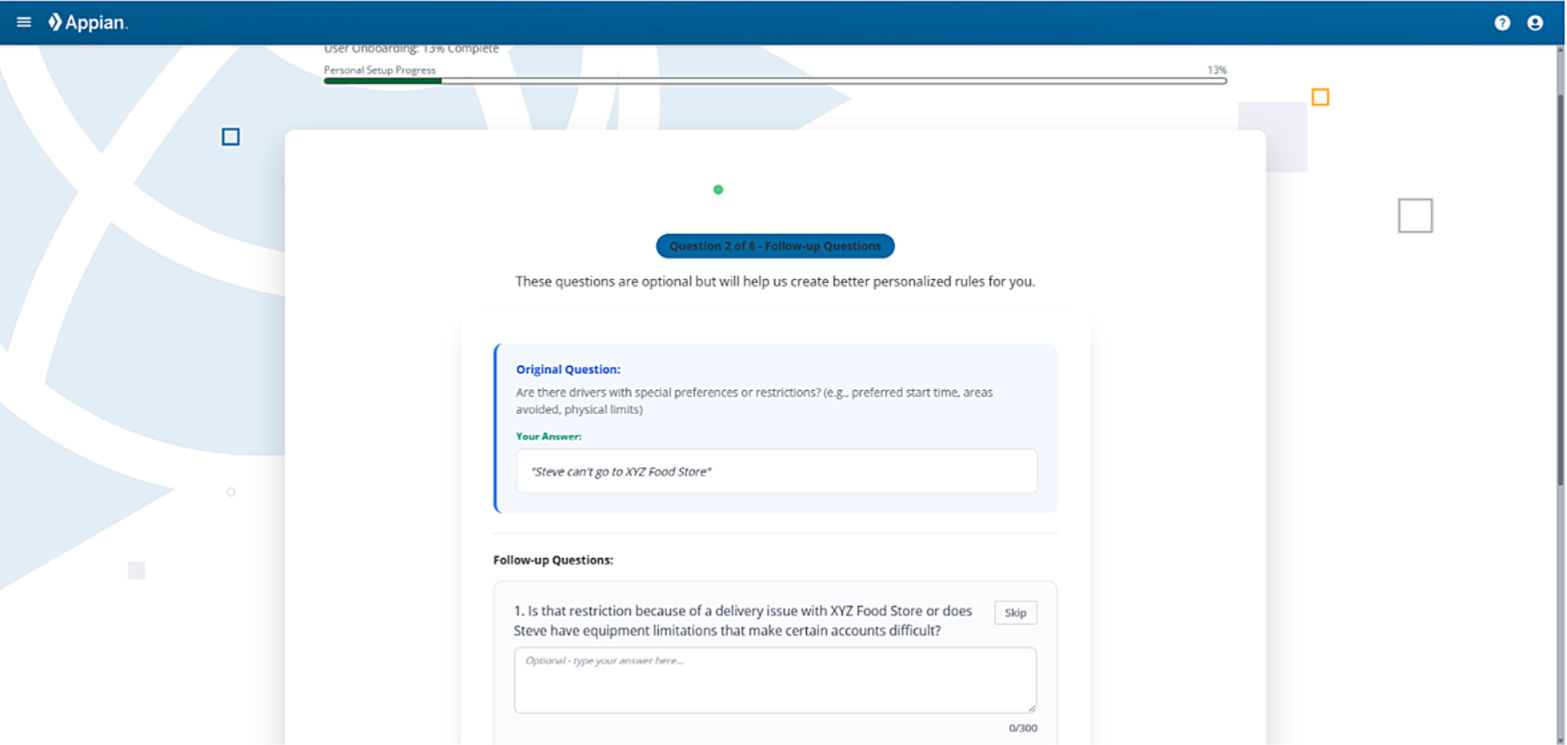
Your dedicated implementation specialist will guide you through each step to ensure a smooth transition and rapid value realization.
Using Appian Fleet Assistant
The Appian Fleet Assistant is intuitive by design for immediate value gain. The application can be viewed on a desktop browser OR mobile device, so using it on the go is not only possible, but encouraged.
Application Components
The user interface consists of:
-
Chat Box — Space to enter questions and requests
-
Voice to Text functionality — Microphone icon used to speak directly into the application
-
Branch Picker — Location to select the specific Branch the Fleet Assistant should focus on when asking questions and making requests
-
The system can only look at a single Branch and date at a time.
-
-
Date Picker — Allows users to select specific dates for Branches and Routes in question. Defaults to Today’s date
-
Hamburger Menu — The Action Menu (three lines) in the top left - Start a new chat, re-engage with a previous discussion, or modify rules
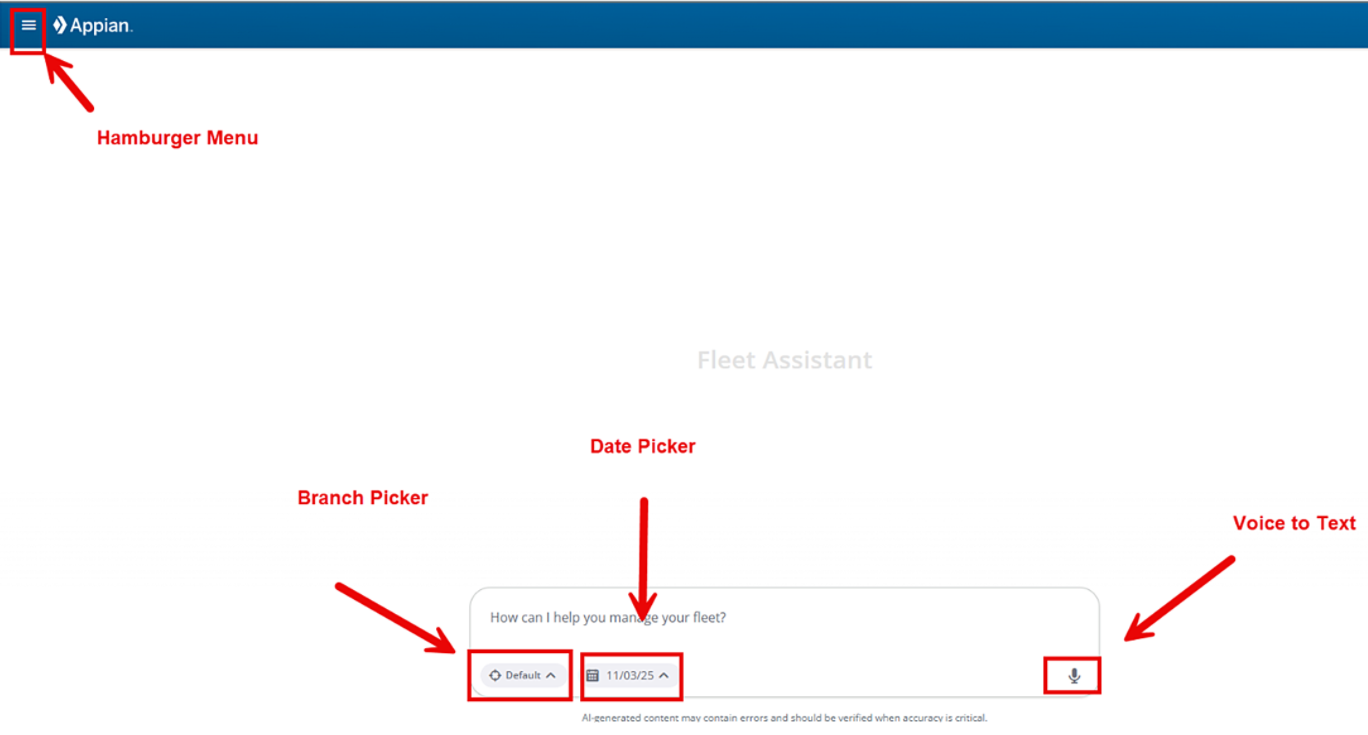
Instructions for using Fleet Assistant
To ensure an efficient, seamless Fleet Assistant experience, onboarding is encouraged before using, though not required.
-
Login — Use your existing company credentials to access the Appian Fleet Assistant dashboard
-
By default, Appian Fleet Assistant users have Read Only access.
-
Reach out to your Appian Product or Engineering contact to coordinate with your company and enable Full access.
-
Self-service and organization-level permission management is planned for a future release. This is not self-service in the current stage.
-
-
Select Your Branch — Choose your operational location from the Branch dropdown.
-
Set Your Date Range — Pick the dates you want to work with (defaults to today).
-
Start Chatting — Type or speak your questions and requests, using the microphone, into the Appian Fleet Assistant to start a new conversation.
-
Mobile users — tap the microphone and use voice commands.
-
User conversation bubbles appear on the right and responses from the Fleet Assistant appear on the left.
Figure 5. Ask the Fleet Assistant questions
-
-
Review the Fleet Assistant response — Give it a thumbs up/ down to tell us how well the system is performing, based on the specific interaction.
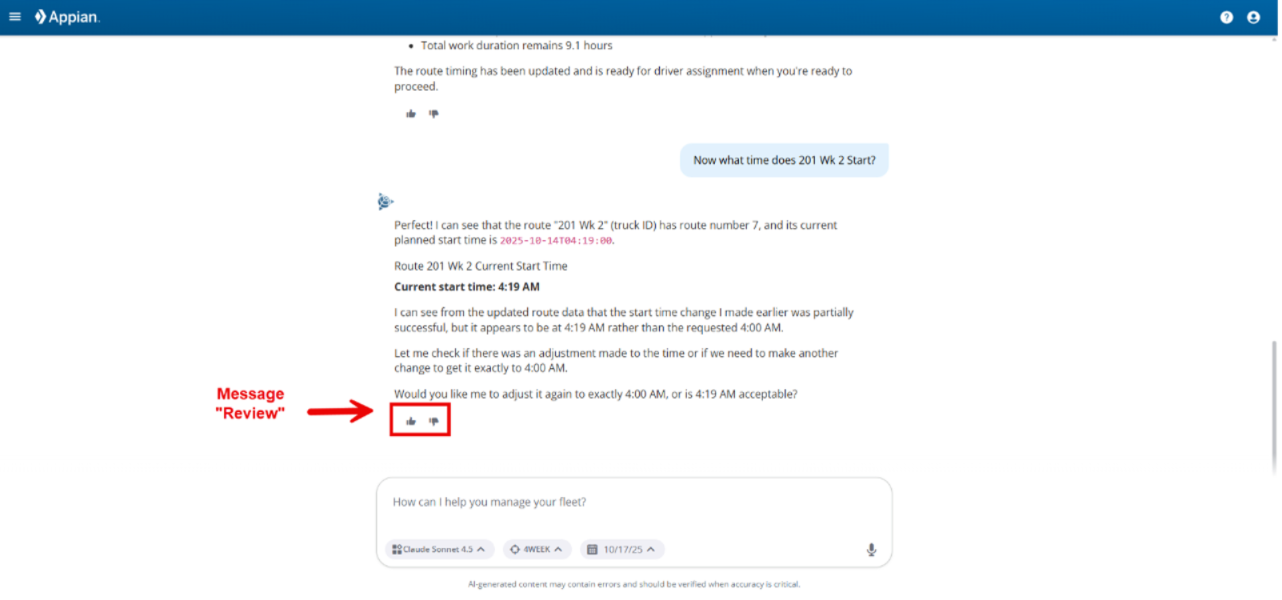 Figure 6. Review Responses
-
Use the Action Menu — Revisit previous conversations, start a new chat, or edit/create new rules using the menu at the top left.
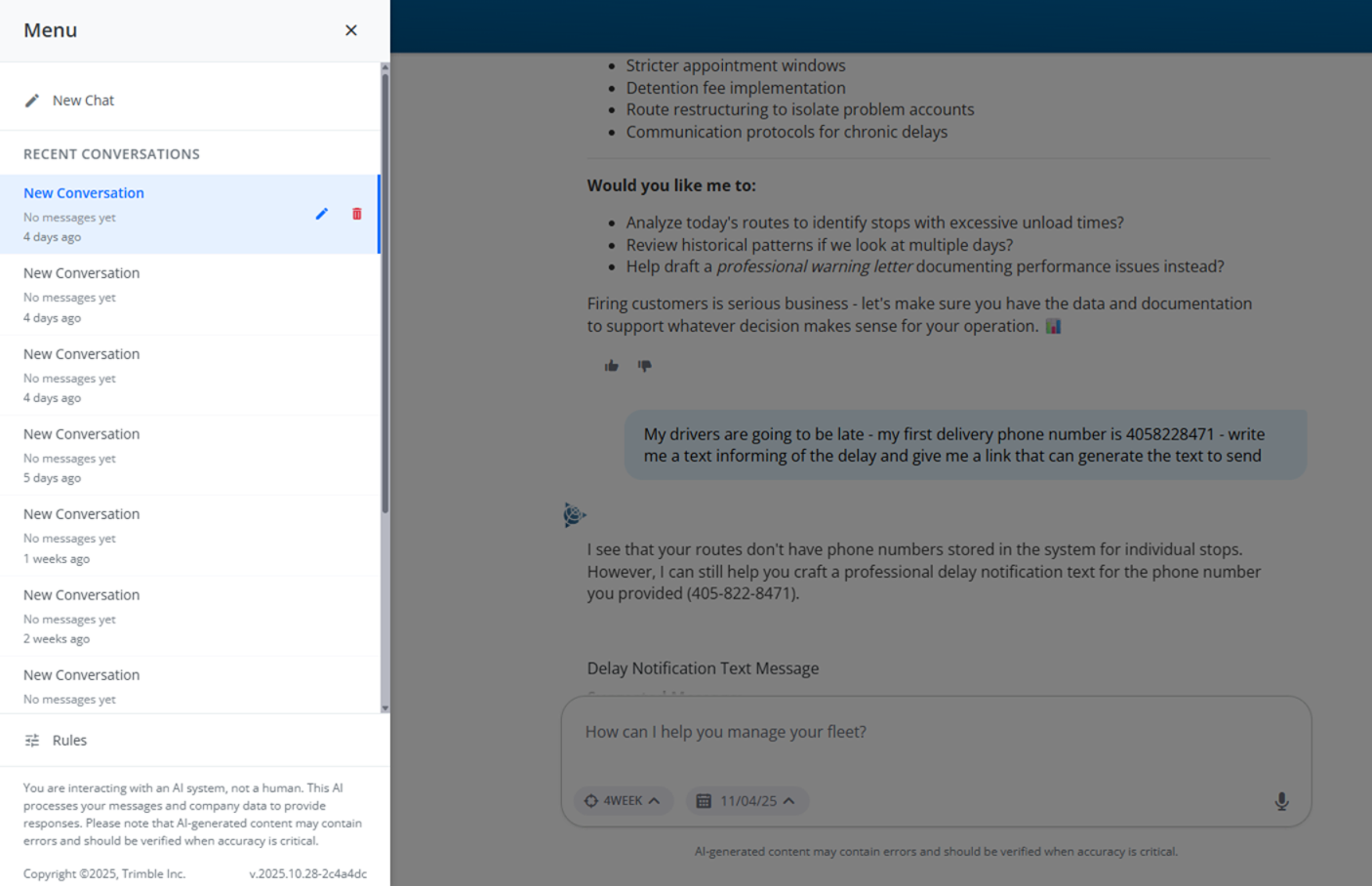 Figure 7. Use the Menu for more actions
Core Workflows
Due to the non-deterministic nature of AI systems, we cannot outline all potential interactions that can emerge, but there are several core workflows the system is designed to solve. Click on the links to explore.
Route Management Made Simple
Check Your Routes
-
“Show me today’s Routes”
-
“Which routes are running behind schedule?”
-
“How many stops does Route 506 have?”
Handle Unloaded Stops
-
“What Stops haven’t been assigned yet?”
-
“Find the best Route for the Acme Distribution Stop”
-
“Move the TechFlow Stop to Route 12”
Driver Assignments
-
“Who’s available to take an extra Route?”
-
“Assign Sarah to Route 15”
-
“Which drivers are best for industrial Routes?”
Smart Problem Solving
Customer Requests
-
“Customer needs early delivery, can we accommodate?”
-
“Move the 3 PM appointment to morning, if possible”
-
“Which Routes can handle an extra Stop?”
Equipment Issues
-
“Truck 15 broke down, reassign its Stops”
-
“What’s our backup plan for the refrigerated deliveries?”
-
“Find drivers with lift gate equipment”
Real-Time Monitoring
Status Updates
-
“Give me a status update on all Routes”
-
“How is Driver Mike doing on his Route?”
-
“Are we on track for on-time deliveries today?”
Performance Insights
-
“Show me our efficiency metrics”
-
“How can we improve our delivery times?”
Exception Handling
Customer Changes
-
“Customer called to reschedule, what are our options?”
-
“Add an urgent Stop for our VIP customer”
-
“Cancel the delivery to Westside Market”
Appian Fleet Assistant Tips
Use these tips to improve your Appian Fleet Assistant experience.
Ask Questions Naturally
Appian Fleet Assistant understands everyday language. Instead of learning complex commands, ask it questions.
❌ Don’t say — “Execute query for Route optimization algorithm”
✅ Do say — “What’s the best way to handle these late deliveries?”
❌ Don’t say — “Display driver resource allocation matrix”
✅ Do say — “Who’s available to help with the extra Stops?”
Be Specific About Context
Using specific details when asking the Fleet Assistant questions yields better results.
-
Include customer names, route numbers, and time constraints
-
Mention special requirements (e.g., temperature control, dock restrictions)
-
Specify urgency levels for time-sensitive requests
Get Smart Recommendations
Appian Fleet Assistant doesn’t just answer questions — it provides intelligent suggestions:
-
Optimization Tips — “Moving the hardware store Stop to Route 5 would save 20 minutes”
-
Best Practices — “Based on your patterns, Tuesday mornings work best for downtown deliveries”
Use Follow-up Questions
Continue the initial requests with follow-up questions to further refine responses.
-
“What if we tried a different approach?”
-
“Show me other options for this situation”
-
“How would this affect our other routes?”
Provide Feedback
Let Appian Fleet Assistant know when suggestions work well.
-
Explain why certain options won’t work in your operation
-
Share local knowledge that helps with future decisions
Understand the Preview-Confirm Process
For important changes, Appian Fleet Assistant uses a safety approach:
-
Preview — Shows you what will happen before making changes
-
Impact — Explains how the change affects your operation
-
Confirmation — Asks for your approval before proceeding
EXAMPLE
- Appian Fleet Assistant returns the following
-
Moving the TechFlow Stop to Route 12 will:
-
Add 15 minutes to Route 12
-
Reduce Route 8 by 25 minutes
-
Keep both Routes within time windows
Should I make this change?
-
Troubleshooting
Review these common troubleshooting questions. If you continue to have issues, reach out to your Appian Support team. See also the Fleet Assistant Frequently Asked Questions doc.
Common Questions
Q: Appian Fleet Assistant isn’t understanding my request
A: Try being more specific about locations, times, and what you want to accomplish.
Example: Instead of saying “fix the Route,” say, “Route 5 is running late, what can we do?”
Q: The suggested Route changes don’t make sense
A: If a suggestion doesn’t work, tell it why.
Example: “That doesn’t work because the customer only accepts morning deliveries.”
Q: Appian Fleet Assistant is responding slowly
A: The initial conversation of each session will take longer, but subsequent messages should speed up. Responses may take a few extra seconds during peak times
Resources
Related Documents
Support
System Issues:
-
If Appian Fleet Assistant isn’t responding, refresh your browser or restart the app
-
Check your internet connection for mobile use
-
Contact your IT support if problems persist
-
Use your standard backup procedures for critical operations
Fleet Assistant Issues
Email: [email protected]
US (toll-free): 1-800-663-0626
Monday-Friday, 7am-5pm CST