Access TMWSuite applications (SaaS)
Software as a Service (SaaS) TMWSuite users access their TMWSuite applications using a remote server. This server can be accessed using Windows App.
Install and sign in to Windows App
You can sign in to Windows App using an email address provided by Trimble. The email address will end with "ttecloud.com".
If you are an administrator, this email address may have been provided to you by a Trimble cloud analyst or onboarding project manager. If you do not know your sign in credentials, contact Trimble Transportation Support.
-
Download and install Windows App from the Microsoft Store.
-
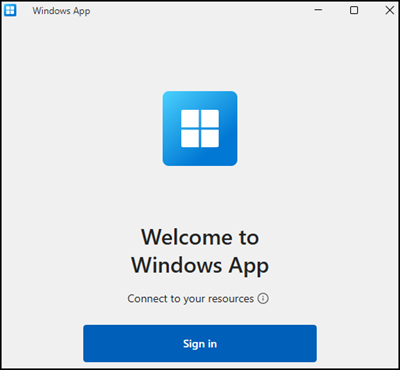
Open Windows App.
-
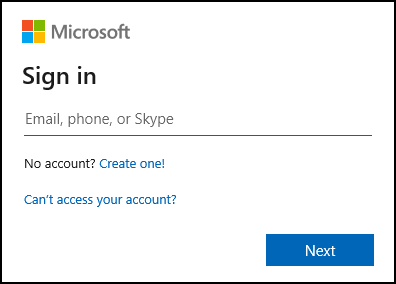
Select Sign in. The Microsoft sign in window opens.
-
Enter your "ttecloud.com" email address.
Note: if your company uses Microsoft accounts, you may be signed in to Windows App automatically. Make sure to sign out and use your "ttecloud.com" email address.
-
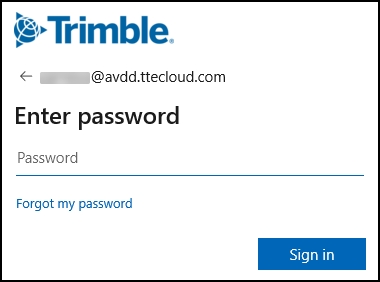
Select Next. The password entry window opens.
-
Enter your password.
-
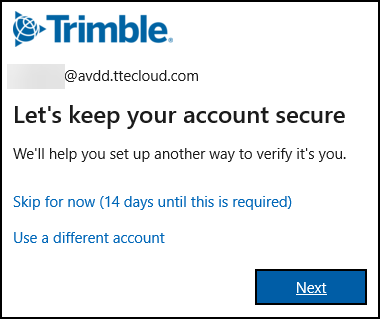
Select Sign in. If it is your first time using Windows App, a window opens prompting you to set up a verification method.
-
Select Next.
-
Select your country from the Country code dropdown list.
-
Enter your phone number in the Phone number field.
-
Select either the Text a code or Call verification method.
-
Select Next.
-
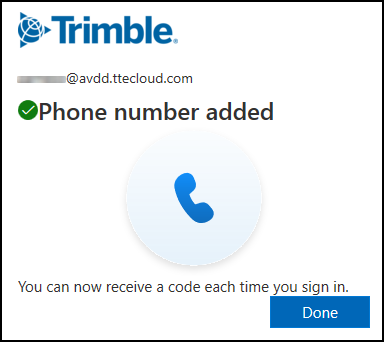
Enter the code provided by the text message or phone call and select Verify. A confirmation message opens.
-
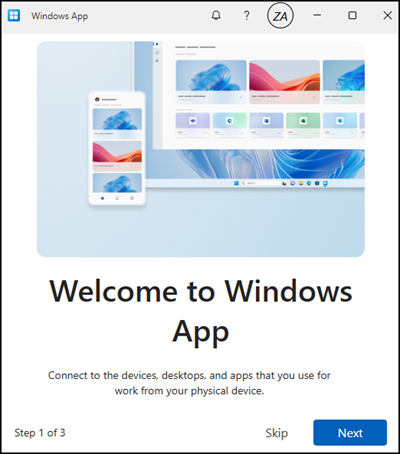
Select Done. If it is your first time using Windows App, a welcome message opens.
-
Do one of the following:
-
Select Next and go through the tour.
-
Select Skip.
Windows App opens.
-
-
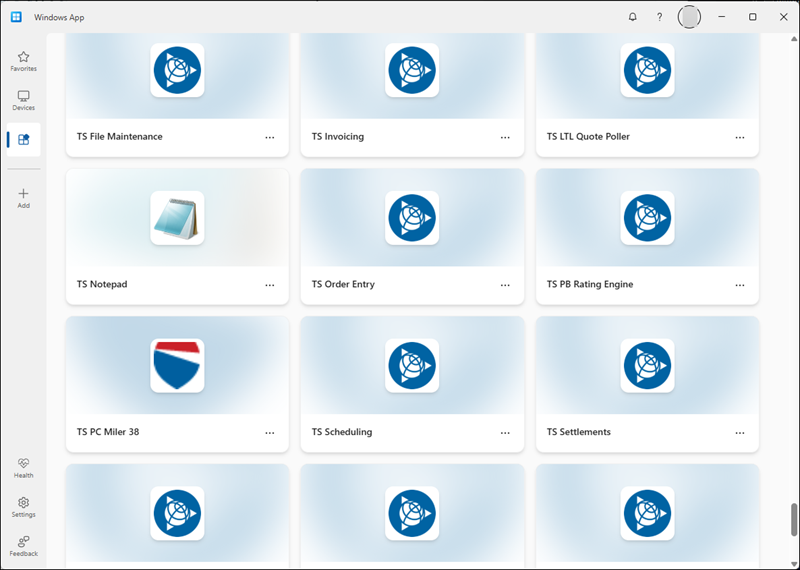
Select Apps. A list of TMWSuite applications opens.
-
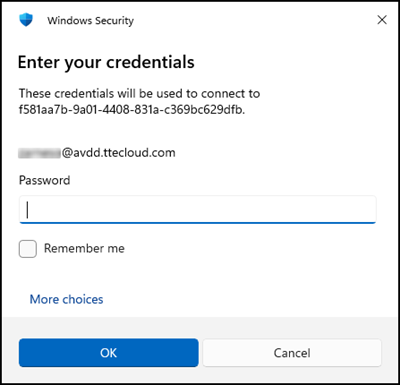
Select an application. A security window opens.
-
Enter your password.
-
Select OK. The remote connection is created and the selected app opens.
Set up Microsoft Authenticator
-
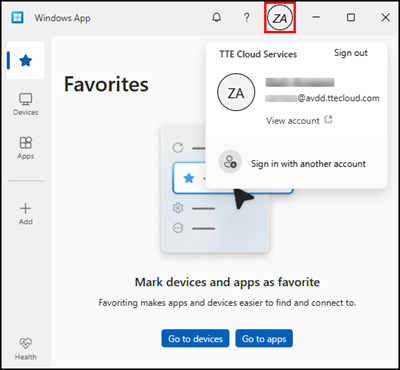
In Windows App, select Account. The icon is the initials of your first and last name.
-
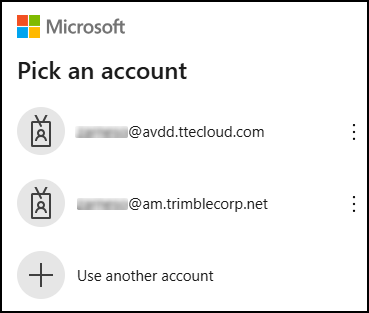
Select View account. A list of your Microsoft accounts opens.
-
Do one of the following:
-
If your "ttecloud.com" account is in the list:
-
Select your "ttecloud.com" email address.
-
Go to Step 4.
-
-
If your "ttecloud.com" account is not in the list:
-
Select Use another account. The Microsoft sign in window opens.
-
Enter your "ttecloud.com" email address.
-
Select Next. The password entry window opens.
-
-
-
Enter your password.
-
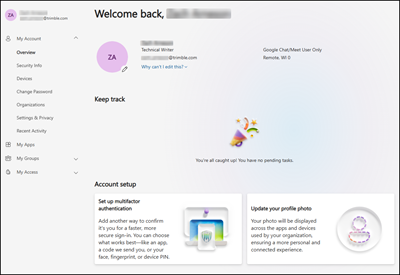
Select Sign in. The account details page opens.
-
Select Security Info. If you have not recently verified your identity on this device, you may have to use call or text to verify your identity.
-
Select Add sign-in method. A list of sign-in methods opens.
-
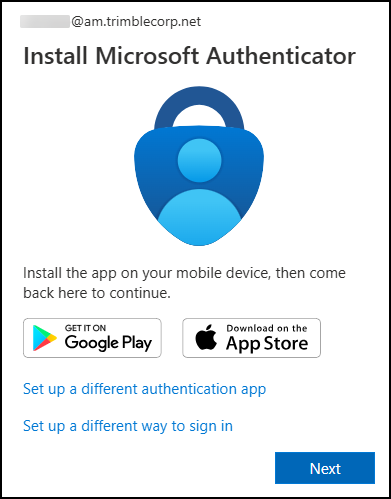
Select Microsoft Authenticator. A prompt to install Microsoft Authenticator opens.
-
Leave this prompt open on your workstation.
-
On your mobile device, install Microsoft Authenticator.
-
Open Microsoft Authenticator. Microsoft Authenticator may prompt you to share additional data.
-
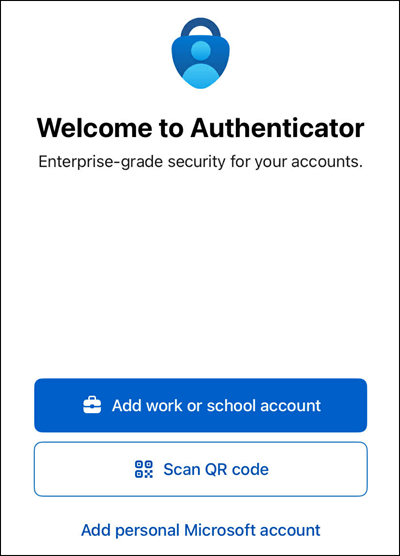
Toggle whether to share additional data, then select Continue. The welcome screen opens.
-
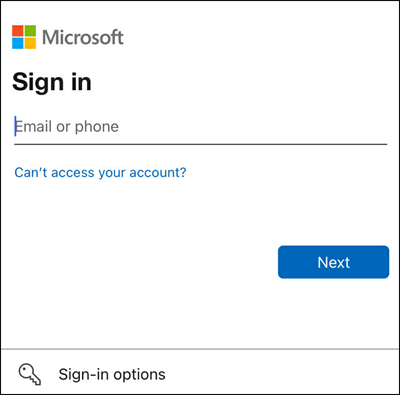
Select Add work or school. The Microsoft sign in screen opens.
-
Enter your "ttecloud.com" email address.
-
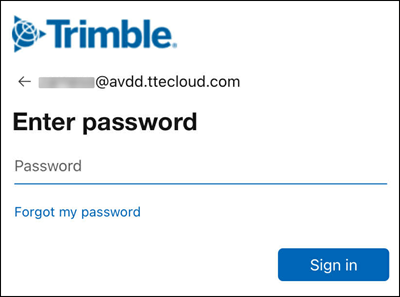
Select Next. The password entry screen opens.
-
Enter your password.
-
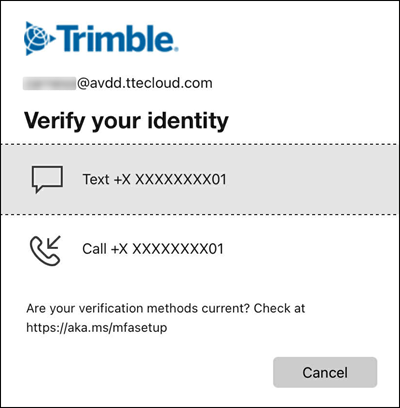
Select Sign in. A prompt to verify your identity opens.
-
Select an identity verification method.
-
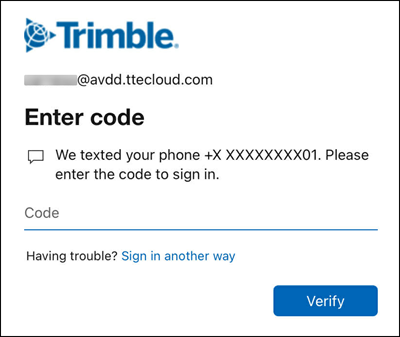
Enter the code provided via text or call.
-
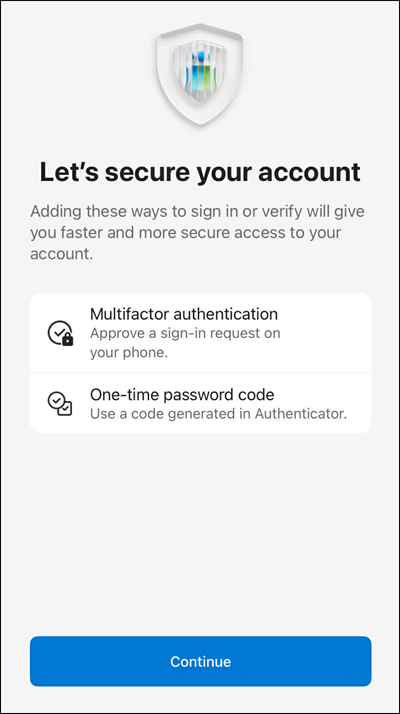
Select Verify. A security prompt opens.
-
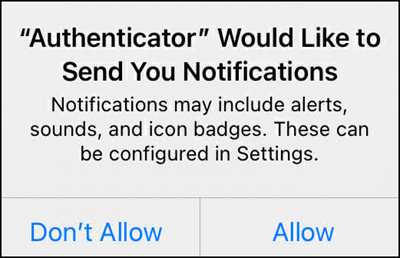
Select Continue. A prompt to allow Microsoft Authenticator to send you notifications opens.
-
Select Allow.
-
On your workstation, select Next. A page with a QR code opens.
-
Use the camera on your mobile device to scan the QR code.
-
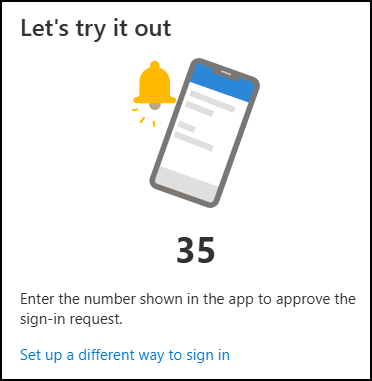
On your workstation, select Next. A verification number appears.
-
On your mobile device, enter the verification number and then select Yes.
-
Select Done on your workstation.