Find a rest stop while driving
|
This feature is available in CoPilot 11.2.0.930 or later for enterprise customers who can set configuration options in CoPilot. |
A Break button can be added to the CoPilot navigation screen, allowing a driver to quickly search for a nearby rest stop with minimal distraction. This feature is turned off by default and must be enabled in the configuration settings.
Select a rest stop
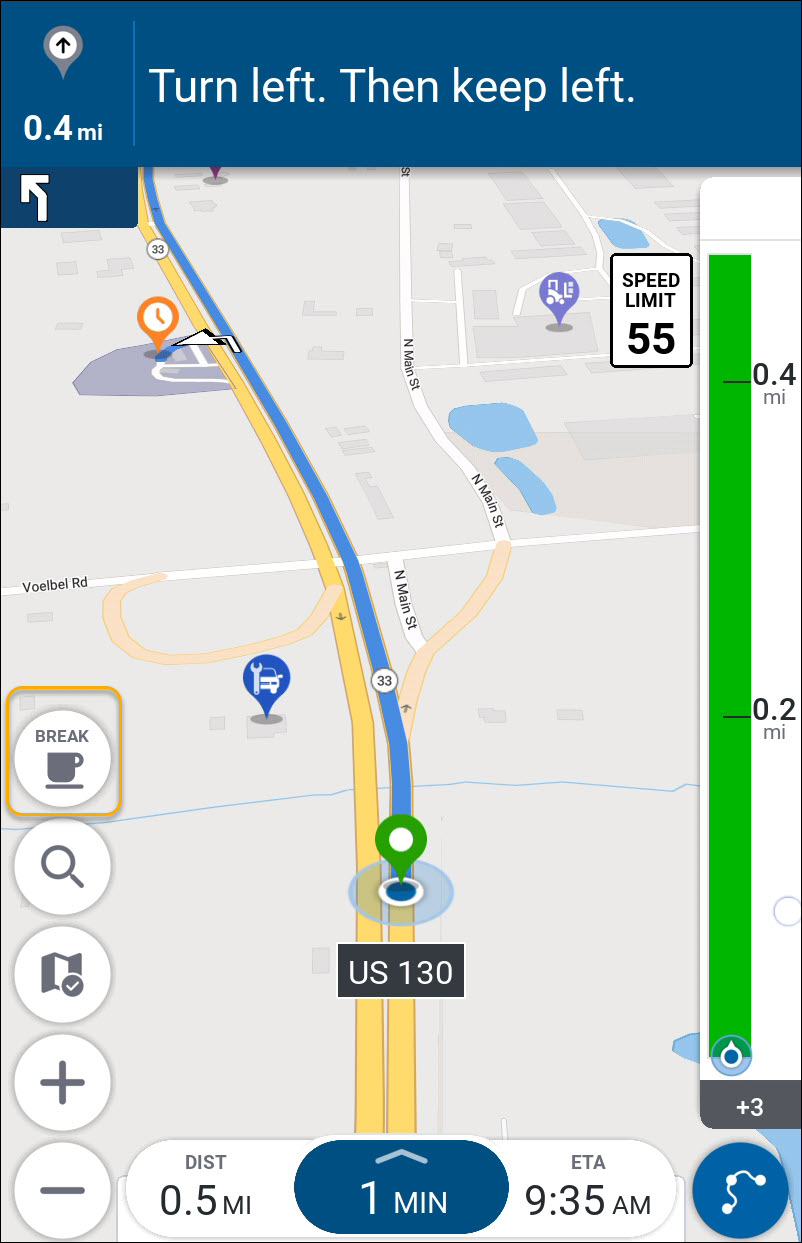
With the feature turned on, a Break button appears on the navigation screen. To find a rest stop:
-
Tap the Break button. CoPilot searches for rest stops, truck stops, or truck services along the current route. If your fleet has custom places in ContentTools, each location marked in ContentTools as Approved CoPilot Break Location is also included in the search. (See Company approved locations below).
-
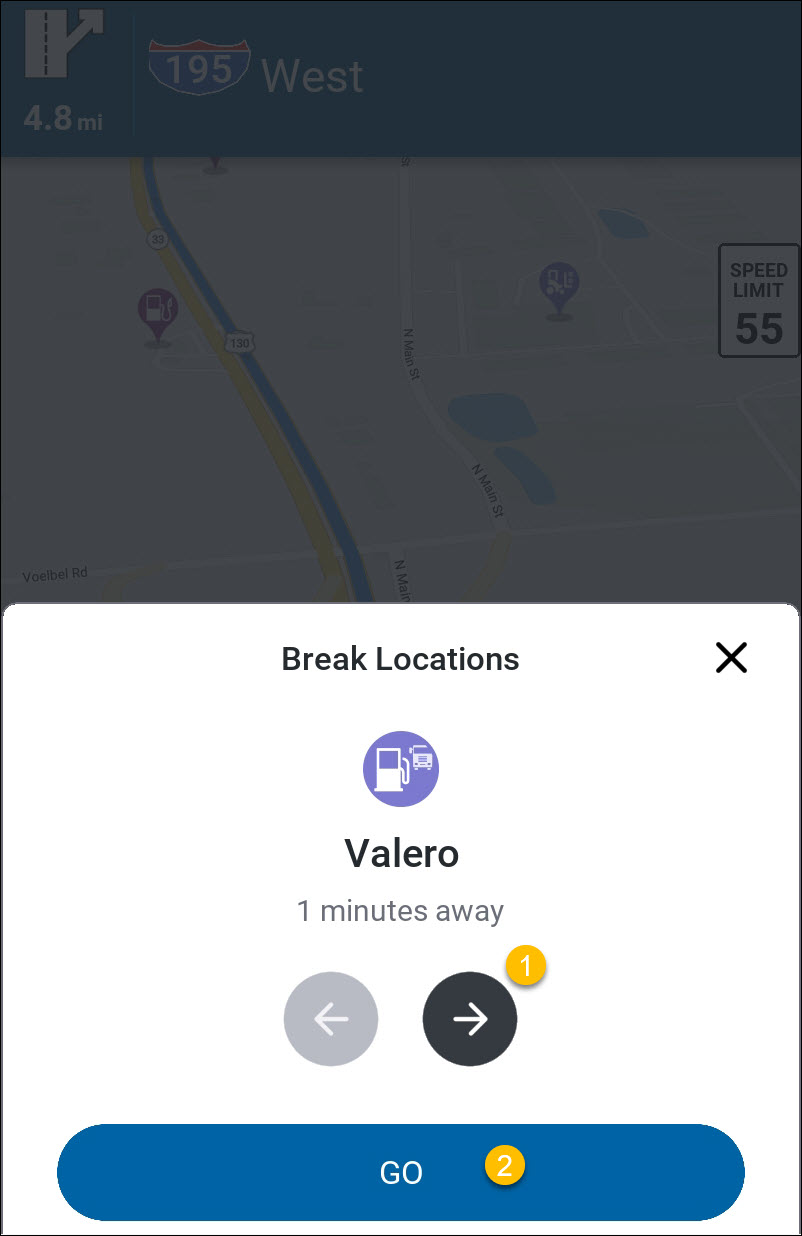
A Break Locations pop-up screen opens, showing the nearest rest stops along your current route.
-
Tap the arrow (1) to see more options. Tap Go (2) to navigate to the selected rest stop.
-
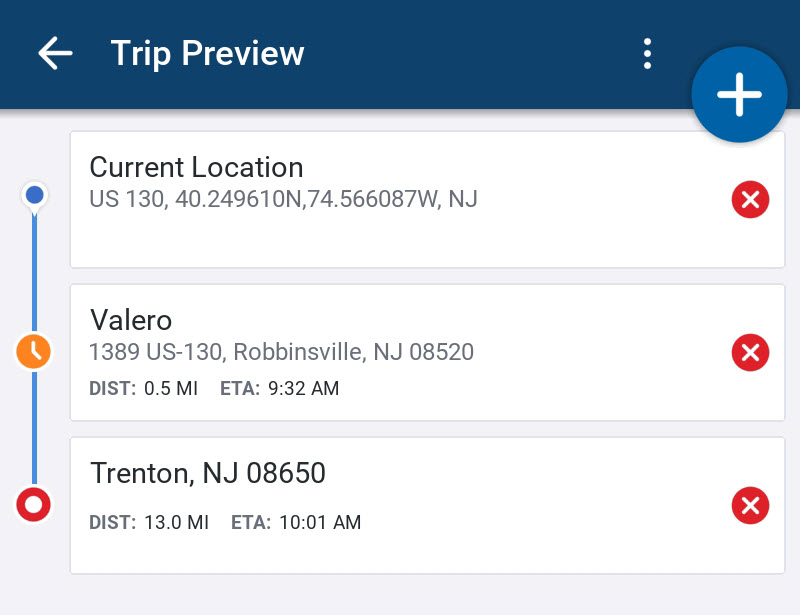
The rest stop is added as the next stop on your current route.
Hours of Service display
If your CoPilot workflow includes Hours of Service (HOS) tracking, the Break feature also displays the time remaining before your next required break. This information is based on your HOS settings and driving activity.

Company approved locations
A Custom Place from ContentTools is included in the Break feature search results if it is marked as an Approved CoPilot Break Location. This setting allows fleet managers to control which places appear as break locations for drivers.
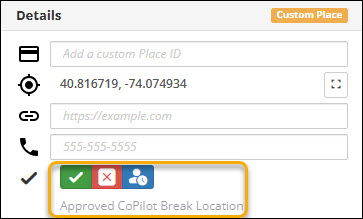
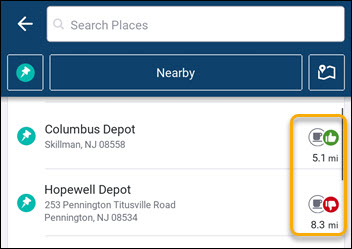
When you are planning a trip, CoPilot displays a Place’s break approval status with a thumbs-up or a thumbs-down icon.