Price Tables
You use price tables to create pricing structures for different situations. You can create as many price tables as you need.
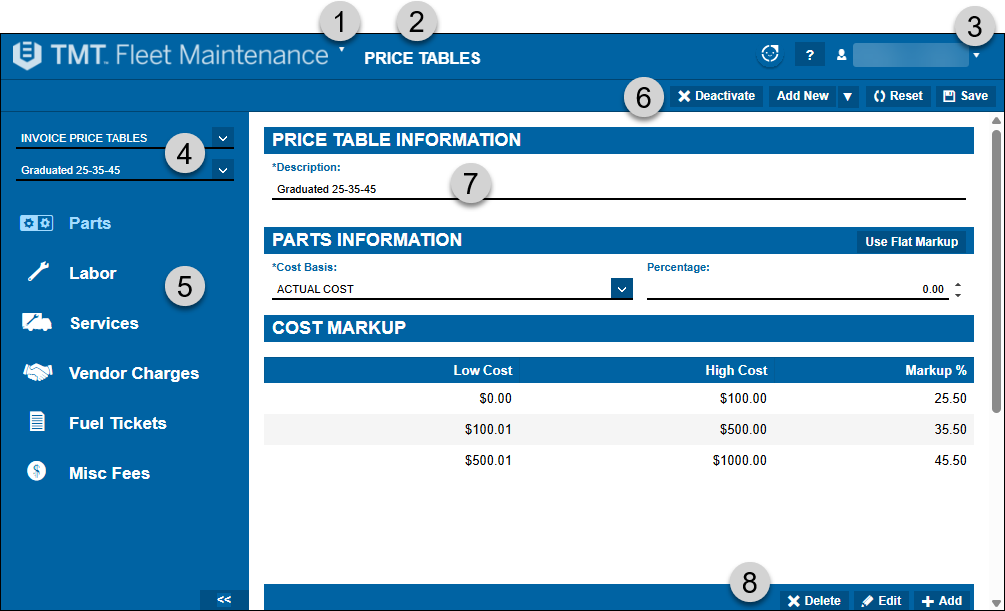
To open the Price Tables page, go to Menu > Setup > Order Setup > Price Tables. For versions earlier than V. 2020.2, go to Menu > Setup > Price Tables.
-
Menu: Lists application menu options
-
Page title
-
User menu: Lists user-specific menu options
-
Price table selection fields: These two fields uniquely identify each price table and the options they control. You must select an option for each field.
-
Price Table Type: There are three types:
-
Claims: Used to submit warranty claims for reimbursement.
-
Invoice: Used to bill customers for services provided.
-
Repair Cost: Used to set automatic markup for shop supplies and burden costs on repair orders. This lets shops automatically add a fee line based on parts, labor, or service costs.
-
-
Price Tables: A list of available price tables. The list changes based on which Price Table Type you select.
-
-
Navigation pane: These tabs let you open the different areas of the selected price table and add or edit them:
-
Parts tab: Only available for Claims and Invoice price tables.
-
Labor tab: Only available for Claims and Invoice price tables.
-
Services tab: Only available for Claims and Invoice price tables.
-
Vendor Charges tab: Only available for Invoice price tables.
-
Fuel Tickets tab: Only available for Invoice price tables.
-
Misc Fees tab: Only available for Invoice and Repair Cost price tables.
-
-
Price Table command buttons: Lets you Deactivate, Add New, Reset, and Save price tables
-
Function area: Where you enter information into the system
-
Section command buttons: Lets you Delete, Edit, or Add a part of a price table. For example, if you have an invoice price table selected, and you are on the Parts tab, you can use these buttons to add, edit, or delete a cost or component markup.
Parts tab
Use this tab to set up the parts pricing structure. The tab page has four sections:
Parts Information section
The Parts Information section includes details about the base cost, the markup percentage, and how the system marks up the line items.
Required field: *
| Field | Definition |
|---|---|
Cost Basis * |
Identifies the base cost before any markup is applied Default options:
Your company can create additional options as needed. For details on creating other options, see Working with Codekeys. You modify the Price Categories group in the Codes section. If a shop inventory part has that category set up on the Prices tab, the price gets marked up based on that category. |
Percentage |
Markup percentage To enable this field, you must select Use Flat Markup. Otherwise, you specify markup amounts based on the values in the Cost Markup and Component Markup sections. Note: If you leave this field blank, the system uses zero (0) by default. If this field is zero (0), no markup will be applied. |
Use Flat Markup |
If selected:
|
Cost markup section
The Cost Markup section includes details on cost markup ranges. You identify a low cost and a high cost, and then you identify a markup percentage for that range.
|
This section is inactive if the Use Flat Markup feature is active. Select Use Flat Markup in the Parts Information section to disable that feature. If you add a component code markup, it overrides the values in this section. |
Field descriptions
| Field | Definition |
|---|---|
Low Cost |
Low cost of the cost markup matrix range |
High Cost |
High cost of the cost markup matrix range |
Markup % |
Markup percentage |
Component markup section
The Component Markup section includes details on individual component cost markups.
|
Field descriptions
| Field | Definition |
|---|---|
Component |
Component code assigned to an item |
Markup % |
Markup percentage |
Labor tab
Use this tab to set up the labor pricing structure. The tab page has four sections:
-
Price Table Information section: This section is the same as on the Parts tab.
-
Cost markup section: This section is the same as on the Parts tab.
-
Component markup section: This section is the same as on the Parts tab.
Labor Information section
The Labor Information section includes details about the base cost, minimum number of labor hours, and the markup percentage.
Field definitions
Required field: *
| Field | Definition |
|---|---|
Cost Basis* * |
Identifies the base cost before any markup is applied Default options:
Your company can create additional options as needed. For details on creating other options, see Pay Grades. You modify the Price Categories group in the Codes section. |
Min Labor Hours |
Minimum number of labor hours charged to repair orders Note: If a repair order has less than the minimum labor hours, the value in this field is applied to the order. |
Percentage |
Markup percentage To enable this field, you must select Use Flat Markup. Otherwise, you specify markup amounts based on the values in the Cost Markup and Component Markup sections. Note: If 0 is entered in the percentage field, there will be no markup on the selected item type. |
Services tab
Use this tab to set up the non-vendor service line pricing structure. The tab page has four sections:
-
Price Table Information section: This section is the same as on the Parts tab.
-
Cost markup section: This section is the same as on the Parts tab.
-
Component markup section: This section is the same as on the Parts tab.
Services Information section
Field definitions
Required field: *
| Field | Definition |
|---|---|
Cost Basis * |
Select an option from the dropdown list. The options available depend on your system setup. |
Percentage |
Enter a percentage value, or use the up and down arrows to scroll to a value. |
Your company determines how non-vendor service lines function by modifying the application option [Repairs] Allow Non-vendor Service Lines On Orders.
Vendor Charges tab
Use this tab to set up the vendor charges pricing structure. The tab page has four sections:
-
Price Table Information section: This section is the same as on the Parts tab.
-
Cost markup section: This section is the same as on the Parts tab.
-
Component markup section: This section is the same as on the Parts tab.
Fuel Tickets tab
Use this tab to set up the fuel ticket pricing structure. The tab page has four sections:
-
Price Table Information section: This section is the same as on the Parts tab.
-
Cost markup section: This section is the same as on the Parts tab.
-
Component markup section: This section is the same as on the Parts tab.
===Fuel Tickets Information section
Field definitions
Required field: *
| Field | Definition |
|---|---|
Cost Basis * |
Select an option from the dropdown list. The options available depend on your system setup. |
Percentage |
Enter a percentage value, or use the up and down arrows to scroll to a value. |
Misc Fees tab
Use this tab to set up invoice fees. The tab page has three sections:
-
Price Table Information section: This section is the same as on the Parts tab.
|
This tab is available on invoice and repair cost price tables only. |
Misc Fees Information section
The Misc Fees Information section includes details about miscellaneous fees.
Field definitions
Required field: *
| Field | Definition |
|---|---|
Charge Category * |
Fee type/category Note: You must set up the fee charge category before creating miscellaneous fee charge types. For details, see Tax Rates and Fees. |
Description * |
Fee description This description appears on the invoice. |
Taxable |
Determines if the fee is taxable
|
Fee calculation section
The Fee Calculation section includes details about the markup percentage or flat fee, minimum/maximum amounts, and how the fee is calculated.
There are two methods for calculating fees:
-
Percentage: If you select Percentage, the Percentage, Min Amount, and Max Amount fields are editable. The Flat Fee field is unavailable. The system uses a percentage to calculate fees on parts, labor, and/or services.
-
Flat Fee: If you select Flat Fee, only the Flat Fee field is editable. The Percentage, the Min Amount, and the Max Amount fields are unavailable. The system uses a flat fee on parts, labor, and/or services.
Field definitions
| Field | Definition |
|---|---|
Percentage |
Fee percentage |
Min Amount |
Minimum fee amount Specify the minimum amount required for the system to apply the fee on a repair order invoice. |
Max Amount |
Maximum fee amount Specify the maximum amount a fee will apply to a repair order invoice. |
Calculate on Parts? |
Toggle this option to YES if the fee applies to parts |
Calculate on Labor? |
Toggle this option to YES if the fee applies to labor |
Calculate on Services? |
Toggle this option to YES if the fee applies to service lines |
Flat Fee |
Fee amount If you leave the filed blank or enter 0.00, the system does not charge a fee. |