Vehicle Routing Profiles
A Vehicle Routing Profile is a collection of settings that ensure CoPilot’s routing algorithm knows the type of vehicle being driven so it can apply all legal and physical road restrictions when generating the route. Routing Profiles also include customizable settings that take into account a fleet’s preferences for how a vehicle should be routed.
Account Manager comes with a wide selection of default routing profiles, which are based on the most common types of commercial vehicles on the road, in various regions of the world. If you need something more custom, you can create your own profiles to fit your fleet’s vehicles and routing preferences.
To create a Vehicle Routing Profile:
Step 1: Name your profile
-
Select Vehicle Routing Profiles in the Configure Fleet Settings menu on the left. The Vehicle Routing Profiles screen loads. Saved routing profiles are listed here.
-
Select the Create Vehicle Routing Profile button at the top right of the screen.

-
The New Vehicle Routing Profile dialog loads. Enter a name in the Vehicle Routing Profile Name field. Note that this profile name will be visible to the driver in CoPilot. We recommend using a unique name to make it easier for the driver to select the correct profile.
-
Click the Save button. The New Vehicle Routing Profile screen loads.
Step 2: Select a vehicle type and dimensions
-
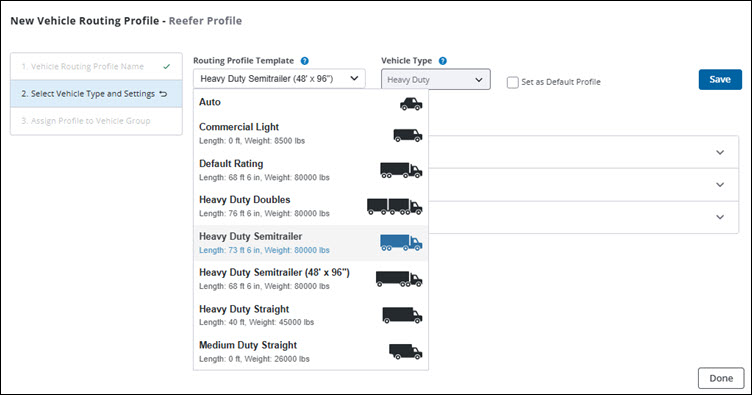
Expand the Route Profile Template drop-down menu to select the general type of vehicle. This is the starting point for your new profile, and your selection automatically populates the Vehicle Type field.
-
Under Profile Settings, expand the Vehicle Dimensions drop-down menu and edit the values as needed. See Routing profile settings for a description of each setting.
-
Check the box next to Set as Default Profile if you want this profile applied by default to every Vehicle Group created in the future and to any individual vehicles that are not assigned to a group.
Step 3: Select Routing Preferences and Restrictions
-
Expand the Routing Preferences drop-down menu.
-
Set the options appropriately for the routing profile. Options include routing type, ability to use toll roads and ferries, allowing border crossings, and more. See the table below for a description of each setting.
-
Select Restrictions to expand the restrictions drop-down menu.
-
Use the drop-down menus to choose the appropriate Hazmat designations, if any, and to enable or disable the Show Restrictions on Map setting. See Routing profile settings for a description of each setting.
-
Click the Save & Continue button.
Step 4: Assign your new profile to Vehicle Groups
-
Once you save your profile, the Assign Profile to Vehicle Group screen loads.
-
Select the checkbox next to each vehicle group you want to assign to the routing profile.
-
Click the Save button.
-
Click Done to complete the routing profile.
Routing profile settings
After selecting your vehicle in the Select Vehicle Profile drop-down, you can customize the preset Profile Settings. Choose the options grouped under Vehicle Dimensions, Routing Preferences and Restrictions.
| Vehicle Dimensions | Description |
|---|---|
Total Weight |
Weight of combined vehicle including trailer. Input the truck/tractor’s GVWR (gross vehicle weight rating) as authorities are concerned about GVWR and not the actual loaded weight. |
Max Weight per Axle Group |
Maximum weight per group of axles. (e.g. 34,000 lbs. for tandem axles) |
Trailer Count |
How many trailers are attached to the truck (0 for straight truck). When trailer count is greater than 0, Bumper to Bumper Length must be greater than Max Straight Length. When trailer count is 0, the two lengths must match. |
Maximum Width |
Maximum Width of combined vehicle including trailer. The industry standard limit for width is 102". Anything over 96" will force routing on the National Network + State Extensions to be legal in the U.S. The groupings should be 102" or 96", lower widths will not impact routing. |
Maximum Height |
Maximum Height of combined vehicle including trailer. The industry standard limit for height is 13'6". To simplify the creation of profiles, please note that every 6" is significant. For example, all trailers at 12'1", 12'3", 12'6" should be assigned a profile with 12'6". |
Max Straight Length (previously called Total Length) |
The length of the longest single unit of your vehicle, such as the trailer in a tractor/trailer combination. It is used to determine if you can fit on roads with straight length turn restrictions. (This is the same as the previous Total Length setting, but renamed for clarity.) |
Bumper to Bumper Length (Contact us to add this feature to your account. North America only.) |
The total length of your vehicle from the front bumper to the rear bumper, including any trailers or additional units, and gaps between them. It is used to determine if you can fit on roads with overall length restrictions. |
State + National Network |
(U.S. Only) Check to set whether routes should favor using the U.S. Federally designated National Network. Note: By default this checkbox will be selected automatically based on vehicle dimensions. |
| Routing Preferences | Description |
|---|---|
Routing Type |
Set the CoPilot routing algorithm - Practical or Shortest. Note: Practical will generate a route on CoPilot with an effort to reduce the number of stops, turns and avoid traffic. Shortest will generate a route on CoPilot with the shortest distance but may take longer due to more stops, turns, and traffic. |
Toll Roads |
Set toll preference - Use, Avoid If Possible and Avoid Always. |
Ferries |
Allow or Discourage using Ferries along the route. |
Apply Governor Speed to ETAs |
Check the box to use a maximum road speed in route travel time calculations, and then enter a custom value or use the 55 mph default. |
Allow Intl. Border Crossing |
Uncheck to minimize the number of international border crossings, unless they are necessary to reach all of the stops on a route. For example, if all your stops are in the “lower 48” United States, the resulting route will stay in the United States even if the most practical or shortest route would normally involve some Canadian mileage. If you leave the box checked, the routing algorithm will ignore international boundaries in generating the best route. |
Discourage Elevation Routing Above |
Check the box and then enter an elevation in feet to set a customized limit on the elevation of the roads a route will use. Elevations at or above this height will be avoided on a route unless 1) it is extremely impractical to do so; or 2) a stop or destination on the route is located at the higher elevation. |
Side of Street Adherence |
How strict to be in order to avoid the destination being on the opposite side of the street. See Side of Street Routing. |
| Restrictions | Description |
|---|---|
Hazmat or Hazard Class (Contact us to add Hazard Class to your account. North America only.) |
Avoid roads with the selected Hazmat restrictions. |
Show Restrictions on Map |
Display road restrictions to Drivers in the CoPilot Navigation Screen. |
Transporting in Bulk |
Check if the vehicle is transporting in bulk to apply additional restrictions to the route. This setting is used for hazardous materials that are not in drums or other containers, such as liquids or gases in a tanker truck. |