Sound
You can change the sound-level settings in CoPilot directly in the app.
-
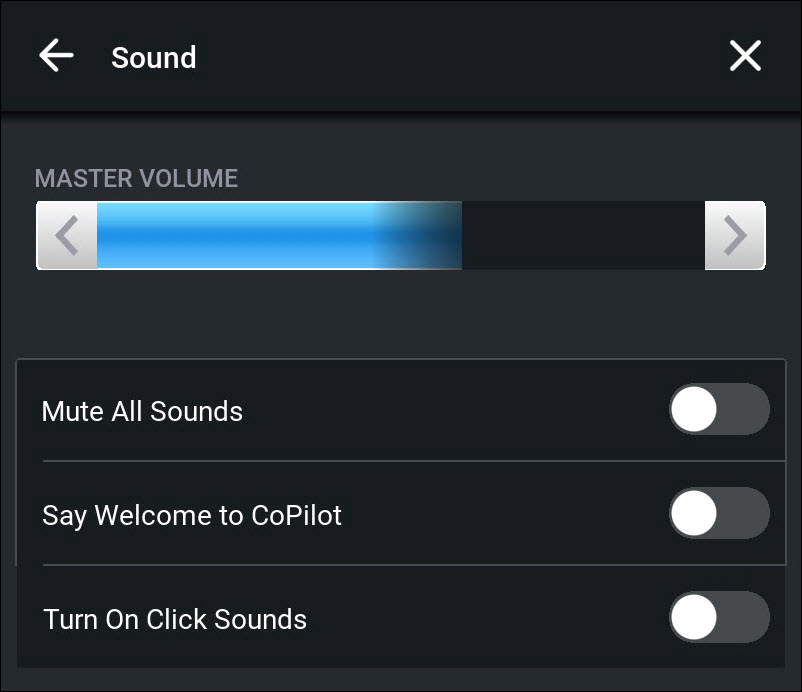
Go to Main Menu > Settings, and tap Sound. The Sound screen is displayed.
-
Tap the left and right arrows under MASTER VOLUME to adjust the sound for the entire app.
-
Tap Mute All Sounds to turn off all sounds in the app.
-
Tap Say Welcome to CoPilot to switch on the spoken introduction each time the app is opened.
-
Tap Turn on Click Sounds to switch on click sounds, which will be heard each time you tap a button in the app.
To change language settings, go to Settings > Regional & Voices.
Troubleshooting for no sound
Depending on where you start your trip, you may not hear CoPilot’s first voice instruction until you approach your first turn. You may also want to:
-
Check your device’s volume settings to be sure it is not set to silent mode.
-
Check your device’s Bluetooth settings. Your device may be connected to a second device that is transmitting sound from CoPilot. (That device may or may not have its sound turned on.)
-
Check your device’s TTS (text-to-speech) settings.
-
Some Samsung devices limit the ways third-party (non-Samsung) applications, including CoPilot, can access the native Samsung TTS engine. In this case, you may need to select a different TTS engine, such as Google TTS in order to hear CoPilot’s voice instructions. Go to your device’s settings and search for "text-to-speech" or "TTS" settings, and select Google or another option.
-
If you don’t have another TTS engine installed, you can download Google TTS from the Google Play Store.
-