CoPilot App UI Editor
| This feature is currently in Beta testing. Contact us if you would like to be included in the test before it is made available to all users in a future release. |
The CoPilot App UI Editor lets you turn on or off the display of more than a dozen features in CoPilot, including the traffic bar, speed and truck warnings, and map displays and alerts. You can preview how your customizations will look on tablets and smartphones in landscape and portrait mode before deploying changes to your fleet’s devices.
To access the CoPilot App UI Editor, go to the Configure Fleet Settings tab in Account Manager and select CoPilot App UI Editor from the menu.
To customize:
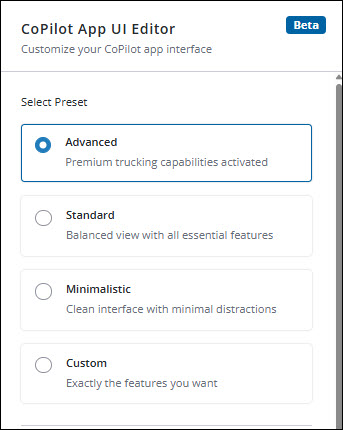
Step 1: Select Preset features
The Preset dialog box displays a list of preset feature combinations that you can select to quickly customize the CoPilot app. For example, you can select the Advanced preset to turn on all features, or the Minimalistic preset to turn on only the most essential features. When you select a preset, the features included in that preset will be toggled on or off accordingly in the editor.
Step 2: Toggle individual UI components on or off
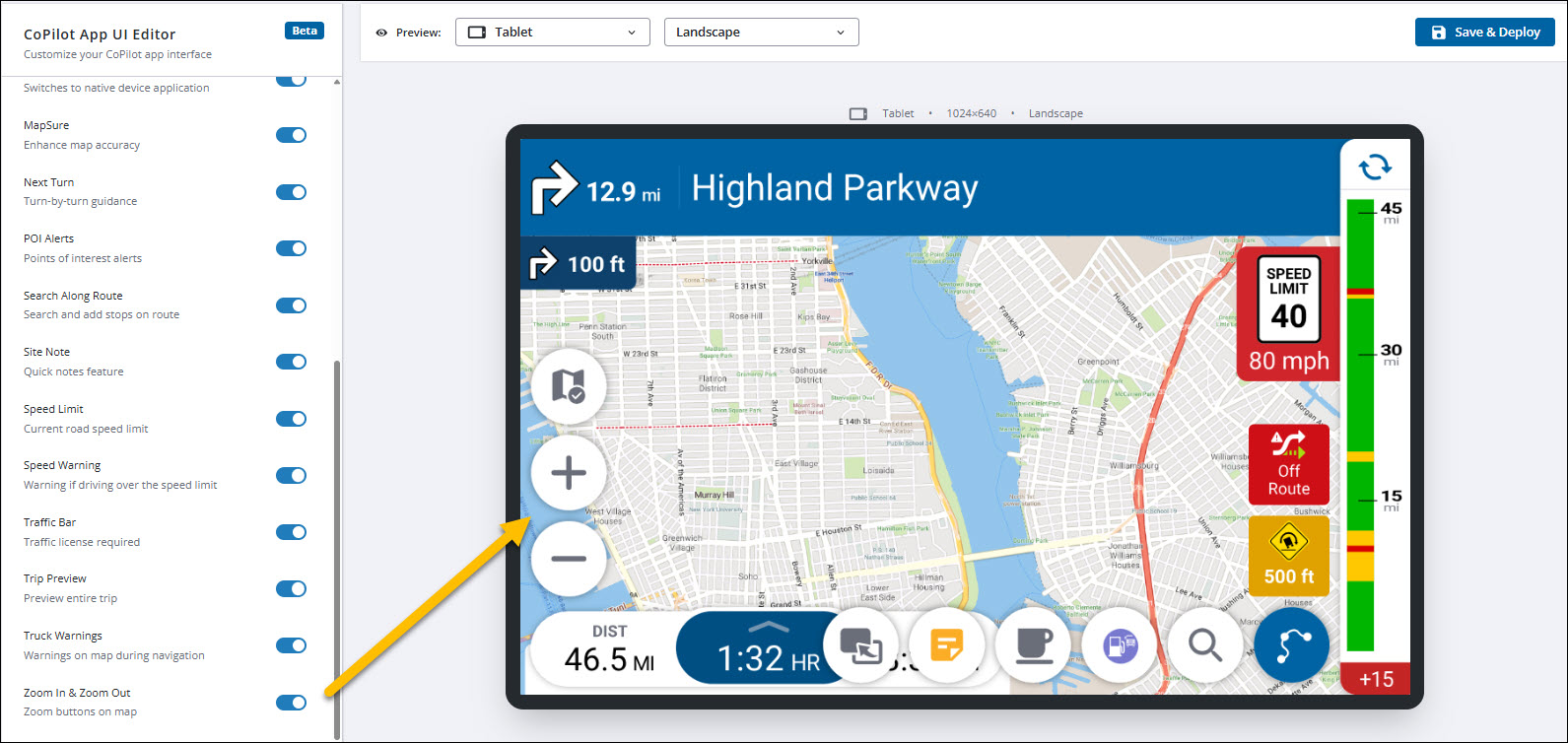
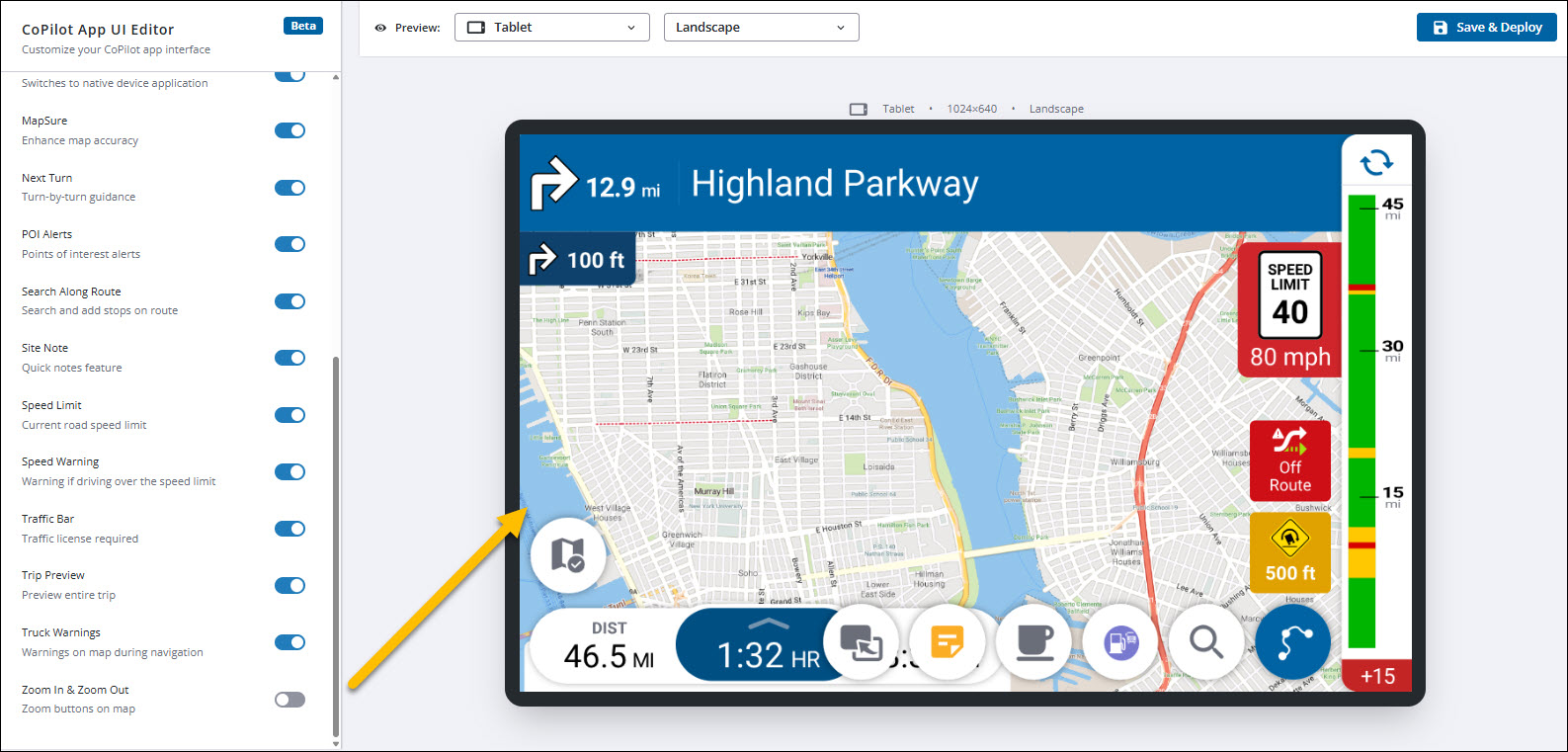
After selecting a preset, you can further customize the CoPilot app by toggling individual features on or off in the editor. The editor displays a list of features that you can toggle on or off for display in the CoPilot app. As you toggle features on or off, the preview pane on the right will update to show you how your customizations will look.
| This feature adds or removes user interface (UI) elements only. You may need to change underlying settings to turn off the feature linked to an element. For example, you will still receive audible speed warnings unless you toggle off Show speed warning or Receive audible speed warning under Settings > Safety Alerts & Warnings in CoPilot. |
Step 3: Preview on different devices and orientations
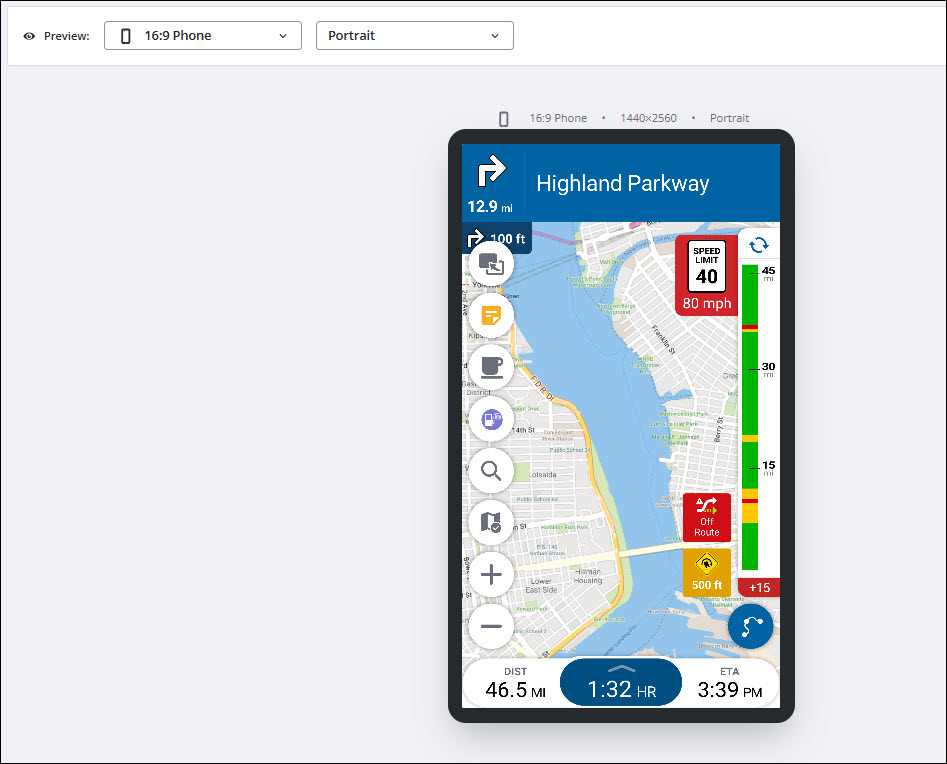
You can preview how your customizations will look on different devices and orientations using the preview pane on the right. Use the dropdown menu at the top of the Preview pane to select a device type (tablet or smartphone and width-to-height aspect ratio) and orientation (landscape or portrait). The preview will update to show you how your customizations will look on that device and orientation.
Step 4: Save and deploy your customizations
Select Save & Deploy to save your customizations. The Deploy CoPilot UI Configuration dialog box will appear, allowing you to select which Vehicle Groups your changes will be applied to. Select one or more Vehicle Groups and click Deploy to apply your customizations to the CoPilot app on the devices included in those groups.
Devices will need to restart CoPilot for the changes to take effect.