Copilot Update Schedule
| Contact us if you would like to have this feature enabled for your account. |
Upon launch and at regular intervals, CoPilot requests updates for data such as custom places, route modifiers (avoids and favors), and MapExact edits. If these updates contain a large amount of data, the driver might have to wait for the new data to download before they can start navigating.
The CoPilot Update Schedule feature allows you to create time windows during which updates can be sent to CoPilot. That way, CoPilot can request and implement the updates at times when it is not in use.
In Account Manager, select the Manage Account tab > CoPilot Update Schedule.
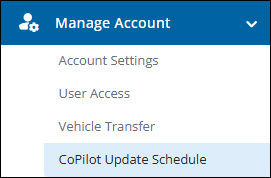
CoPilot Update Schedule screen
On the CoPilot Update Schedule screen, there are two ways you can select time windows for CoPilot updates:
-
Set a single time window for all updates.
-
Set individual windows for each type of update.
| Having no time windows (either for all or individual) means deployments occur whenever they are available. Setting at least one time window restricts deployments to that window only. To allow all updates, remove or disable all time windows. |
Set a single time window for all updates
This is the default setting, noted by the checkmark next to Use the same time window for all updates at the top of the CoPilot Update Schedule screen.
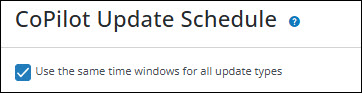
To select a time window:
-
Hover your cursor over the timeline at the spot where you want to start the time window. Two boxes appear on the timeline, noting start and end times.
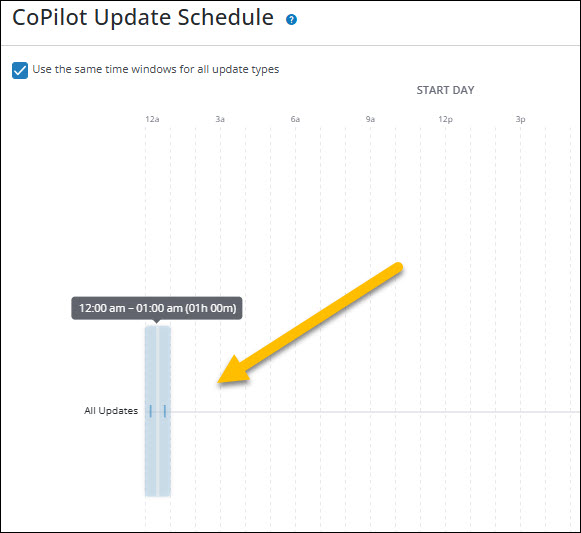
-
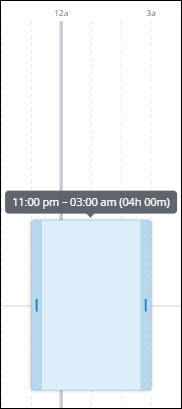
Click and drag the right box to set the time window for updates. When you release the box, the time window is noted by the shaded blue bar on the timeline. We recommend setting a time window of at least three hours to ensure that all updates can be downloaded and implemented during the window. Also, the window must be at a time when CoPilot is running in the foreground or background on the driver’s device, so that updates can be downloaded and implemented during the window.
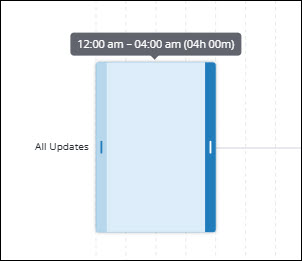
-
To adjust the time window, click and drag either box to change the start or end time. If your window extends past midnight, the box can cross the 12a line to the Next Day.
-
Select Save to save your changes. Once you save a time window, it will repeat every day at the same time until you change it.
| The timeline displays a 48-hour period, so you can set time windows that extend past midnight but still end within the next day. However, the maximum length of a time window is 24 hours. Once you set a time window, you will see grayed-out areas on the timeline where you cannot set a time window. |
Update a time window
To update a previously created time window, you can click and drag the boxes on the timeline to adjust the start and end times. You can also click and drag the shaded blue bar to move the entire time window to a different time slot. Click Save to save your changes.
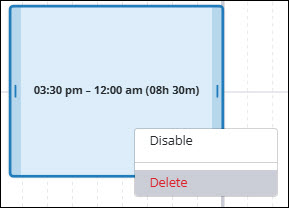
In addition, if you right click on a time window, you can:
-
Select Delete to remove the time window.
-
Select Disable to turn off the time window feature, but retain that window for future use. CoPilot will resume downloading updates at any time.
-
Select Save to save your changes.
Set a time window for each update type
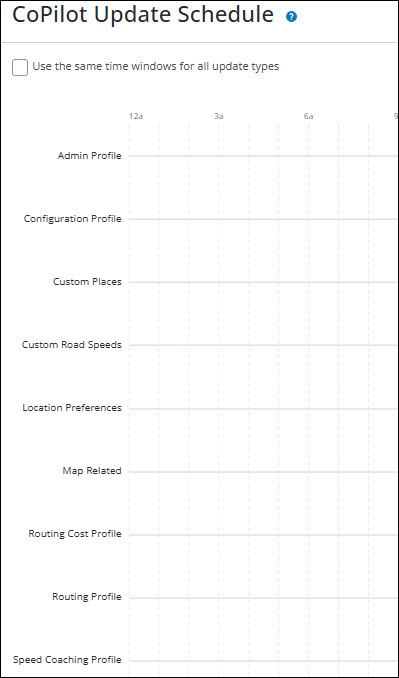
If you prefer to set different time windows for each type of update, you can uncheck the box next to Use the same time window for all updates at the top of the CoPilot Update Schedule screen. This will display a separate timeline for each type of update, where you can set individual time windows using the same click-and-drag method described above.
Update types
| Setting | Description |
|---|---|
Admin Profile |
Retrieves general admin settings for CoPilot. |
Configuration Profile |
Retrieves configuration settings created in Account Manager. |
Custom Places |
Retrieves custom places created in ContentTools. |
Custom Road Speeds |
Retrieves custom roads speeds, if any, used for ETA calculations. |
Location Preferences |
Retrieves general fleet preferences related to location. |
Map Related |
Retrieves map overrides, map sets, and route modifiers. |
Routing Cost Profile |
Retrieves custom routing costs profiles, if any, used for route calculations. |
Routing Profile |
Retrieves routing profiles created in Account Manager. |
Speed Coaching Profile |
Retrieves speed coaching profiles, used to track driver performance, created in Account Manager. |
Warning
You will receive a warning message if you create a deployment window that is shorter than the Fleet Sync Interval set in any of your fleet’s Configuration Profiles. The sync interval is the frequency at which CoPilot checks for updates. If the deployment window is shorter than the sync interval, there is a risk that some devices might not get an update at all during this deployment window.