Step 3: Install CoPilot and activate it
Now that you have assigned licenses and settings to your assets in Account Manager, the next step is to install the CoPilot app on the devices your drivers will use for navigation, and then activate those licenses.
CoPilot can be installed either on:
-
A company device. (If you are installing CoPilot through an in-cab ELD telematics or ELD (Electronic Logging Device), please refer to the manufacturer’s instructions for downloading and installing apps on the device.)
-
A driver’s personal device.
Step A: Install the app
Ways to install the CoPilot app on a device:
-
Download from your app store: Get the CoPilot GPS Navigation app from Google Play Store or Apple App Store.
-
Use a Mobile Device Management (MDM) solution: If your company uses an MDM to manage apps on company devices, you can deploy the CoPilot app through your MDM. The CoPilot app and map data is are available in the CoPilot partner portal. Contact your Trimble representative for more information about accessing the CoPilot partner portal.
Step B: Activate licenses on devices
To activate a license on the device, you’ll need an Asset ID (also called Username or Vehicle ID) and a Trimble-issued Company ID. Choose the method that best fits your deployment model:
-
You can provide login credentials (Asset ID and Company ID) to the driver, who can then log in to the app using those credentials.
-
You can send the driver an email invitation to join your company account. The driver can then follow the instructions in the email to log in to the app and activate their license.
-
You can send the driver an SMS (text message) with instructions to log in to the app and activate their license.
-
If you are using CoPilot through an ELD or telematics provider, the provider may integrate the method for activating licenses on devices. Check with your provider for details.
When the driver logs in, CoPilot will check for an active license assigned to that asset. If a license is available, it will be activated for that device and the driver can start using CoPilot.
SDK and CPIK Integration
If you are integrating with CoPilot using the SDK app or CPIK Libraries, you can use the APIs or URL scheme to activate licenses on devices. For more information, refer to the CoPilot SDK and CPI documentation or contact your Trimble representative.
Step C: Verify activated licenses
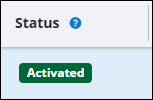
In Account Manager, confirm whether an asset has installed CoPilot by checking for the Activated tag next to the asset’s information. (If the asset has not installed the app, that column will read Assigned.)
Web traffic allow-listing
If your company allow-lists only certain domains for in/outbound web traffic, the Account Manager domain, accounts-api.trimblemaps.com must be allow-listed in order for CoPilot to reach our servers for license activation and renewal.
|
For a full list of CoPilot URLs we recommend that you allow-list, visit here.