Fuel Dispatch Shift Optimization
First available in Fuel Dispatch: V.2025.8
The Shift Optimization feature streamlines and automates the assignment of driver shifts in the Fuel Dispatch application, ensuring efficient use of driver resources. The feature provides these benefits:
-
Maximize Efficiency: Ensure the most effective use of all delivery assets within a given shift.
-
Minimize Delivery Time: Reduce overall delivery time to maximize the number of orders delivered on a shift.
-
Cost Reduction: Limit redundant routes and reduce fuel consumption.
-
Balanced Workload: evenly distribute orders among available assets.
The Shift Optimization feature has been integrated with the Card Planner in the Fuel Dispatch application.
Using Shift Optimization
To begin using the Shift Optimization feature follow these steps:
-
Complete any outstanding orders that were delivered on the previous shift and prepare to start the next shift.
-
Go to Application > Card Planner and select the date/shift to schedule.
-
Assign orders manually that need to be placed on specific assets.
-
Select the Optimize button at the top of the window.
A Confirmation window will display to confirm the amount of orders to be optimized.
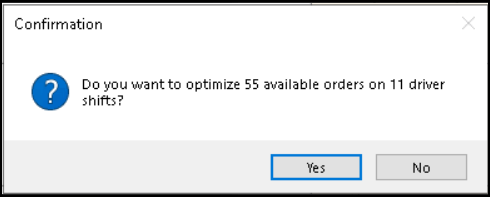
Select Yes to proceed or No to cancel.
If yes, orders are sent to and optimized through Wise Optimization.
An Optimization Request Submitted confirmation window will display.
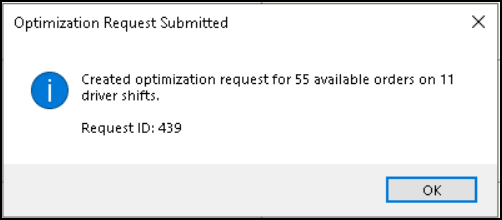
Select OK
The orders are processed for optimization.
See Reviewing Optimized Orders for more details.
An Optimization complete. Refresh for results notification link will display at the top of the window once orders are returned.

-
Review the orders and ensure they are suitable for delivery.
-
Select the Overflow tab to verify any orders that were not planned/scheduled.
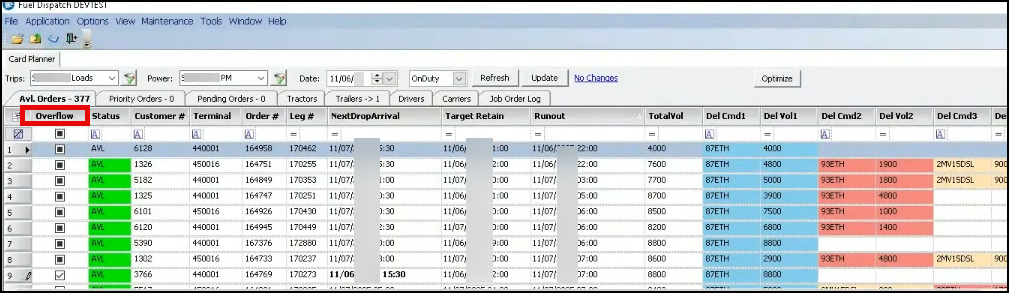
Determine if the orders need to be planned on that shift.
-
If Yes: Move orders around and schedule orders the optimizer could not assign
-
If No: Move AVL loads and plan on the next shift
-
Select the Save button.
Reviewing Optimized orders
Once you have selected the Optimize button, an Optimization Pending link will display at the top of the window.
Select the link to open the Optimization Request Status window.
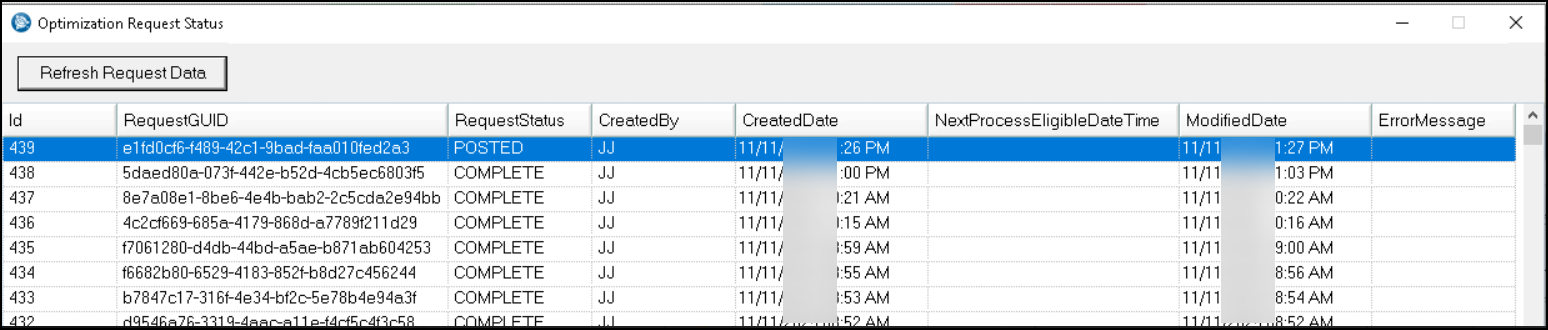
In this window you can review the request status and confirm if a request was submitted, completed or if an error occurred during processing.
Removing bulk orders
In the Card Planner, you can remove orders from a shift, driver(s) and or remove All planned trips with the right-click menu option Remove Planned Trips.
For instructions on how to use this feature, see Using Bulk Removal of orders