Cargo-level 309 EDI transactions
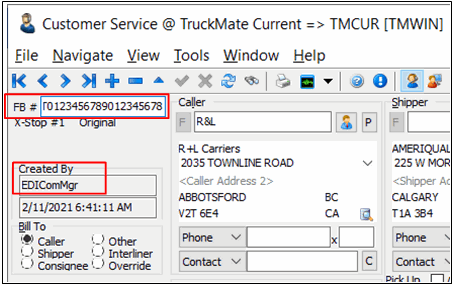
A cargo-level 309 EDI transaction can be sent to the Canada Border Services Agency (CBSA) as soon as a bill is created. This allows you to verify the shipment will clear customs and be ready to load onto a northbound linehaul trailer.
There are several features in eManifest and other TruckMate programs to support shipment-based manifests.
309 EDI transactions to CBSA
Previously, sending cross-border customs EDI (309) was only trip-based. Now, shipment-based manifests (manifests with no trip number) are allowed. The process can be started with freight bill creation in Customer Service or EDI. Full automation can be achieved with custom code.
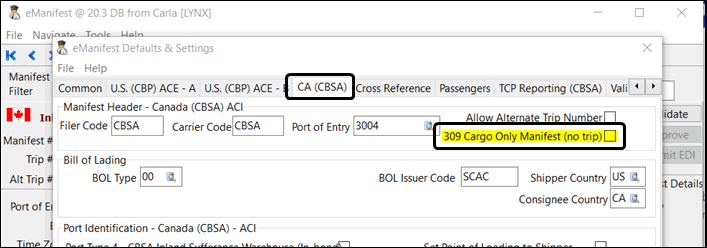
To support a cargo-only manifest, the 309 Cargo Only Manifest (no trip) checkbox must be selected in the ACE eManifest application. This option is on the Tools > Defaults > CA (CBSA) tab.
EDI 309 output file support
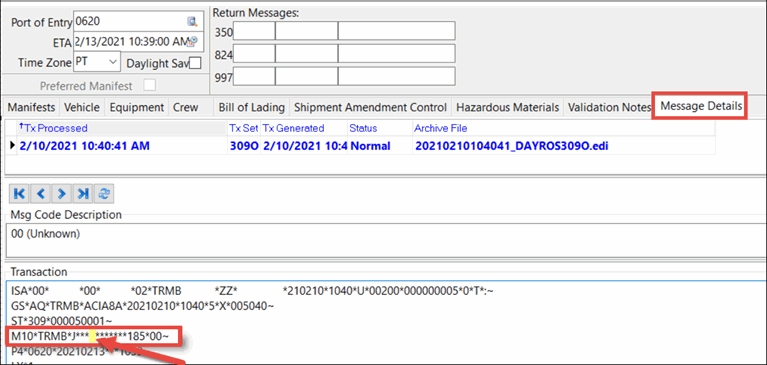
In eManifest you can validate, approve, and submit a record as an EDI 309 output file to the CBSA. Note that this feature is limited to CBSA (from the United States to Canada, not the other way around).
In this example illustration, a user summited an EDI 309 outbound to CBSA. In the EDI file, the highlighted blank space is where the trip number would be for a trip-based manifest. CBSA should accept this blank space as a shipment manifest (cargo only, not on trip).
Review status filter and validation tab
There is a status filter called <REVIEW> in eManifest. This filter shows all the manifests that have had errors or been rejected. This allows them to be easily reviewed, edited, or re-submitted.
There is a Validation tab in the eManifest Defaults & Settings window in eManifest.
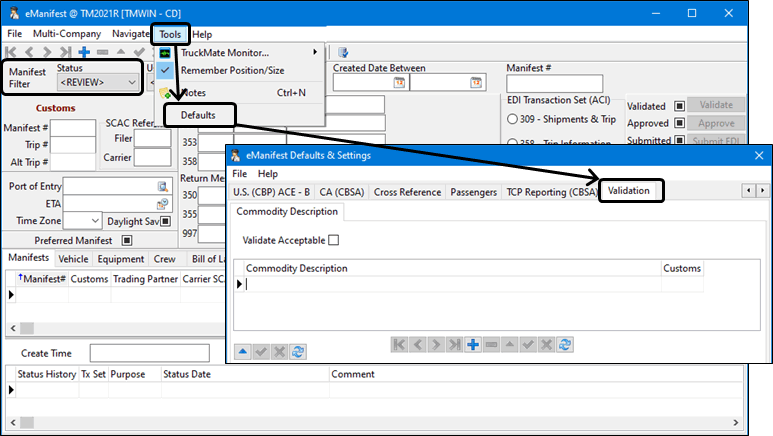
On this tab, you can enter acceptable or unacceptable commodity descriptions for the CBSA (and U.S. Customs and Border Protection, if applicable). For example, CBSA publishes its list of acceptable and unacceptable commodity descriptions.
You can also allow or restrict a commodity description during the eManifest record validation process by selecting or clearing the Validate Acceptable checkbox.
View Freight Bill option
There is a View Freight Bill shortcut menu option on the Bill of Lading tab in eManifest. This provides a quick way to view a freight bill’s details in Customer Service. You can also double-click the freight bill number in the Bill # field to open Customer Service.
Validation status codes
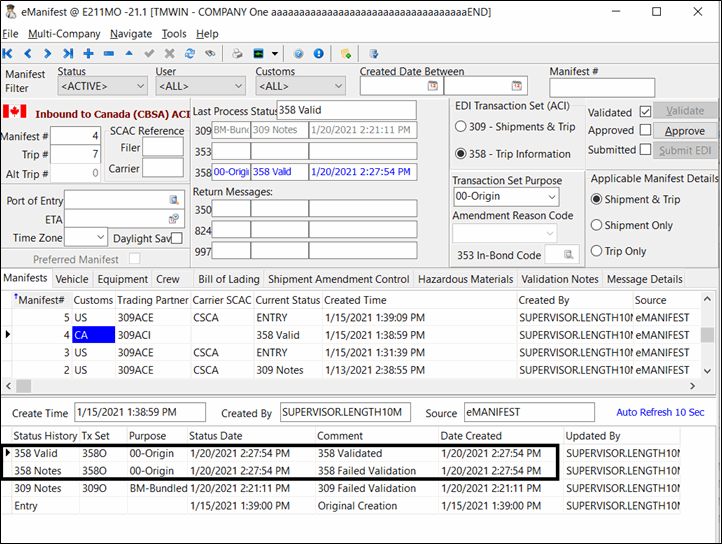
When validation fails, Failed Validation status codes display on the Manifests tab’s details grid.
Dispatch and Multi Mode Dispatch
eManifest options on the Trip Summary tab
There is an eManifest option on the Trip Summary tab in Multi Mode Dispatch. Select this option to create a trip-based eManifest record. This option is only enabled if the Customs License 49000 is installed.

Select eManifest to see if the trip number passed from the Trip # field has any manifests associated to it. If there is only one manifest, then the eManifest application opens and shows that manifest. If there are multiple manifests associated to the trip, the Select Manifest window opens. When you select one of the manifests, eManifest will open and display the selected manifest.
eManifest shortcut menu option
You can create an eManifest record from Dispatch and Multi Mode Dispatch. The eManifest option is available in Dispatch on the Freight Bills and Trips grids. It is available in Multi Mode Dispatch on any of the three Freight sub-tabs.
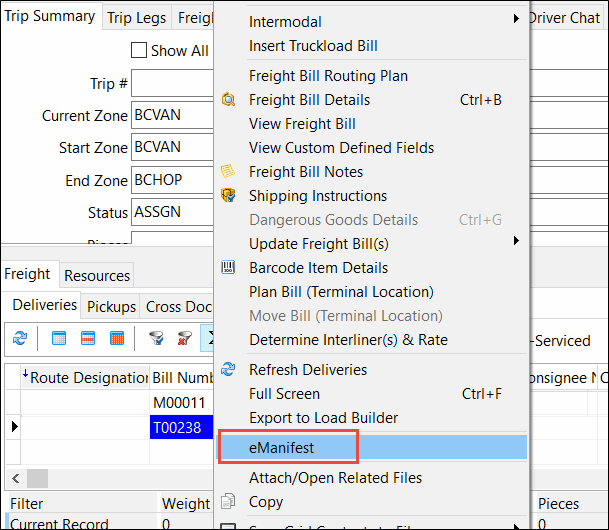
When you select this option, eManifest opens and does one of the following:
-
Creates a new eManifest record.
-
Opens a previously generated eManifest record.
Customer Service
There is an eManifest option on the Customs tab in Customer Service. This option is only enabled if you have the Customs License 49000 installed.
Once a customs record has been created, you can select eManifest.
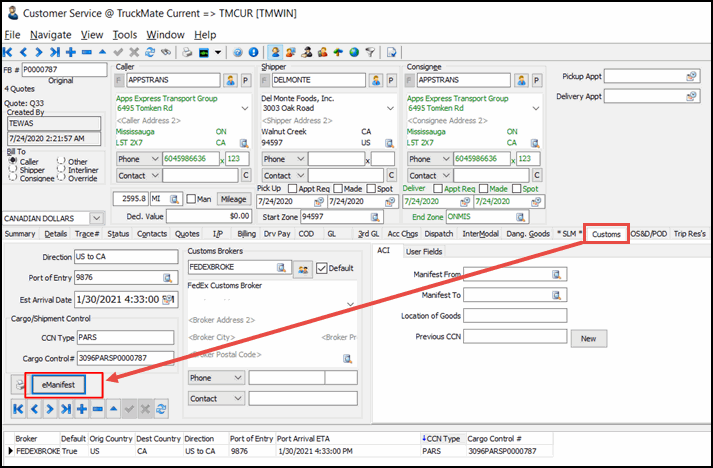
After this option is selected, the eManifest program opens and does one of the following:
-
Creates a new eManifest record.
-
Opens a previously generated eManifest record.
This only works if the freight bill is cross-border. TruckMate uses the country, province, and zone codes to determine if the freight bill is crossing the border.