LTL FB Split
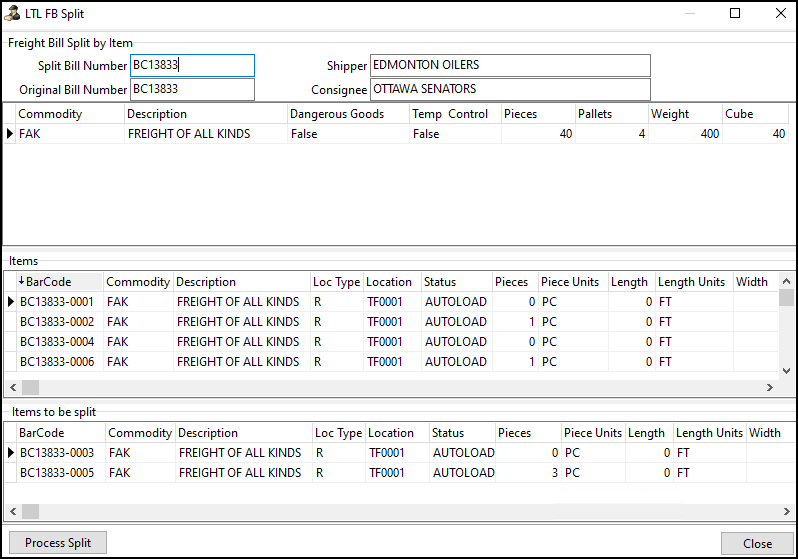
In LTL shipping, you may need to physically split up a single freight bill’s shipment. For example, you may need to split up a shipment when a trailer is near capacity. It can be difficult to keep track of the freight bill for the split items.
To manage this process, you can use the LTL FB Split/Merge function in Multi Mode Dispatch.
This tool lets you split a freight bill’s manifest in any quantity and makes it easy to track the split bills. Split bill numbers add an S1 and S2 to the original freight bill number. The split bills are created in a DOCKED status. You can see these bills:
-
On the Deliveries tab.
-
On the Cross Dock tab.
-
In Customer Service below the original freight bill number.
You can split a bill more than once. For example, you can split a freight bill by pallets and then again by pieces.
When you split a freight bill, its status is set to LOCKED. This means that no other processing on the freight bill can happen while it is split. The original bill’s status changes to DOCKED when the split bills are merged.
If the terminal plan of the parent bill is locked prior to splitting the bill, the terminal plans of the split bills are also locked. If the terminal plan of the parent bill is not locked prior to splitting the bill, the terminal plans of the split bills are also not locked.
Unlocked split bills can be re-routed to get them to their end destination. They can move using a different load plan option, or they can be routed to a non-planned terminal zone (if security settings allow). The split bills are independent and can be moved on different routes.
Once the split bills arrive in the same terminal and are merged together, they will be completed. On the parent bill, a terminal plan line item is created to represent the path from the terminal where the split occurred to the terminal where the merge occurred. In the system, this new record is marked as completed. This allows the freight bill to appear in the current terminal, ready to be moved again.
| If the Use Freight Bill Items for split application configuration option is set to True, you can only split a freight bill by the number of items assigned to the freight bill. |
This option is available:
-
In the shortcut menu on the Deliveries and Cross Dock freight tabs.
-
While loading or unloading freight. In the Trip Item Details window, select
 Split/Merge Bill.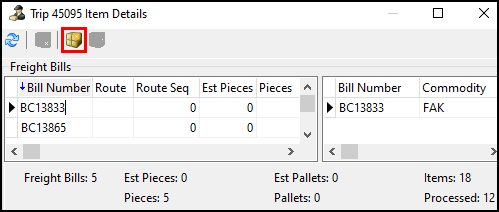
Freight bill split configuration options
There are several application configuration options that affect how freight bill splits work:
| Option | Description | Value |
|---|---|---|
MMDISP.EXE - FB Split Auto Merge |
Sets whether split freight bills auto-merge at the next terminal or trip. |
|
MMDISP.EXE - FB Split Charges |
Sets whether charges associated with the freight bill are also split. |
|
MMDISP.EXE - FB Split Copy Load Detail User Fields |
Sets if the load detail user fields are copied when a freight bill is split. |
|
MMDISP.EXE - FB Split Units |
Sets the default value used when splitting freight bills. Set this to whatever unit of measurement you most often use when splitting freight bills. |
|
MMDISP.EXE - Use Freight Bill Items for split |
Sets whether the freight bill item-level piece tracking logic is used. |
|
Edit barcode items
You can change edit barcode item details in the LTL FB Split window.
-
Open the Deliveries or Cross Dock tab.
-
Right-click a freight bill on the grid. The shortcut menu opens.
-
Select Split/Merge Bill. The LTL FB Split window opens.
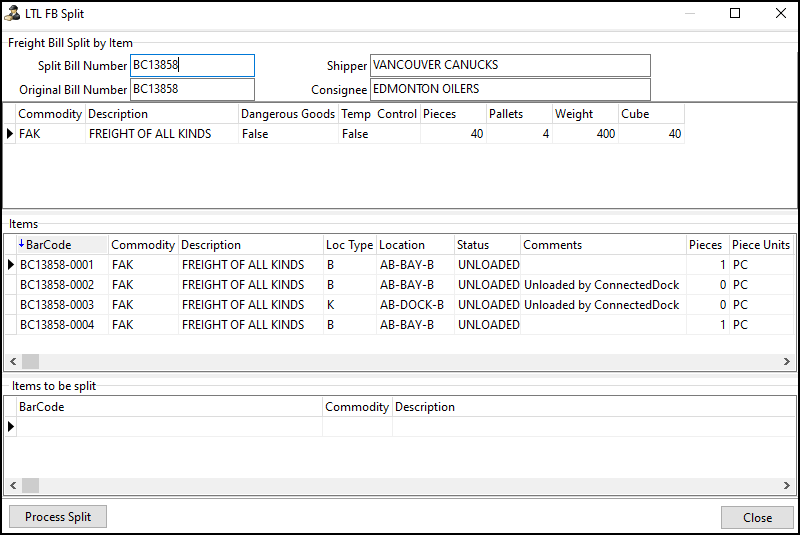
-
Double-click an item on the Items grid. The Barcode Item Details window opens.
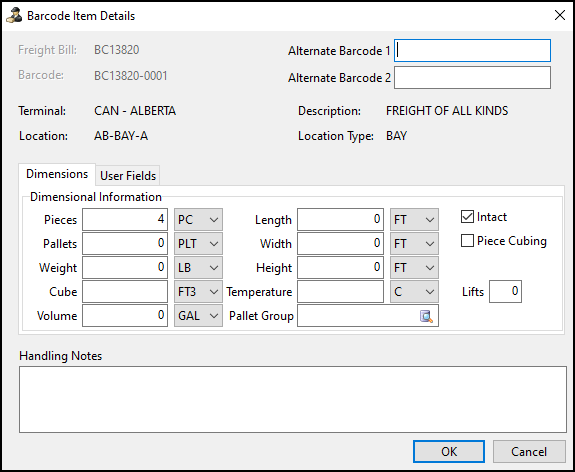
-
Enter or edit details on the Dimensional Information pane.
-
Select the User Fields tab and enter or edit any user defined fields.
-
Enter or edit notes in the Handling Notes field.
-
When you have finished making changes, select OK. The barcode item updates.
Split a freight bill
You can only split a freight bill that is in one of these statuses:
-
Arrive at Dock
-
Arrive Consignee
-
Arrive Shipper
-
Assignment
-
Docked
-
Other
After you split the bill, the split bills appear on the trip, and you can update them as needed. If the bill is split in pickup form, the original bill will not be visible on the trip. If the bill is split in linehaul or delivery form, the original bill will be visible on the trip.
-
On the Deliveries or Cross Dock tab, right-click a freight bill on the grid. The shortcut menu opens.
-
Select Split/Merge Bill. The LTL FB Split window opens.
-
Do one of the following:
-
If you do not need to specify the split dimensions:
-
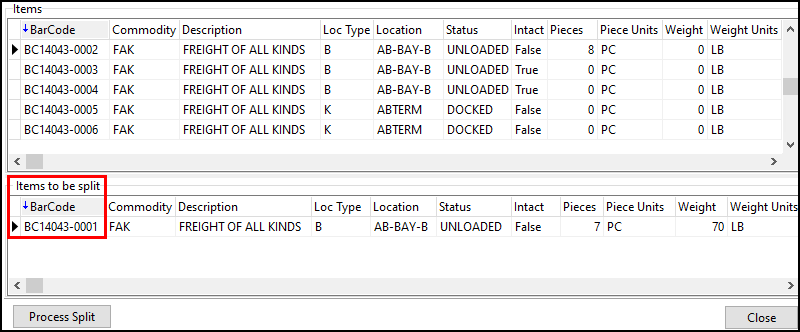
Drag any barcode items you want to split from the Items grid to the Items to be split grid.
-
Go to Step 4.
-
-
Specify how you want barcode items to be split:
-
Right-click a freight item and select Split. The Item Split window opens.
-
Select the Split Units dropdown list and choose a unit of measurement.
This is the unit of measure that will be used when you split the freight bill.
-
Enter the amount of freight that you want to split from the original shipment in the Split Qty column.
-
Select or clear the Intact checkbox.
Select this checkbox if there are any individual pieces of freight that must be found and re-combined into a pallet after being split.
-
Select OK. The Barcode Item Details window opens and shows the split barcode item number and its split dimensions.
-
Select OK. The Barcode Item Details window closes.
-
Drag the barcode item on the Items grid to the Items to be split grid.
-
-
-
Repeat Step 3 for each barcode item you want to split.
-
Select Process Split. A confirmation window opens.
-
Select OK. A window opens showing the split bills and merge options. Each freight bill you split creates two records: S1 for "split one" and S2 for "split two".
-
After the initial split, you can further split the split bills:
-
Right-click on one of the split bills and select Split a Split Bill. The LTL FB Split window opens with the split bill’s details.
-
Repeat Steps 3-6 for the split bill.
-
-
When you have finished splitting bills, select Close
After you have split the bills they can be dispatched normally.
Merge bills
When the split bills arrive at the destination terminal door or dock, you can merge them back together.
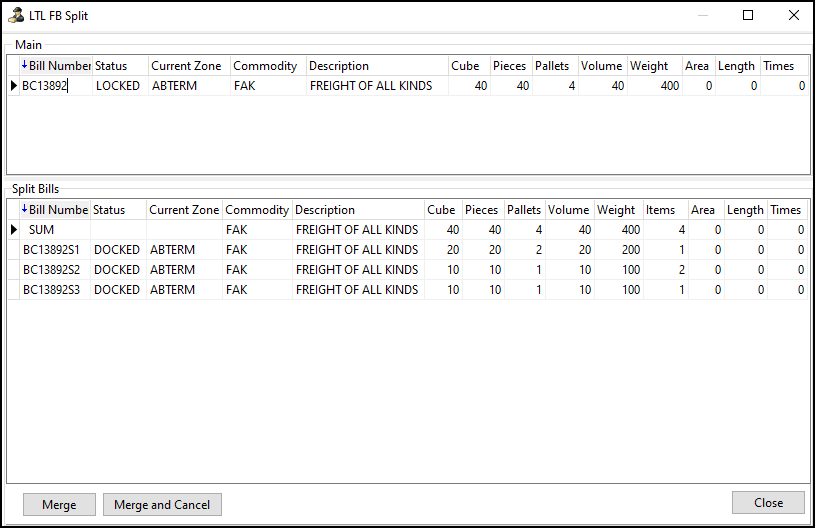
When you open the LTL FB Split window for a bill that has already been split, the Merge and Merge and Cancel options become available.
-
On the Deliveries or Cross Dock tab, right-click either the original bill or any of the split bills. The shortcut menu opens.
-
Select Split/Merge Bill. The LTL FB Split window opens.
-
Select Merge or Merge and Cancel. A confirmation window opens.
-
Select OK. The split freight bills merge back into the original freight bill. The freight bill’s status changes from LOCKED to DOCKED.
If you selected Merge, the Status tab of Customer Service will show each of the split bills in a COMPLETE status.
If you selected Merge and Cancel, there will be no individual status entries for the split bills.
You can now process the original bill normally from the destination door or dock.
Move split items
You can move items between bills after they have been split.
-
On the Deliveries or Cross Dock tab, right-click a split freight bill. The shortcut menu opens.
-
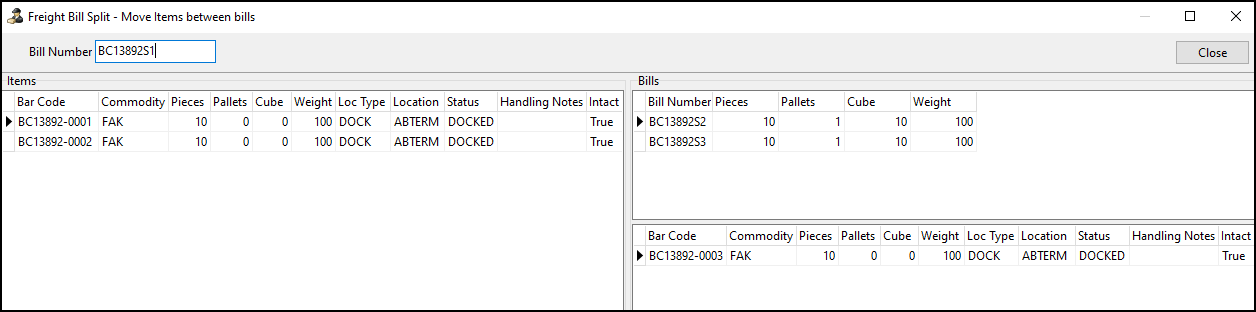
Select Split Item Move. The Move Items between bills window opens.
-
Select a bill on the Bills grid. That bill’s barcode items appear.
-
Drag barcode items between the selected bill and its related split bills.
-
After you have finished moving items, select Close.