Create routes
|
There are two ways to select stop locations to create a route:
|
The Routes panel
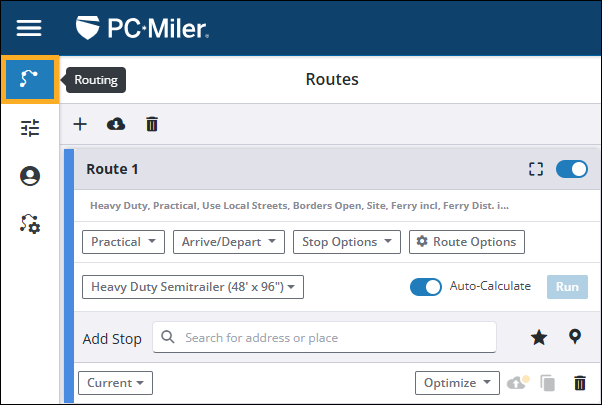
To open the Routes panel, select Routing in the left-side menu.
Route entry card features
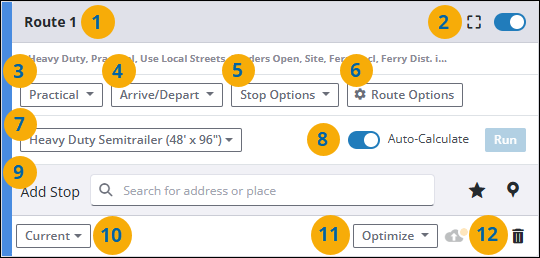
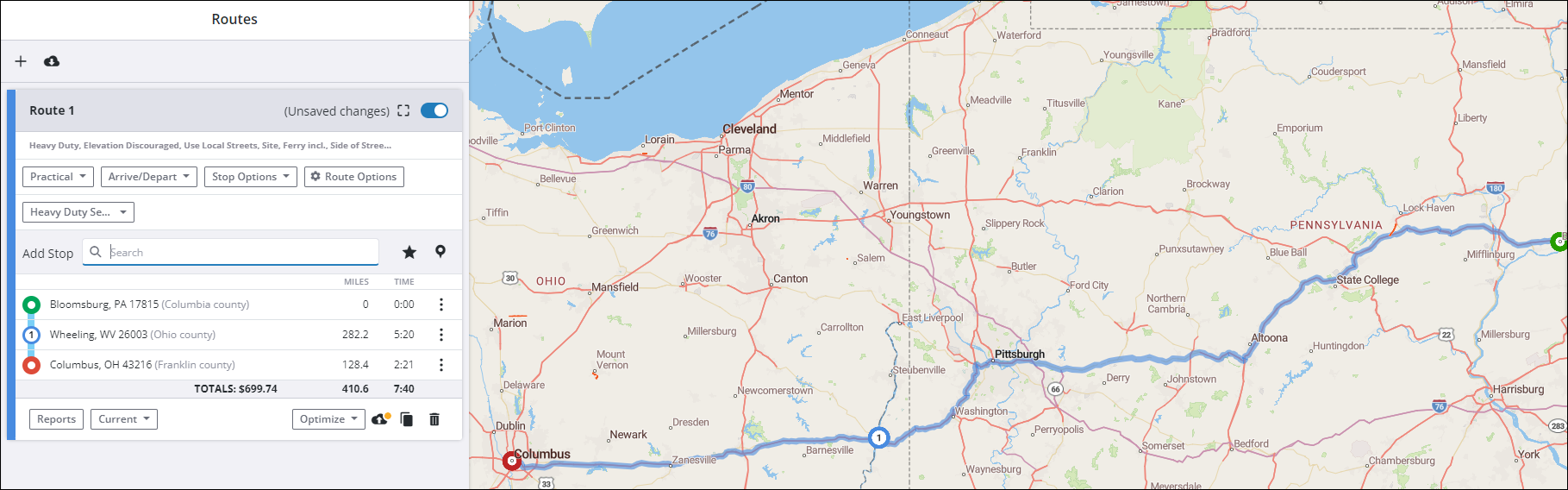
In the Routes panel, you enter information about your route in a route entry card. You can have multiple route cards open at the same time.
-
The route number or name if the route has previously been named and saved.
-
Frame the route on the map or toggle on or off the display of the route line on the map.
-
Select a Routing Type for this specific route.
-
Set an arrival or departure time for the route.
-
Select whether to import stops from a .csv file or add stop time for a stop to improve ETA calculations.
-
Select Route Options for this specific route.
-
Select a Vehicle Routing Profile. (An abbreviated list of settings related to the selected profile is displayed above it. Hover your cursor over the abbreviated list to view the full list.)
-
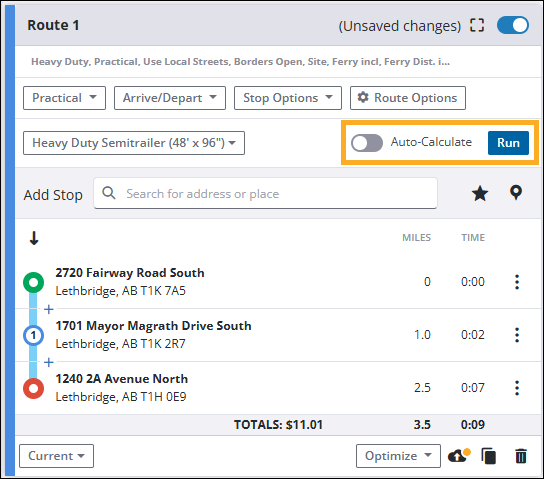
Choose whether PC*Miler recalculates the route each time you add a stop. When Auto-Calculate is switched off, the card displays a Run button. Click it to calculate the route and display it on the map.
-
Add stops to create the route by entering a location in the search field, selecting a location from your list of
 favorites, or selecting a location from your
  Custom Places.
 -
Select a PC*Miler version for mileage calculations. This feature is only recommended for generating mileage for freight rating and billing based on contracts that require older versions of PC*Miler. Otherwise, routing should always the default Current setting, which generates routes based on the most up-to-date map data.
-
Select whether you would like the route to be fully optimized, or optimized while keeping the final destination the same. Your route stops are reordered based on your selection.
-
Select the trashcan to delete the route from your list.
Add stops in the Route card
-
Select a Vehicle Routing Profile from the drop-down (No. 7 in the graphic above) or select Route Options. This helps ensure PC*Miler generates a route that safe and legal for your vehicles.
-
Add stops by doing one the following:
-
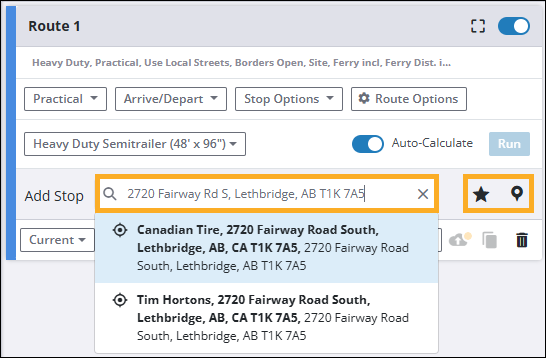
Select the Add Stop text box to enter a location. As you type the name of a stop, you will see a pick list of possible matching locations. Click on the best match to add that stop to your route.
-
Select
Favorites to search for and select a location from your saved favorites. -
Select
Custom Places to search for and select a location from your Custom Places.
-
Delete stops in the Route card
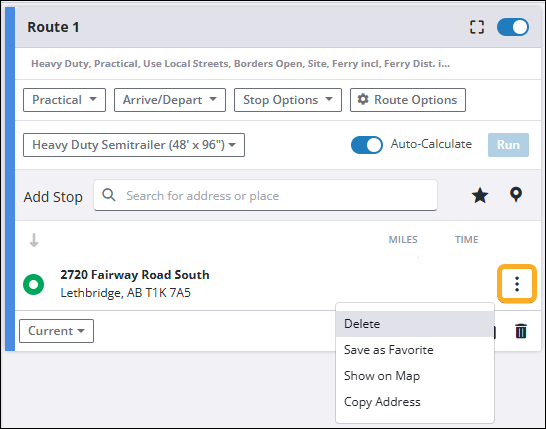
To delete a stop from the route, select the More Actions menu (vertical ellipsis), and select Delete. The stop is deleted and the remaining stops on the route move up in the trip order.
Add intermediate stops
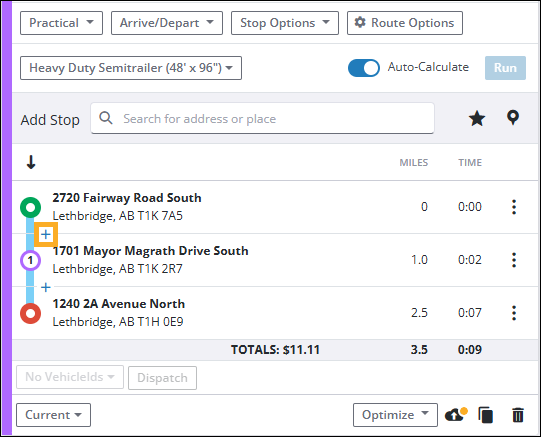
Once you add at least two stops to the route card, a + button appears between each of the stops. To add an intermediate stop:
-
Select the + button between the two stops where you want to add a new intermediate stop.
-
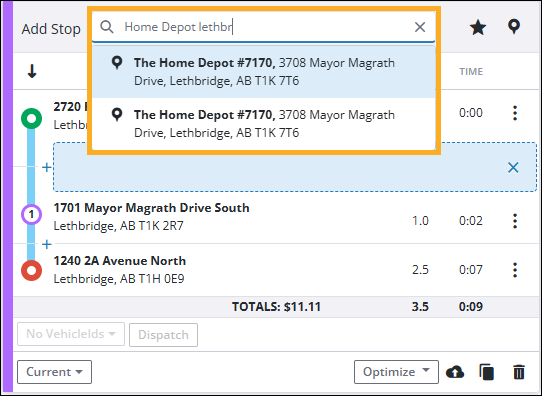
Enter the new stop in the Add Stop field and select the correct stop location from the search results dropdown.
-
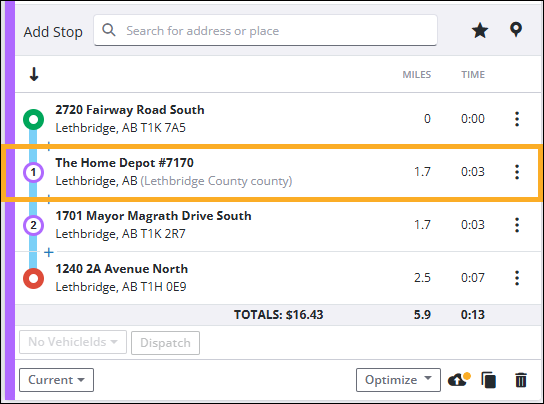
The intermediate stop is added to your route.
The map window
-
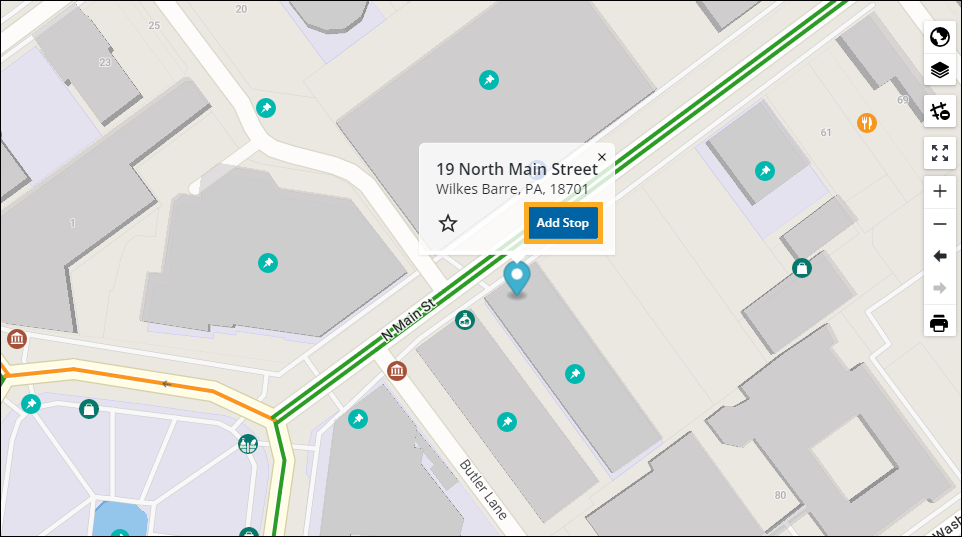
You can also add a stop directly from the map window.
-
Click on a location. An info box about that location will pop up.
-
Select Add Stop. This adds the stop to the route card.
-
Saving a favorite
-
With a location selected in the map window, select the
Favorites icon to save the location for future route planning.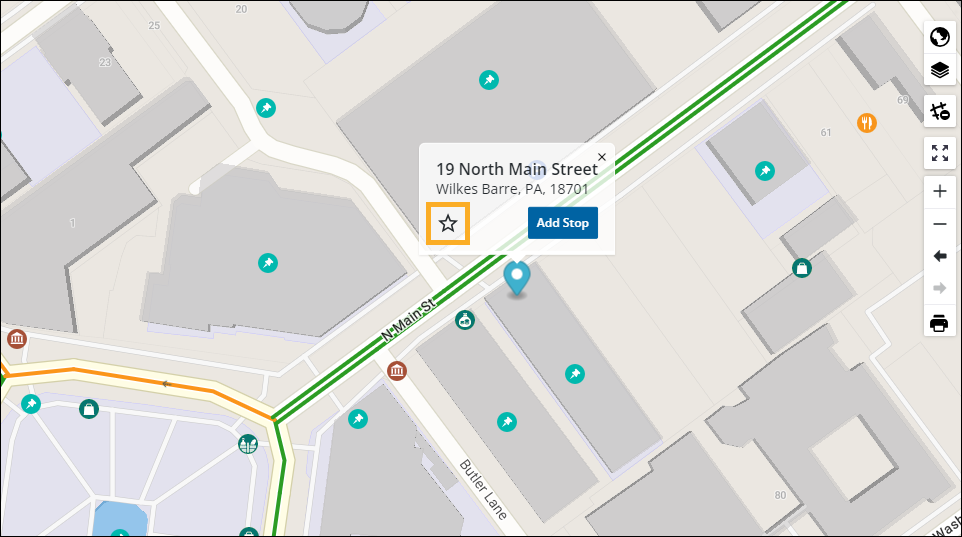
-
A popup window appears. Enter a name for your favorite in the text field. If you want the favorite to be shared across all users in your PC*Miler Web account, select the checkbox under the text field.
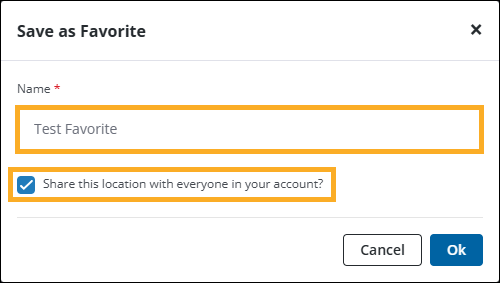
Select Ok to save the location to your Favorites.
Calculate a route (Auto-Calculate)
Once you add at least two stops (an origin and a destination) in the route card, PC*Miler Web by default automatically generates a route and draws it on the map. The color of the map route line matches the color in the route card.
The route is updated each time you insert an additional stop or change the order of stops. You can click and drag stops to re-arrange the order.
Calculate a route (Manual)
If you do not want PC*Miler to automatically calculate the route, turn off the Auto-Calculate switch. PC*Miler displays a Run button you click when you’ve added all of your stops and want to calculate your route.
For further details on how to manage routes, including saving and sharing, see Save, manage, and share routes.