Dispatch routes to CoPilot with CoPilot Link
CoPilot Link is an add-on feature that allows you to send PC*Miler Web routes directly to a mobile device with an active CoPilot license. CoPilot Link can be enabled for PC*Miler enterprise accounts that also have at least one active CoPilot license. There is no additional subscription cost for eligible accounts to use the basic features of CoPilot Link. However, features such as viewing dispatched routes in RouteReporter also require an active RouteReporter license.
To request access to CoPilot Link, contact your company’s account manager or reach out to our support team.
Link CoPilot devices to your PC*Miler Web account
Account Manager is used to manage your company’s CoPilot devices. When using the CoPilot Link feature, only devices with an active CoPilot license will receive dispatches from PC*Miler Web.
|
When CoPilot Link is enabled, all assets in Account Manager are listed in the vehicle ID dropdown list within PC*Miler. Assets without an active CoPilot license will not receive dispatches from PC*Miler, regardless of their presence in the dropdown list. |
Send a Route to a CoPilot-enabled device
You must have a valid PC*Miler route generated before the CoPilot Link feature can be used. To send a route to a CoPilot enabled device:
-
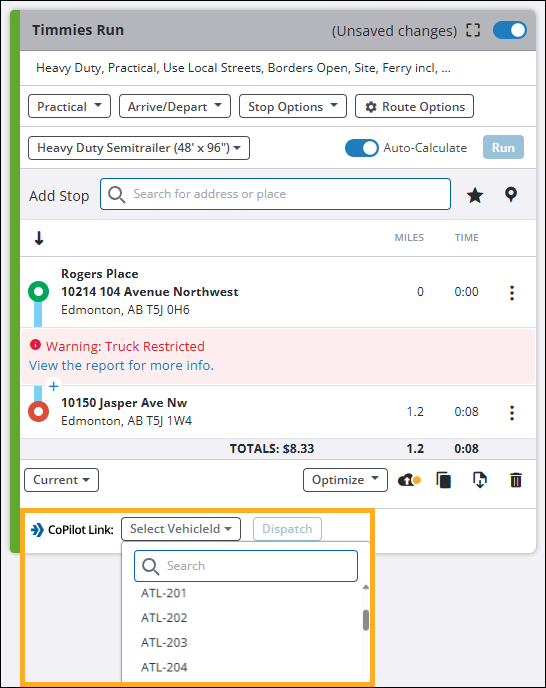
With the desired route open, select the Select VehicleId field from the route card. The vehicle ID dropdown opens and lists all assets that have been created in Account Manager. You can scroll through the asset list or use the search field to find a specific asset.
-
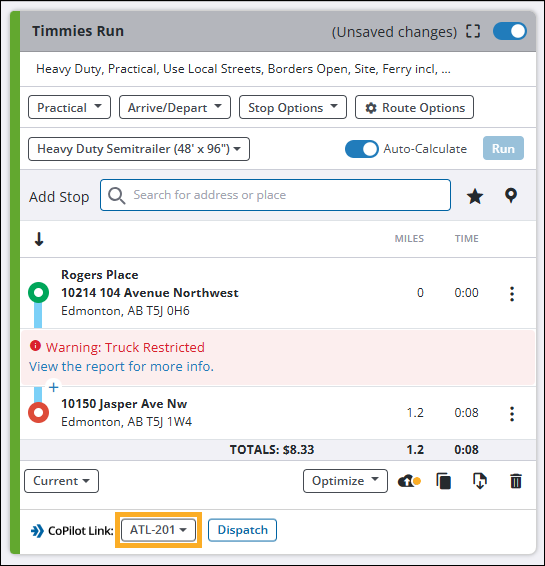
Select an asset from the dropdown list, ensuring it has an active CoPilot license. The dropdown list closes and the selected asset is displayed in the vehicle ID field.
-
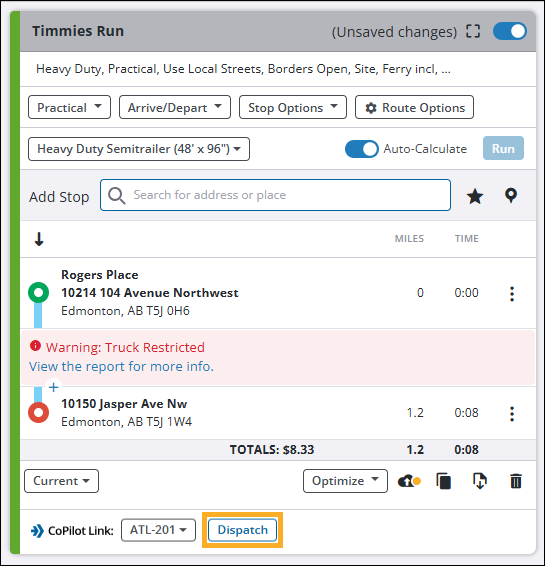
Select Dispatch. The route is sent to the selected CoPilot device.
View dispatched routes
Once a route is dispatched to a CoPilot device, a notification appears in the Map pane that allows you to view the dispatched route.

Select Click Here to view the route in a new tab. A new browser tab opens and the dispatched route is shown in Trimble’s Trip Viewer program. Select image to enlarge.
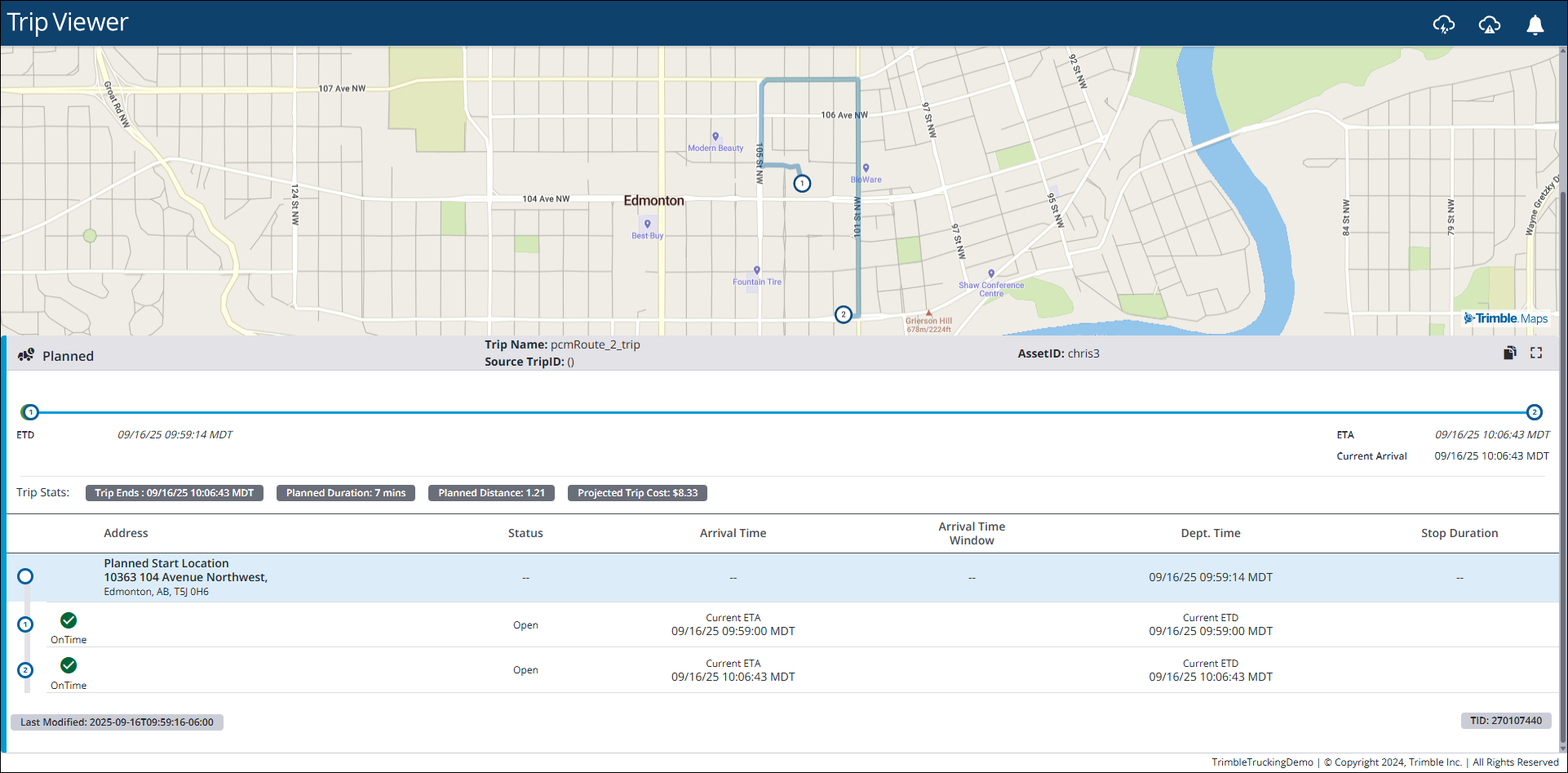
Trip Viewer offers a short-term status view of the dispatched route and is only valid for 8 hours after the route is dispatched. For more information on how to navigate the Trip Viewer window, view our Trip Viewer online help guide.
View your dispatched route history
For users wanting to see a historical record of their dispatched routes, the CoPilot Dispatched Trips window allows you to view all routes that have been dispatched from PC*Miler Web within the last 30 days. Additionally, users with an active RouteReporter license can view detailed information about each dispatched route from within RouteReporter.
| PC*Miler’s CoPilot Link integration with RouteReporter requires an active RouteReporter license. If you do not have a subscription, contact your company’s account manager or reach out to our support team to inquire about licensing options. |
To access the CoPilot Dispatched Trips window, select the CoPilot Dispatched Trips icon in the upper-right corner of your PC*Miler window.

Once selected, the CoPilot Dispatched Trips pane opens and displays a list of all routes that have been dispatched from PC*Miler Web within the last 30 days.
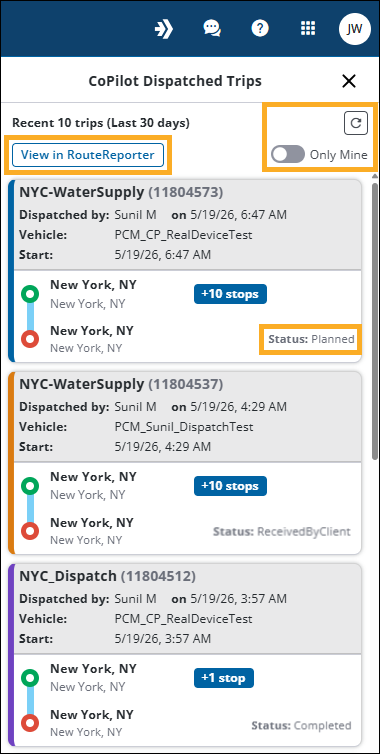
From the CoPilot Dispatched Trips pane, you can:
-
Select View in RouteReporter to view the dispatched routes in RouteReporter. RouteReporter provides a detailed view of your dispatched routes including live updates, route compliance, and other relevant information. Additional information on how to use and navigate RouteReporter can be found in our RouteReporter online help guide.
-
Use the Only Mine toggle to switch between viewing all dispatched routes and only routes you have dispatched within the last 30 days. When switching between views, select the Refresh icon located above the toggle to update the list of displayed routes. By default, the Only Mine toggle is enabled when opening the pane.
-
The current status of each dispatched route is shown in the lower-right corner of each route card. The status can be one of the following:
-
Planned - The route has been dispatched in PC*Miler but has not been received by the CoPilot device.
-
ReceivedByClient - The route has been received by the CoPilot device and is awaiting acceptance by the driver.
-
InProgress - The driver has accepted the dispatched route on their device and is currently en route.
-
Canceled - The driver has rejected or canceled the dispatched route on their device.
-
Completed - The driver has completed the dispatched route.
-
Access a dispatched route from your CoPilot device
Once a route has been dispatched to your CoPilot device from PC*Miler Web, a notification appears in CoPilot.
-
Select Accept to load the route.
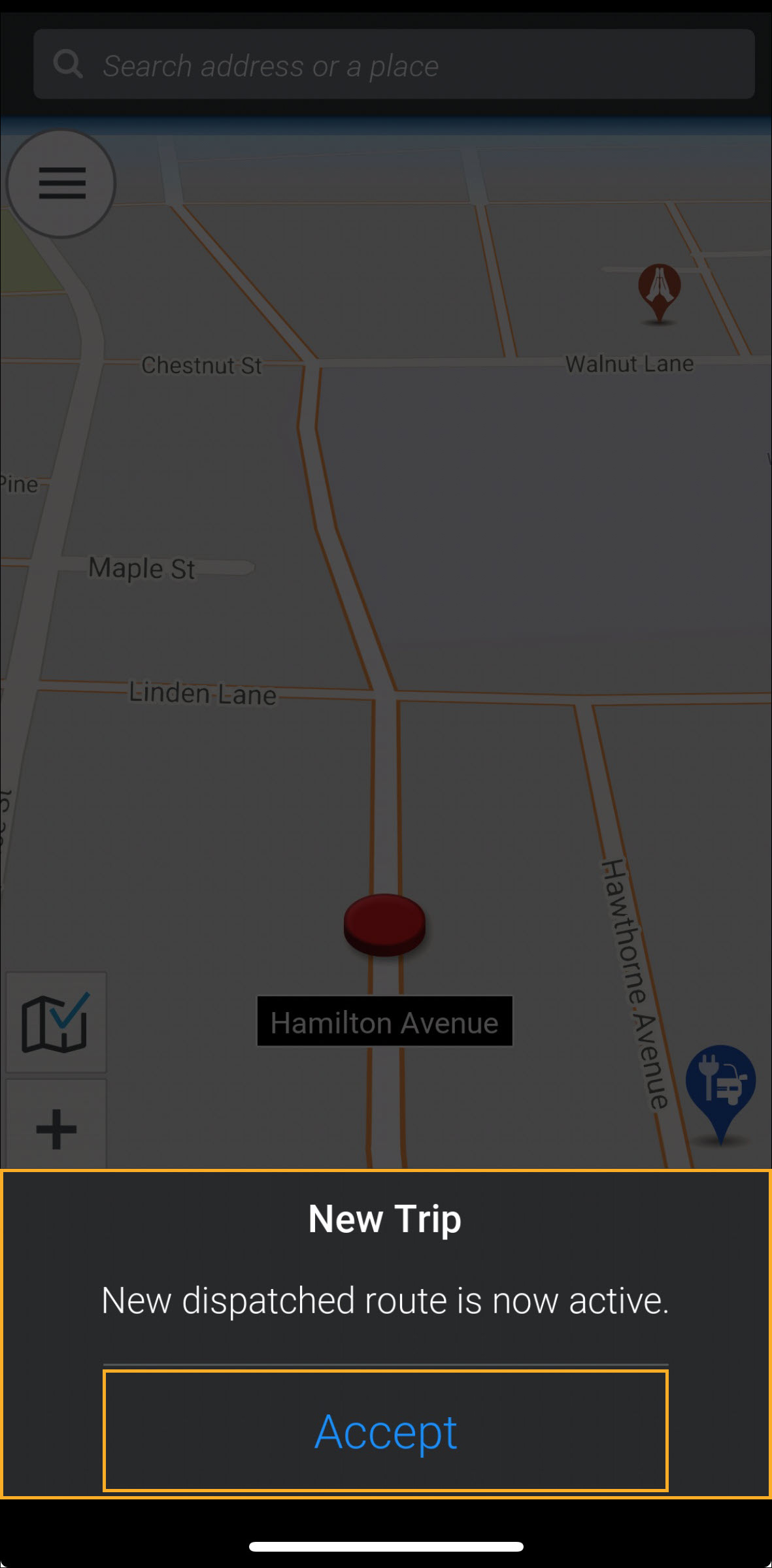
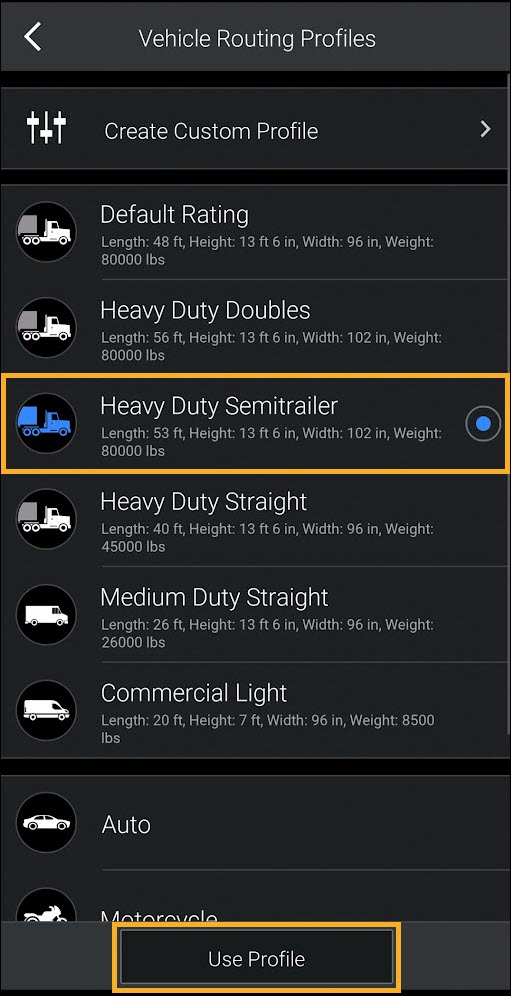
If your Vehicle Routing Profile does not match the profile used in PC*Miler, the Vehicle Routing Profile window appears (step 2). If your current routing profile matches, the Trip Preview window loads (step 3).
-
Select a profile from the list and then select Use Profile.
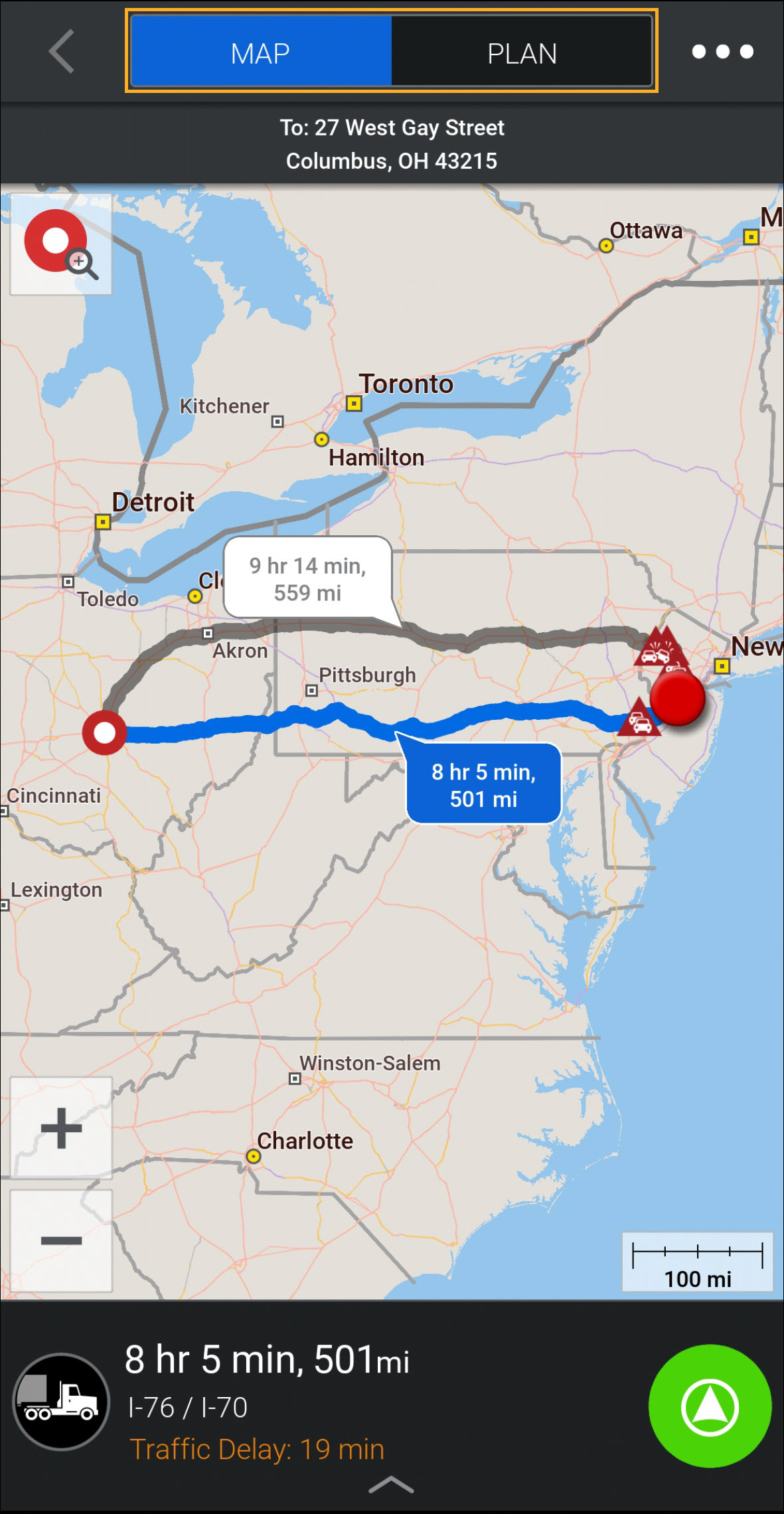
The Trip Preview window loads.
-
Depending on the CoPilot version you are using, the Trip Preview window varies in appearance:
-
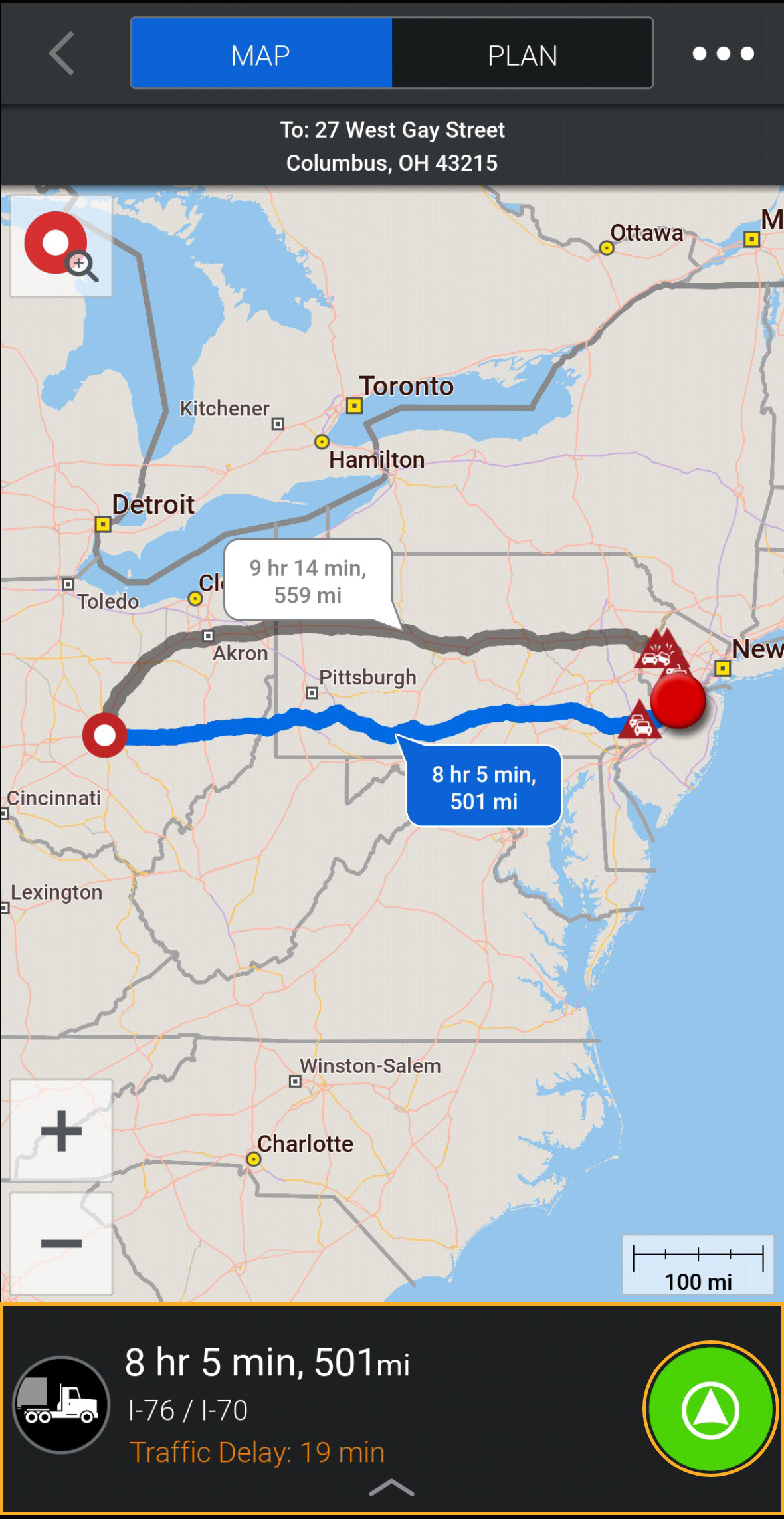
For CoPilot 10 users, a map view displays your planned route. You can toggle between MAP and PLAN view by selecting either option at the top of your screen.
-
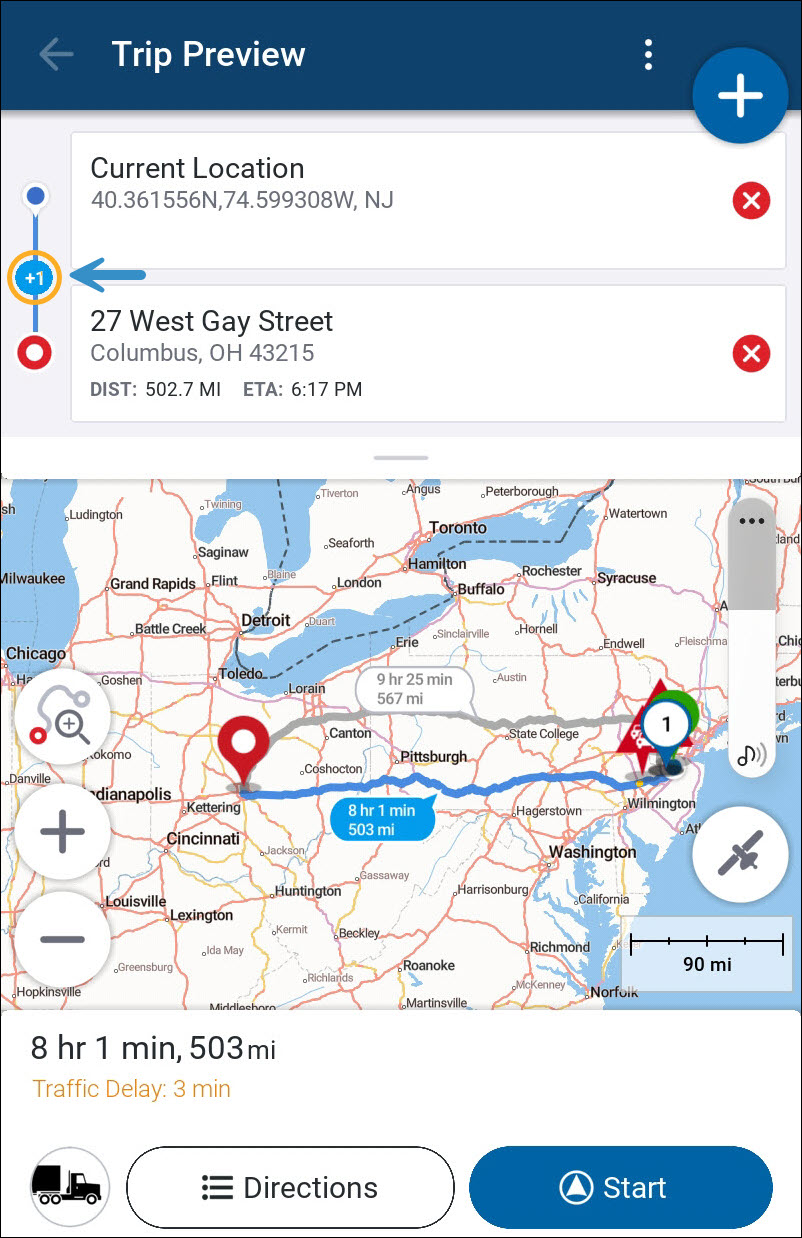
For CoPilot 11 users, your trip’s origin and destination are listed at the top of your screen, along with a map view of your planned route. You can view all stops on your route by selecting the blue + icon on the right side of the stop list.
-
-
Start your trip by doing one of the following:
-
For CoPilot 10 users, select the green navigation icon in the bottom right corner of your screen to begin the route.
-
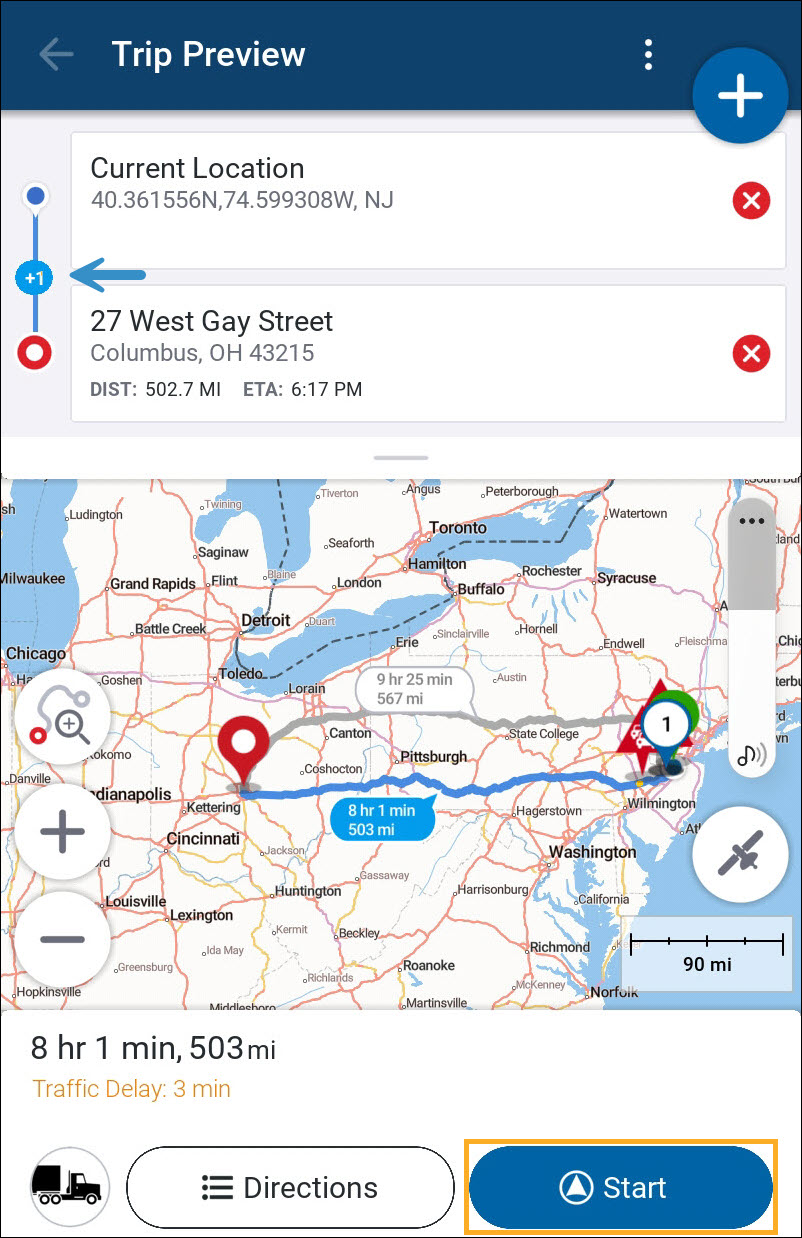
For CoPilot 11 users, select Start in the bottom right corner of your screen to begin the route.
-
Variations in routing and settings between PC*Miler and CoPilot
When you dispatch a route with CoPilot Link, the Vehicle Routing Profile and Route Options you selected when generating the route in PC*Miler are compared to the current routing profile and other settings on the CoPilot device. As shown in step 2 above, when the route is accepted on the CoPilot device the user is prompted to select a new Vehicle Routing Profile if their current profile does not match the profile used in PC*Miler. Other settings from PC*Miler are overwritten by the current settings on the CoPilot device.
The address format of the stop location and differences in map data versions between PC*Miler and CoPilot can also cause variations in routing and location results.
These differences can cause slight variations between the planned route in PC*Miler and the route that is displayed in CoPilot. However, the stop order and overall route will remain the same. We recommend following the best practices listed below to help you get the most out of CoPilot Link.
Best practices for using CoPilot Link
-
When you dispatch a route from PC*Miler, CoPilot always sets the current device location as the start (origin) of a trip. This means the first stop you add when generating a route in PC*Miler (usually the trip’s origin) becomes the first stop location on your route in CoPilot.
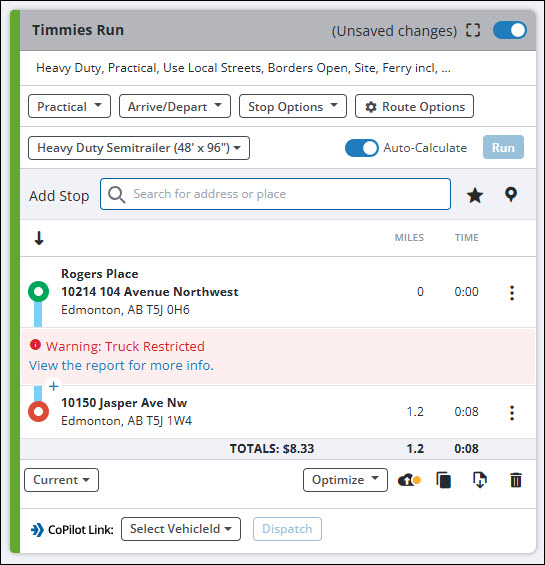
(A typical two-stop route generated in PC*Miler)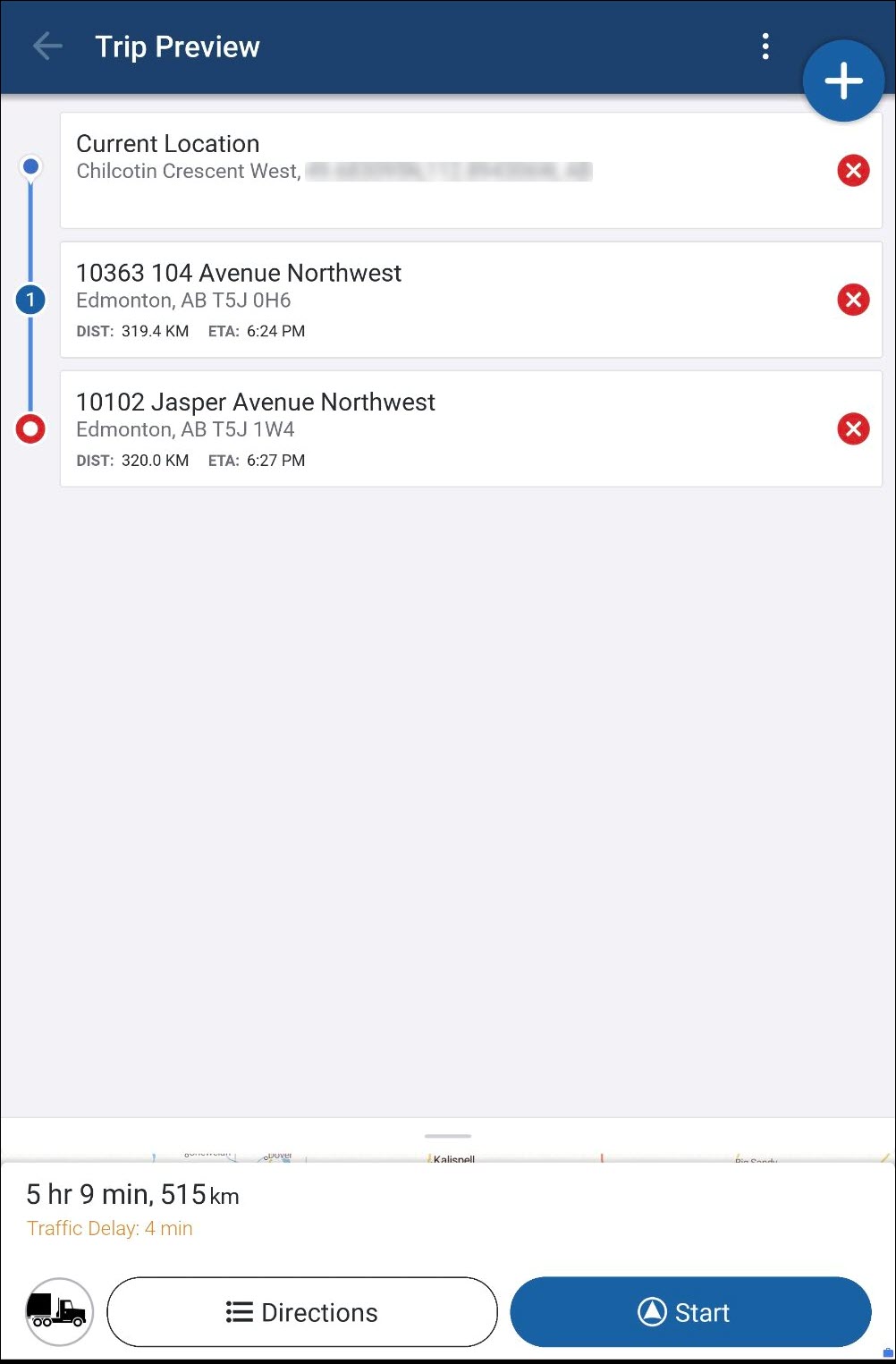
(The same route dispatched via CoPilot Link, note the current location as the trip origin)When generating a route in PC*Miler for use with CoPilot Link, we recommend entering the driver’s estimated start location as the route origin, and then adding stops to your route as normal. This will help avoid large discrepancies in mileage and routing between PC*Miler and CoPilot.
-
Always use the Current PC*Miler version when creating a route for dispatch. This takes advantage of the latest map data and routing algorithms.
-
Whenever possible, select one of the default PC*Miler Vehicle Routing Profiles instead of setting Route Options. These profiles are more likely to match the default profiles on the CoPilot device.
-
Arrive/Depart settings have no impact in CoPilot and do not need to be set. If you are licensed for traffic, CoPilot automatically applies traffic data when it calculates a route and during navigation.