Clone a unit with the Clone Unit button
This topic reviews how to make copies or clones of an existing unit. For information on cloning a unit’s properties, see Clone unit properties with the Clone Unit page.
-
Open the Units master page:
-
For versions prior to V.2024.2, go to Menu > Masters > Units. The Units page opens and displays information about the first record automatically.
-
For versions V.2024.2 and later, select Units under Master Pages in the left navigation pane.
-
-
To open the Clone Unit window, do one of the following:
-
In versions prior to 2018.1, click the
 Clone icon and then select Clone Existing Unit.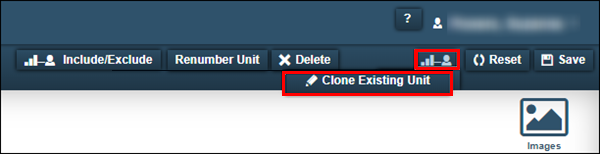
-
In versions 2018.1 and after, click the dropdown arrow next to Add New and then select Clone Existing Unit.
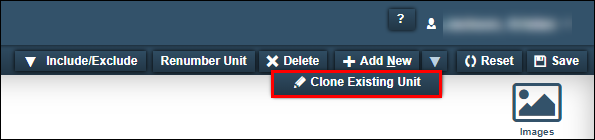
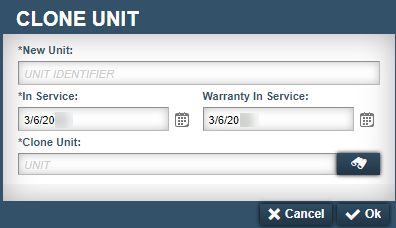
The Clone Unit window opens.
-
-
In the New Unit field, enter the new clone unit’s ID.
If you enter an incorrect unit ID number, the system displays an error message that states, "ABC is not a valid unit." Click OK to close the error window.
Note: Unit numbers are usually unique, but the
Allow Duplicate Unit NumbersApplication Option lets you create duplicate unit numbers if each unit has a unique unit and customer combination. For example, you could have a Unit 001 for Customer A, and a Unit 001 for Customer B, but not two Unit 001s for Customer A. -
In the In Service field, enter the effective date for the new unit. This field defaults to today’s date.
-
If applicable, in the Warranty In Service field, enter the effective date of the warranty. This field defaults to today’s date.
-
In the Clone Unit field, enter the ID of the unit that you want to clone. You can use
 Search if you do not know the unit’s ID number.
 -
Select OK. The system creates the new record and returns you to the Units page.
To close the window without saving your changes, click Cancel.