Purchase Order page overview
A purchase order is a summary of the items purchased. You should create the purchase order before placing an order with the vendor. Use the Purchase Order page to create a purchase order and identify detail about the purchase, including:
-
Specific information pertaining to the vendor
-
The user who created, modified, and closed the order
The Purchase Order page has two panes, Purchase Order and Receipts.
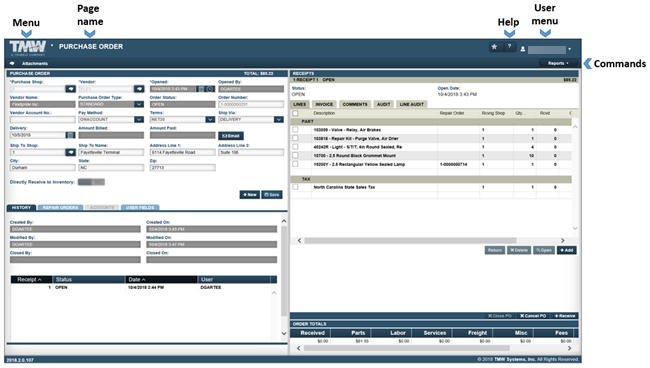
The Purchase Order page provides easy access to the:
-
Menu that lists application menu items
-
User menu that lists user-specific menu items
-
Help that provides reference information on user-assistance topics
-
Commands that include:
-
Search Orders: Opens the Purchase Order Search window
-
Attachments: Uploads jpg/bmp/gif/tiff/pdf/rtf/txt files.
-
Change PO Estimate (optional): This command is displayed only when the
[Purchasing] Require PO Approval LevelsApplication option is set to YES. It is turned on only when you add a line that goes over your current approval level amount. You can use the command to increase the estimated PO amount. If you increase the estimate, the PO might have to go through the approval process again. -
Reports: Select a report to view it. See Part Inventory Reports for details.
-
Purchase Order pane
You use the Purchase Order pane to specify the:
-
Shop and vendor on the purchase order header
-
Details regarding the order’s history, associated repair orders, and the vendor’s account information
Purchase Order header
The purchase order header allows you to record the Purchase Shop, Vendor, Order Number, and other order information.
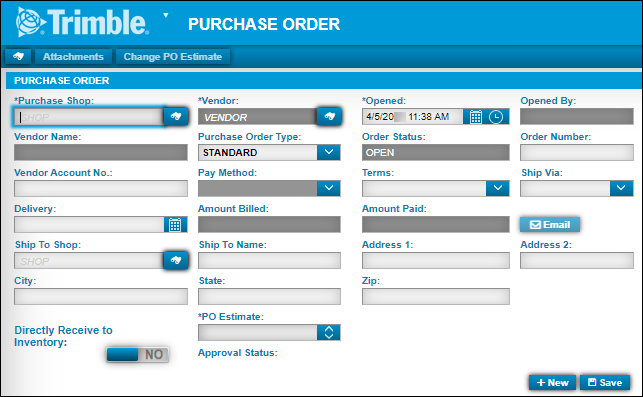
Required field: *
Read-only field: §
| Field | Definition |
|---|---|
Purchase Shop * |
User defined shop identification number Note: Once you save the purchase order, you cannot change the shop ID. If Shop Restrictions have been set up, the user may be prevented from entering a purchase shop. If the application option or user preference |
Vendor * |
User defined vendor identification number If the application option |
Opened * |
Date and time on which the purchase order is created The system fills the date and time automatically. If the application option |
Opened By § |
ID of the user who created the purchase order |
Vendor Name § |
Vendor’s name |
Purchase Order Type |
Purchase order type classifies the purchase. Valid purchase order types include:
|
Order Status |
Purchase order status. When creating a new order, this field defaults to Open. Status codes include:
Note: Order statuses cannot be manually updated. Purchase Order functions change the order status. |
Order Number |
Twelve-character number assigned to the purchase order The order number is read-only if the application or shop option |
Vendor Account No. |
Vendor account number for the shop Note: Each shop has a unique account number. You cannot enter the same account number for multiple shops. If the Vendor master record has a default set for this field it will autofill when the vendor is entered. |
Pay Method |
Vendor’s default payment method, such as cash, Visa, MasterCard, or Discover If the application or shop option [Purchasing] Require Payment Method On Purchase Orders is set to YES, the payment method field becomes required. If the Vendor master record has a default set for this field it will autofill when the vendor is entered. |
Terms |
Vendor’s terms, such as, Internet 10 days, Internet 20 days, or Internet 30 days If the Vendor master record has a default set for this field it will autofill when the vendor is entered. |
Ship Via |
Vendor’s primary shipping method, such, UPS, FedEx, or the US Postal Service If the Vendor master record has a default set for this field it will autofill when the vendor is entered. |
Delivery |
Date on which the vendor promises to deliver |
Amount Billed § |
The cumulative total for the amount billed on all invoices entered |
Amount Paid § |
The cumulative total for the amount paid on all invoices entered |
Clicking Email sends the PO Detail Report as a PDF to the email address record in the Vendor’s record. Note: Email is sent using the MAPI or SMTP settings for the user.
If the Vendor master record has a default set for this field that email address is the default for purchase orders emailed. |
|
Ship To Shop |
The ship to shop name The default is the purchase order shop. |
Ship To Name |
Shop description The description should include the shop’s formal name. It appears in the Ship To section on purchase orders. |
Address Line 1 |
Mailing address line 1 |
Address Line 2 |
Mailing address line 2 |
City |
Mailing address city |
State |
Mailing address state |
Zip |
Mailing address ZIP Code |
Directly Receive to Inventory |
With this option selected, the purchase order is closed and all parts are received to inventory when line items are posted, and you click Save. If the PO Type is BLANKET, this option will be selected and disabled. This happens because for a BLANKET PO, parts are received as they are posted. If the |
PO Estimate * |
When the |
New |
A new purchase order is created. |
Save |
Saves the purchase order. |
Purchase order tabs
The Purchase Order pane has five tabs. Not all tabs are used for every purchase order.
History tab
The History tab displays general information about the purchase order’s status changes. Receipts associated with the purchase order are also displayed.
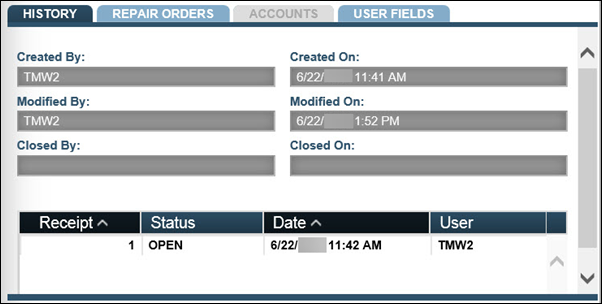
All fields are read-only.
| Field | Definition |
|---|---|
Created By |
The User ID of the person who created the purchase order |
Modified By |
The User ID of the person who last changed the purchase order |
Closed By |
The User ID of the person who closed the purchase order |
Created On (Server Time) |
Date the purchase order was created |
Modified On (Server Time) |
Date the purchase order was modified |
Closed On (Server Time) |
Date the purchase order was closed |
Repair Orders tab
The Repair Orders tab displays all repair orders associated with the PO.

| Field | Definition |
|---|---|
Repair Order |
Repair order number |
Date Created |
Date and time on which the repair order is created |
Amount Billed |
The cumulative total for the amount billed on all invoices entered |
Amount Paid |
The cumulative total for the amount paid on all invoices entered |
Status |
Repair order status. Status codes include:
|
Accounts tab
The Accounts tab is disabled until the PO is closed. Then, if an accounting export is in place, the account summary is displayed.
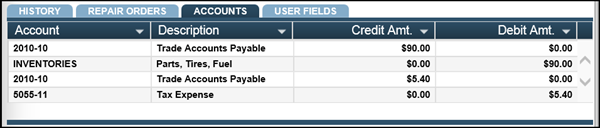
| Column | Definition |
|---|---|
Account |
Account number used by your accounting department |
Description |
Account number description |
Credit Amt |
Accounting transaction credit total |
Debit Amt |
Accounting transaction debit total |
User Fields tab
The User Fields tab may include fields for information not already present on the PO.
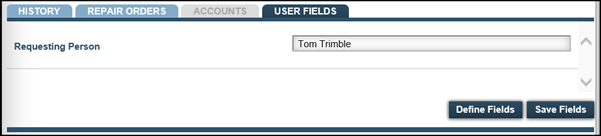
Note: You set up user fields by going to Menu > Setup > User Fields. You can also edit them in the record by clicking Define Fields.
See Create User Fields for details.
POInvoice tab
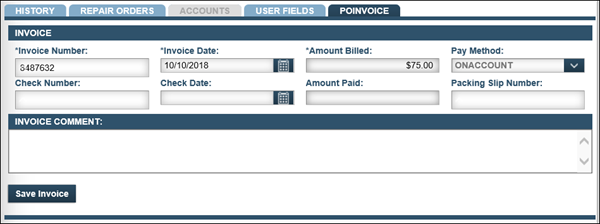
The POInvoice tab displays the invoice information entered on the vendor repair order (VRO).
|
The POInvoice tab is displayed on a vendor repair order purchase order. |
| Field | Definition |
|---|---|
Invoice Number |
Invoice number for this purchase order. If the application option |
Invoice Date |
Billing date for the selected invoice |
Amount Billed |
Cumulative total for the amount billed on all invoices entered |
Pay Method |
Method used to pay for parts and services purchased on this purchase order. If the application or shop option |
Check Number |
Check number issued for the amount paid for the referenced invoice |
Check Date |
Check date |
Amount Paid |
Cumulative total for the amount paid on all invoices entered |
Packing Slip Number |
Packing slip for the purchase order shipment that corresponds to the invoice |
Invoice Comment |
Additional comments or information related to the invoice |
Save Invoice |
Save invoice |
Receipts pane
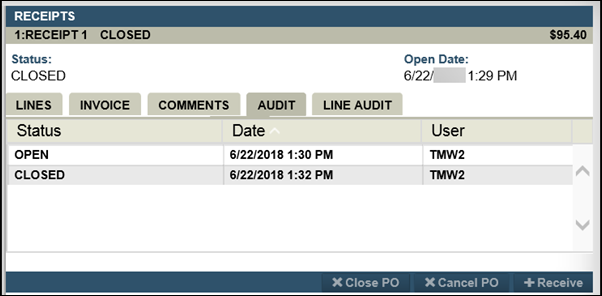
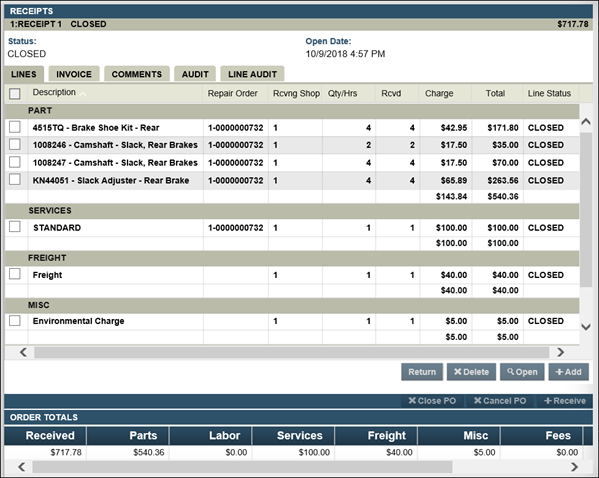
All items purchased are listed in the Receipts pane. The pane has five tabs.
Lines Tab
The Lines tab lists all items purchased. Lines item types include:
-
Part: The part line is an item purchased
-
Services: The service line item allows the purchase of services tracked through the purchase order system.
-
Freight: Delivery charge on the purchased items
-
Tax: Tax on the sales of certain goods and services
-
Misc: Miscellaneous cost incurred from the purchase of certain goods and services
-
Fee: A sum paid or charged for a privilege. A Fee line item is only available on a Vendor Repair Order Purchase Order or on a Standard Purchase Order if Part Fee/Tax Definitions have been set up.
-
Labor: Sum paid for a third-party service performed. A Labor line item is only available on a Vendor Repair Order Purchase Order.
| Field | Definition |
|---|---|
Check Box |
Used for managing a line item |
Description |
Description of the item |
Repair Order |
If the purchased item is being expensed directly to a repair order, the repair order number is listed |
Rcvng Shop |
Shop the item is processed through |
Qty/Hrs |
The quantity being purchased or hours being charged |
Rcvd |
Quantity processed through a purchase order receipt |
Charge |
Item charge per item quantity UOM |
Total |
Extended total of line item |
Line Status |
Line item status. Statuses include:
|
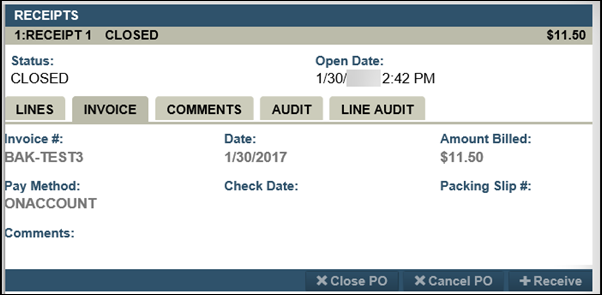
Invoice Tab
The Invoice tab stores invoice information for the PO.
| Field | Definition |
|---|---|
Invoice # |
Invoice number for this purchase order |
Date |
Billing date for the selected invoice |
Amount Billed |
Cumulative total for the amount billed on all invoices entered |
Pay Method |
Method used to pay for parts and services purchased on this purchase order |
Check Date |
Check number issued for the amount paid for the referenced invoice |
Packing Slip # |
Packing slip for the purchase order shipment that corresponds to the invoice |
Comments |
Additional comments or information related to the invoice |
Comments Tab
The Comments tab stores all comment lines added to the PO. Full management capabilities for comment lines are also included in this view.
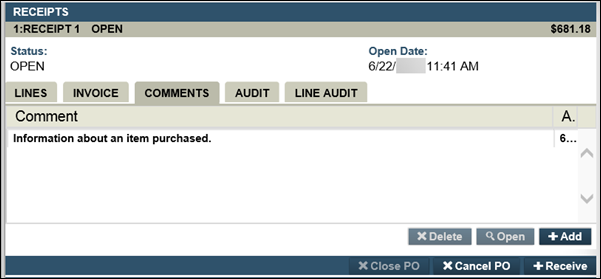
To add a comment line, see Comment Line for details.