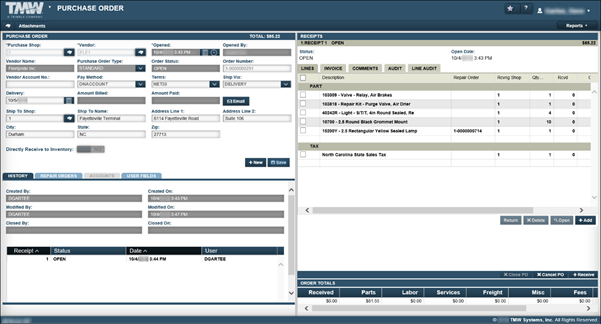
Purchase Orders Listing page overview
You use the Purchase Orders Listing page to view, create, and receive purchase orders.
The page shows a list of orders based on the search filters you specify in the Purchase Order Search window. The orders appear in the Purchase Orders Listing grid.
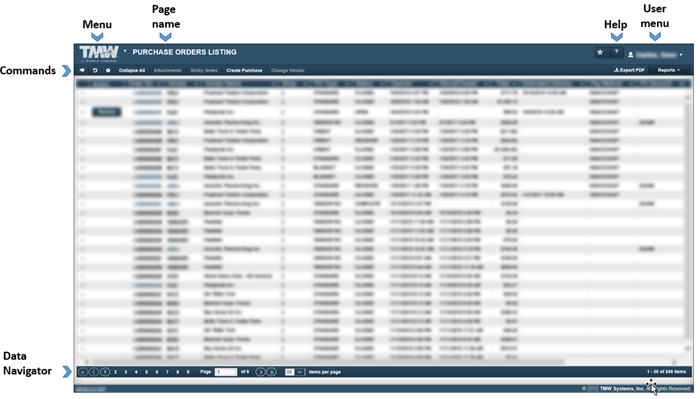
The Purchase Orders Listing page provides easy access to the:
-
Menu that lists application menu items
-
Page name
-
Help that provides reference information on user-assistance topics
-
User menu that lists user-specific menu items
-
Commands that include:
-
 Search Orders: Opens the Purchase Order Search window
 -
 Reset Page Template: Restores page to original layout
 -
 Set Page Template: Search page setup parameters
 -
Collapse All: Collapses any expanded rows.
-
Attachments: Upload jpg/bmp/gif/tiff/pdf/rtf/txt files.
-
Sticky Notes: Displays any sticky notes associated with the purchase order
-
Create Purchase: Creates a new purchase order
-
Change Vendor: Changes the purchase order vendor
-
Export PDF: Export the Purchase Orders Listing to a PDF document
-
Reports: Select a report to view it. See Part Inventory Reports for details.
-
-
Data Navigator: Go through pages of orders. When more than one page exists, the navigator displays the page numbers.

For details, see Using the Data Navigator to browse through records.
Purchase Orders Listing grid
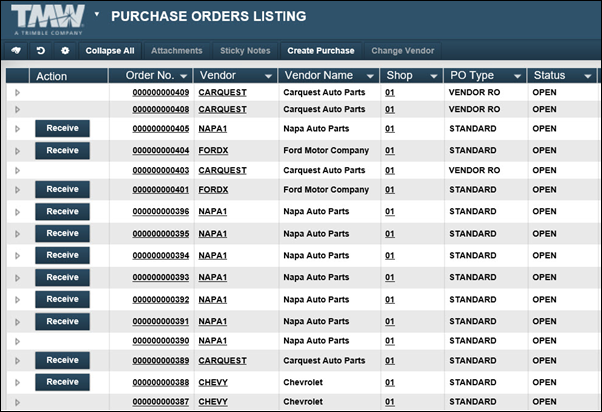
The Purchase Orders Listing grid shows a list of orders based on the search criteria you enter in the Purchase Order Search window. You can create a list based on a Purchase order status. This illustration shows a list of orders with the status of Open.

A default list of columns is displayed in the purchase orders listing grid. They include:
| Field | Definition |
|---|---|
Actions |
Command buttons that allow you to complete or close an order |
Order No. |
Order number |
Vendor |
Vendor ID that parts and services will be purchased from on this purchase order |
Vendor Name |
The name of the vendor for this purchase order |
Shop |
Shop the parts will be received to |
PO Type |
The type of purchase order.The valid choices are:
|
Status |
Status of the purchase order. Valid statuses include:
|
Transmit Status* |
Status of the purchase order if the vendor is using the eCommerce process. Statuses include:
|
Invoice Number |
The invoice number connected to the PO, if applicable |
Opened |
Date the purchase order is opened |
Recvd/Closed |
Date the purchase order was last received or closed |
Total |
Purchase order total |
Paid |
Total paid against purchase order |
Terms |
Payment terms established for the vendor. Payments terms show how much time you have to pay for the purchase and if there is a discount for early payment. By default, if the purchase order vendor has terms set up on the vendor master record, those terms autofills. The value can be overwritten. |
Estimated Delivery |
The date of requested delivery for parts and services on the purchase order |
Pay Method |
The method used to pay for parts and services purchased on this purchase order. By default, if the purchase order vendor has a payment method set up on the vendor master record, that payment method autofills. The value can be overwritten. |
Backordered |
Indicates if the purchase order has backordered items |
Batch No. |
If the purchase order is created with a batch, the batch ID displays in this field. |
PO Account |
Vendor account number field value posted to the purchase order. By default, if the purchase order vendor has an account set up on the vendor master record, that accounts number autofills. The value can be overwritten. |
Unit |
Indicates the unit a purchase order is associated with |
ASN Quantity |
Currently not functional |
Optional Purchase Order Listing columns
These additional columns can be added to the Purchase Order Listing page:
| Field | Definition |
|---|---|
Unit ID |
Displays the table unit ID for the unit associated with the purchase order |
Approved Amount |
Approved total for the purchase order |
Order Id |
The table item ID for the purchase order |
Vendor RO Number |
Vendor repair order number associated with a vendor repair order purchase order |
User |
Currently not functional |
ObjectType |
The table object type ID for a purchase order (1300) |
ObjectId |
System-generated table item ID linking an image back to the purchase order |
Approval Level Id |
The approval level ID for the approving user for the purchase order |
Approval Level Name |
Approval level name |
Estimated Amount |
Currently not functional |
Approval Date |
Approval date of the purchase order |
Approved By |
ID of the user who approved the purchase order |
Freight Amount |
Freight amount for the purchase order |
Misc Amount |
Miscellaneous amount for the purchase order |
Subtotal Amount |
Subtotal amount for the purchase order excluding miscellaneous, freight and tax |
Sales Tax Amount |
Sales tax amount for the purchase order |
Company Unit |
Indicates if the unit associated with the purchase order is a company unit |
Amount Billed |
Total of invoices applies against the purchase order |
Closed By |
ID of the user who closed the purchase order |
Created By |
ID of the user who created the purchase order |
Created On |
System date on which the purchase order is created |
Epurchase |
Designates if the purchase order is using the eCommerce process. Indicators are:
|
EtransmitId |
System-generated eCommerce record ID for the purchase order |
Line Count |
Total unreceived line items on an Open purchase order. Does not include freight, miscellaneous, and sales tax line items. |
Opened By |
ID of the user who created the purchase order |
Ship Tracking No. |
Currently not functional |
Ship Via |
The default shipping method for the selected vendor |
Vendor Account |
An account setup by the vendor for the shop to use when purchasing items from them |
Ship To Shop |
The name of the shop to which the parts for this purchase order should be shipped. The default is the shop for which the purchase order is opened. |
Last Open Section |
Currently not functional |
Last Open Section ID |
Currently not functional |
The grid provides features that allow you to view information by expanding and collapsing rows, adding columns, and filtering or sorting data. For example:
-
Click
 Expand next to a repair order row to view purchase details such as Receipt Status, totals of all line types and totals of the purchase order.
-
Click
 Expand next to a section row to view information in the section’s Lines.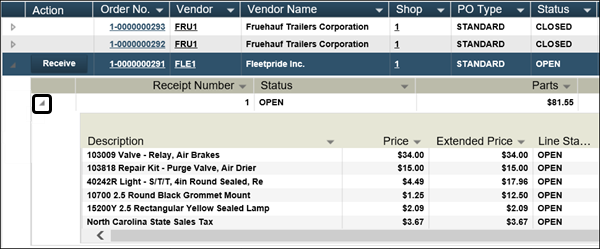
For more information on using grids, see Changing the data display on grids.
Look up a purchase order
You can use the Purchase Orders Listing page to look up purchase orders. You can apply filters to limit which orders appear on the page. From this page, you can view a purchase order, view lines, and receive the purchase order.
-
Go to Menu > Orders > Purchase Orders Listing. The Purchase Orders Listing page opens.
-
If needed, apply filters.
-
Click Search Orders.
The Purchase Order Search section expands.

-
Enter filter criteria as needed.
Field Definition Purchase
Purchase order number
Note: By default, an order number contains 12 digits. If your company uses the application option
[Genera]AutoZero-fillOrderNumbersoption, and they have set up shop prefixes, the system replaces leading zeros with the prefix. When you search for a purchase order, enter the prefix and the order number (for example, 1-749) and then press TAB. The system will add the correct number of zeros in this field.Vendor
Vendor ID
Date Opened
Date range purchase order was opened. Options include:
-
Today
-
Yesterday
-
Week to Date
-
Month to Date
-
Year to Date
-
Custom
Order Type
Type of order. Options include:
-
Blanket
-
Credit
-
Standard
-
Vendor RO
Unit
Unit ID
Shop
Shop ID
From
Start date range
To
End date range
Status
Repair order status. Options include:
-
Canceled
-
Closed
-
Complete
-
Open
-
Pending
-
Received
-
Backordered
-
-
Click Search. The Purchase Order Search section collapses and the results are displayed on the Purchase Orders Listing page.
-
-
In the Order field, click the purchase order number that you want to open. The Purchase Order page opens and displays information about that order.