New Parts Transfer Request window overview
When you are on the Parts Transfer page, you can select the +New button to open the New Parts Transfer Request window. Use this form to create a new parts transfer request.
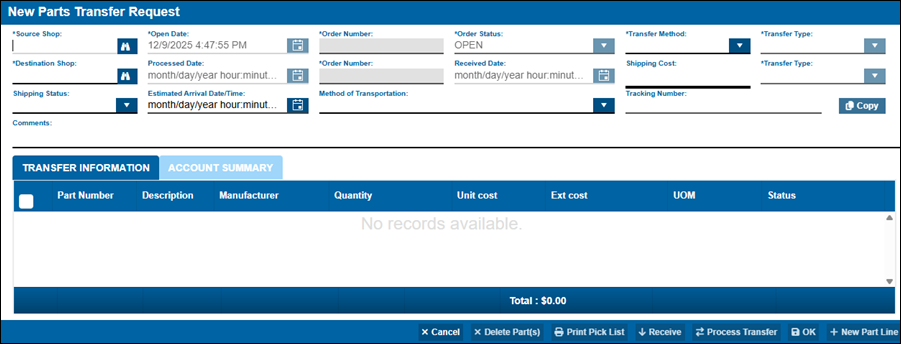
The window has five parts:
The header
The header contains these fields:
Required field: *
Read-only field: §
| Field | Definition |
|---|---|
Source Shop * |
The shop the parts are leaving |
Open Date * § |
The date and time you opened the request. The program completes this field for you. |
Order Number * § |
The order number for the source shop. The program completes this field for you. |
Order Status * § |
The current status of the order. By default, all new requests are in OPEN status. |
Transfer Method * |
The type of transfer you want to use for this order:
|
Transfer Type * § |
By default, new requests use the TRANSFER-OUT type for the source shop. |
Destination Shop * |
The shop the parts are going to. |
Processed Date § |
The date and time the program processes the order. The program will complete this field for you. |
Order Number * § |
The order number for the destination shop. The program completes this field for you. |
Received Date § |
The date and time the destination shop receives the transferred parts order. The program completes this field for you. |
Shipping Cost |
If available, you can enter the cost for shipping the order. This is for your information only; it does not affect inventory or accounting in any way. |
Transfer Type * § |
By default, new requests use the TRANSFER-IN type for the destination shop. |
Shipping Status |
The status of the order. You can select:
|
Estimated Arrival Date/Time |
The date and time you expect the order to get to the destination shop. |
Method of Transportation |
How you are sending the order to the destination shop. The options available vary based on your setup and may include options such as FedEx or UPS. |
Tracking Number |
If available, you can enter the tracking number provided by the carrier. You can also copy the tracking number by selecting Copy. |
Comments |
If you want, you can enter comments about this parts transfer request. There is a 2000-character limit on this field. |
The buttons on this window are listed as they appear from left to right:
-
Cancel
Use this button to cancel any unsaved changes for the selected part line and return to the previous form. -
Delete Part(s)
Once you select a part line or lines, you can select this button to delete it. -
Print Pick List
This new button lets you print the new Parts Transfer Pick List report, which the program generates from the lines on the Parts Transfer Order. This button is only available if the Transfer Method is IN-TRANSIT.The report includes the Source Shop, Source BIN Name, and Destination Shop information. For more information, see the Parts Transfer Pick List report.
-
Receive
Use this button to Receive the selected lines on the Transfer Request Form for the destination shop. The button is only available on a TRANSFER-IN order with an Order Status of IN-TRANSIT for lines that have not yet been received.Note: There is a checkbox for each part line. You can select multiple lines and receive them all at the same time. You do not have to mark all lines as received if the parts transfer was sent in multiple shipments that arrive at the destination shop at different times or days. That is, you only need to mark parts as Received when you actually receive them.
-
Process Transfer
Use this button to process (save), a parts transfer request in OPEN status from the source shop to the destination shop.This button is only available if the Transfer Method is IN-TRANSIT. -
OK
Use this button to save your changes and close the New Parts Transfer Request window. -
+New Part Line
Use this button to display the New Part Line window.The window lets you add a new part line to a new or existing parts transfer request in OPEN status.
The Transfer Information tab
Serial number column
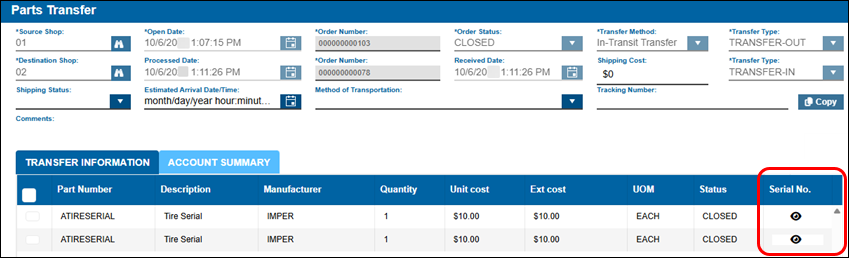
You can only see the Parts Transfer window serial number column (Serial No.) if the Track Serial Numbers For Serialized Parts Application Option is set to YES. Parts with serial numbers have the  View Serial Numbers icon. Selecting the icon opens a pop-up window showing the selected serial number.
This illustration shows the Serial No. column with View icons available.
The Account Summary tab
The Account Summary tab is not available until the order is CLOSED and the accounting transactions (ACCTTRAN records) have been generated. The tab lists a summary of accounts with credit and debit amounts for each account. You can customize the columns, which are:
-
Account: The account applied to the transfer
-
Structure: The assigned Accounting structure
-
Description: A brief description of the action
-
Debit Amt: The debit amount
-
Credit Amt: The credit amount
-
Type: This column is not visible by default, but you can add by customizing the column view.
Action buttons
The action buttons let you change and interact with the information in the Parts Transfer window.
-
Cancel: Closes the Parts Transfer window without saving any changes.
-
Delete Part(s): Removes the selected part row from the Transfer Information tab.
-
Print Pick List: Opens the Report Viewer with the Pick List report. You can then email or print the pick list.
-
Receive: This button is only available on TRANSFER-IN orders when the Order Status is IN-TRANSIT. For more information, see Upon Receiving Transferred Parts.
-
Process Transfer: Use this button to process (save) a parts transfer request in OPEN status from the source shop to the destination shop. This button is only available if the Transfer Method is IN-TRANSIT.
-
OK: Saves your changes and closes the Parts Transfer window
-
New Part Line: Opens the Transfer Line Item window so that you can add a new part line.