E-checks
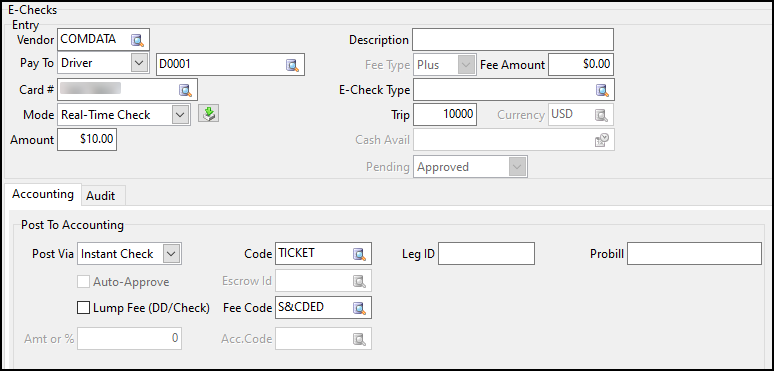
You can view, create, and distribute e-checks on the E-Checks tab. Drivers can use these checks to pay for expenses that are not covered by their fuel card.
| The term for this type of check varies by fuel vendor. |
The E-Checks tab is available if your system is configured for its use. For more information, contact your system administrator.
Look up an e-check
-
In Card Management, select Go > E-Checks.
-
Select
 Find.
Find. -
In the window that opens, select an e-check. You can use the filter fields to locate the e-check.
-
Select OK.
Create an e-check
-
On the E-Checks tab, select
 Insert. The E-Checks window re-opens with blank fields.
 -
Enter information in the Entry and Accounting fields.
The options that are available depend on your fuel vendor, system setup, and type of e-check.
-
When you have finished entering data, select
 Post.
Post.
Entry fields
Required field: *
Read-only field: §
| Field | Definition |
|---|---|
Vendor * |
The real-time fuel vendor. To search for and select an active vendor, select |
Pay To * |
Party that will receive the e-check. Options are:
To search for and select an ID, select |
Card number/Acct number * |
The card or account number associated with the e-check. To search for and select a card or account number, select |
Contract |
Available for TCH only The contract number. This option is available only if the value in the Mode field is Real-Time Check. |
Mode * |
The method by which an e-check is created and handled. Options are:
|
Dir.Dpst |
Available for Comdata and TCH This option is only available only if:
When selected, funds will be deposited directly to the driver’s bank account. Since TCH also supports real-time cash, TCH can support Dir Deposit by loading funds to a driver’s personal card (such as a Smartfund type of card). |
Amount * |
Amount on the e-check |
Sent Via Mobile-Comm |
Available for TCH only When selected, the system sends a message to the payee’s mobile phone. |
PlusChek # |
Available for Fleet One only Fleet One refers to e-checks as PlusChek. When you enter a PlusChek number in this field, it links it to the card. |
Description |
Description of the e-check |
Fee Type |
Determines how the system will handle fees. Options are:
Note: The available options vary by fuel vendor. |
Fee Amount |
Fee amount as defined on the Setup tab |
E-Check Type |
Type of e-check as defined on the Setup tab |
Trip # |
The trip number associated with the e-check |
Cash Avail |
Sets the date when cash becomes available if the e-check’s Mode is set to Real-Time Cash. |
Pending |
Allows you to approve or reject an e-check. The options are:
|

Accounting fields
Required field: *
Read-only field: §
| Field | Definition |
|---|---|
Post Via |
Method used to post to Accounting. Options are:
|
Code/IP |
This field will be labeled either Code or IP #, depending on the value in the Pay To field. If your system allows it, you can select Note: If the value in the Pay To field is Driver, the driver must have the code you select included in their contract. |
Auto-Approve |
When selected, the system will approve deduction entries automatically. It then passes them to Driver Pay Register for posting to the general ledger. |
Lump Fee |
This option is available if:
When selected, the system adds the fee into the deduction. For example, if a $100 e-check includes a $1 administration fee, the system will create a single driver deduction for $101. It uses the value in the Code field for the deduction. If not selected, the system creates two separate driver deductions. One deduction for the e-check amount and one for the fee. Both will use the code specified in the Code field unless there is a different code in the Fee Code field. |
Fee Code |
Deduction code, reverse deduction code, or IP number to use for the fee. To search for and select a code or IP number, click |
Audit
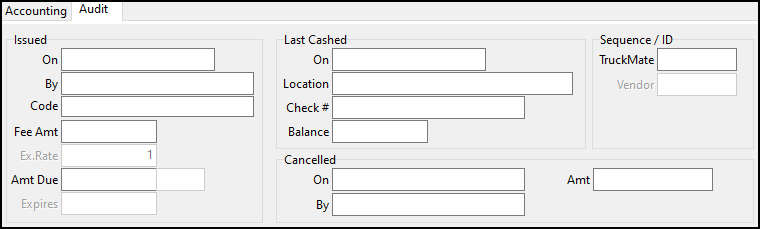
You can view details about individual e-checks on the Audit tab. These fields are read-only.
Issued
The Issued section shows the:
-
Date the e-check was issued
-
ID of the user who issued the check
-
Unique code used by the driver/employee to cash the e-check
Note: This is confidential information that should not be given to anyone other than the person who will receive the e-check.
-
Amount due
-
Exchange rate
-
Expiration date
The data that is displayed can vary between fuel vendors:
-
Comdata: The amount and any fee appear immediately. The next time you view a Comdata e-check, a real-time update takes place. If the e-check was cashed, the values in the Last Cashed section are updated.
-
T-Chek: The amount and any fee do not appear immediately. Information in this section is updated when T-Chek POS transactions are processed. To see these updates, the Real-Time POS option must be selected and the TruckMate Service Host must be running.
Last Cashed
The Last Cashed section shows the:
-
Date the e-check (or a portion of the e-check) was cashed
-
Location where the e-check (or a portion of the e-check) was cashed
-
Automatically-generated check number
-
Remaining balance on the e-check
The vendor-specific rules that apply to the Issued section also apply to the Last Cashed section.