Parent and child accounts
In a balance-based card setup, a trucking company receives a line of credit. From the parent account, the company can advance funds to one or more child accounts. Cards associated with a child account can only draw from the child account’s balance. The cards are not linked to the trucking company’s line of credit directly. In addition, the company does not control the use or management of the cards.
| Parent and child accounts are only available only for Comdata and TCH. |
Set up Card Management for use with parent and child accounts
You must configure several TruckMate applications to use parent and child accounts.
Security Configuration
Users need access to view the Child tab. You can set up access on the Security tab in Security Configuration. For more information on all the Card Management options, Set up Security Configuration options for Card Management.
| Go to | Do this | To |
|---|---|---|
Tabs Setting > Card Management |
Select one or more of the following:
|
Give users access to the Child interface features in Card Management |
Codes Maintenance
| Go to | Do this | To |
|---|---|---|
View > Defined Fields > Custom Defined Fields |
Set up custom defined fields using these parameters:
|
Allow the user to record any miscellaneous information about a child account |
View > Status Codes > Dispatch/Orders |
Create a unique status code for each event listed at right |
Have the system:
You will specify these codes on the Child Settings tab when setting up e-check information in Card Management. |
Driver Pay Contracts
To apply an advance to a driver, the driver’s pay contract must contain a driver code for advance funds. It can optionally contain a driver code for fees. These codes are set up on the Deductions tab of Driver Pay Contracts.
Card Management
Enable the real-time fuel vendor settings specified for parent and child accounts.
Driver Profiles
Once you have imported or created TCH child accounts, you can attach a driver ID to one on the TCH Child tab.
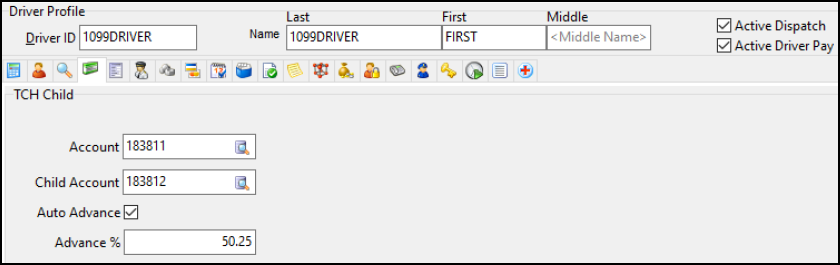
Required field: *
| Field | Definition |
|---|---|
Account * |
Parent account ID If you only have one account that is configured as a parent account, it appears in this field automatically. If you have more than one parent account, enter the ID or select |
Child Account * |
Child account ID. You can select |
Auto Advance |
When selected, the driver will receive funds automatically. |
Advance % |
If Auto Advance is selected, enter the percentage of revenue the driver receives when funds are advanced. Decimal values are allowed (e.g. 50.25). |

TruckMate Windows Service Host
-
In TruckMate Windows Services Host, select Add Service. A list of services opens.
-
Select your fuel vendor. The service setup window opens.
-
Configure the service.
If you are not sure how to configure the service, contact Trimble Transportation Support. If you do not have an account, you can create one by selecting Sign Up.
-
After you have configured the service, select OK.
-
To start the service, right-click the service on the leftmost pane and select Start.
View and edit child account information
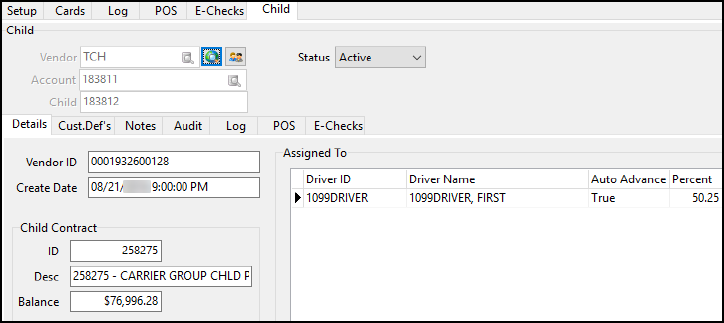
You can view and edit child account information on the Child tab in Card Management. To look up an account, select  Find and select an account on the window that opens.
On the Child tab you can:
-
View, add, and edit custom-defined field information for the account on the Cust.Def’s tab
-
View, add, and edit notes on the Notes tab
-
View audit information on the Audit tab
-
View point of sale (POS) transactions, including funds advances, on the POS tab
-
View and add e-checks on the E-Checks tab
All the fields in the header and on the Details tab are read-only except for the Status field. The system pulls this data from the fuel vendor. You can select a status on this tab, but the account’s status will not update on the fuel vendor’s side.