Real-time fuel vendor settings
When you add a new real-time fuel vendor, Professional Services helps you choose the TruckMate settings that fit your business needs. For SaaS (software as a service) TruckMate users, these settings are managed for you by Trimble Transportation. If you are an on-prem (on-premises) TruckMate user, you can change these settings yourself.
Change general real-time fuel vendor settings
-
In the Card Management application, go to Tools > Setup > Vendors.
-
Select your fuel vendor:
-
Select
 Find. The Select Card Vendor window opens.
 -
Locate and select your fuel vendor from the list.
-
Select OK. The Vendors header displays your vendor’s information.
-
-
You can make changes to the settings in the header or on the Real-Time > General tab:
-
When you have finished making changes, select
 Post.
Post.
Vendors header

| Field | Definition |
|---|---|
Active |
When selected, this vendor is available for use in the system. |
Default |
When selected, this vendor is the default vendor for your company. Note: This option must be selected if you are working with parent and child accounts. |
TM Vendor ID |
The TruckMate vendor ID to associate with the fuel vendor. You can select |

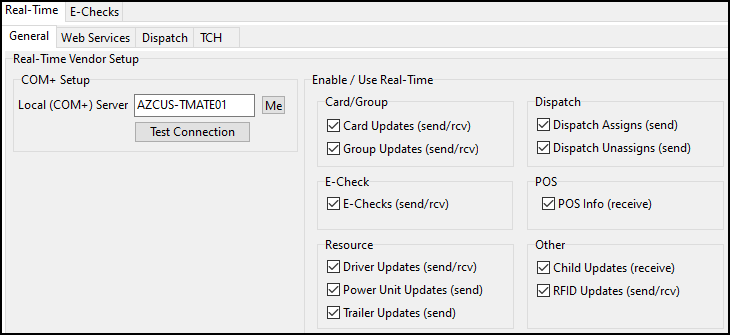
General
| Field | Definition |
|---|---|
Local (COM+) Server |
The name of the COM+ server. |
Set TruckMate Currency Codes at Level |
Available for Comdata only The level at which a user can select specific TruckMate currency codes.
|
Card/Group |
|
Dispatch |
|
E-Check |
|
POS |
|
Resource |
Select the checkbox next to a resource to enable the vendor to send or receive details about that resource type:
|
Other |
|
Change communication settings
The TCPIP and Web Services tabs are used to establish communication with the real-time fuel vendor.
-
In Card Management, go to Setup > Vendors > Real-Time.
-
Make changes on the appropriate tab:
-
When you have finished making changes, select
Post.
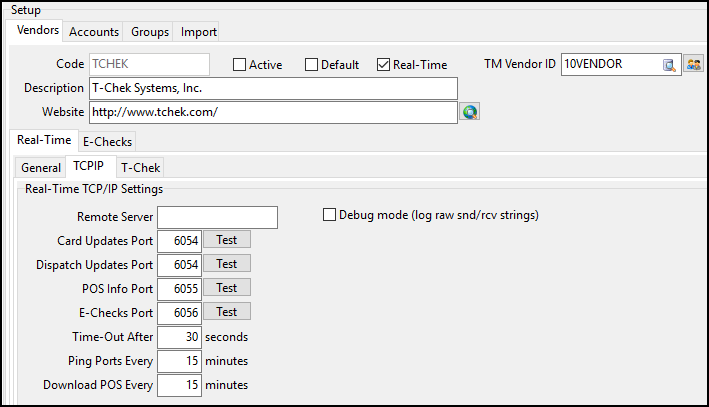
TCPIP (Comdata, T-Chek)
| Field | Definition |
|---|---|
Remote Server |
The remote server address provided by the fuel vendor. |
Card Updates Port |
The port number used to transfer fuel card updates. |
Dispatch Updates Port |
The port number used to transfer dispatch updates. Enter a value in this field if you want Card Management to be able to communicate with Dispatch. |
POS Info Port |
The port number used to transfer POS updates. Enter a value in this field if you are retrieving POS information. |
E-Checks Port |
The port number used to transfer e-check updates. Enter a value in this field if the system is sending and retrieving e-check information. |
Time-Out After |
The number of seconds that can elapse without a response from the remote server before communication is stopped. The default value is 30 seconds. |
Ping Ports Every |
Available for T-Chek only The number of minutes that can elapse before the system sends a ping request. |
Download POS Every |
Available for T-Chek only The number of minutes that can elapse before the real-time server can download new POS transactions to the system. |
Debug mode (log raw snd/rcv strings) |
Trimble recommends selecting this option. If this option is selected, you can use SQL Execute to see the data exchanged between your server and the fuel vendor server. This can be useful when troubleshooting. |
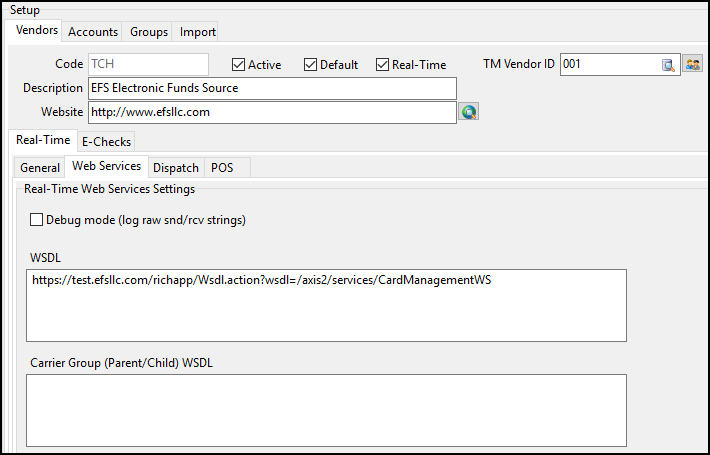
Web Services (Fleet One, QuikQ, TCH)
| Field | Definition |
|---|---|
Debug mode (log raw snd/rcv strings) |
Trimble recommends selecting this option. If this option is selected, you can use SQL Execute to see the data exchanged between your server and the fuel vendor server. This can be useful when troubleshooting. |
WSDL |
The WSDL URL supplied by the fuel vendor. |
Carrier Group (Parent/Child) WSDL |
Available for QuikQ and TCH only The WSDL URL for the parent/child web service as supplied by EFS or QuikQ. Note: There must be value in this field if you are working with parent and child accounts. |
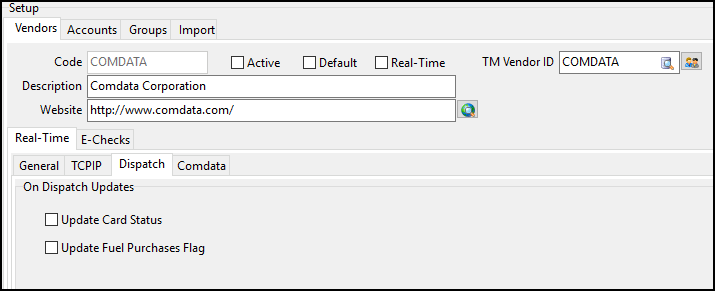
Change dispatch settings (Comdata, QuikQ, TCH)
On the Dispatch tab, you can enable the fuel vendor to respond to dispatch activity in Dispatch.
-
In Card Management, go to Vendors > Real-Time > Dispatch.
-
Select one or more of the options on the Real-Time > Dispatch tab.
Option Definition Update Card Status
When selected, the system will update the card status when there is an update in Dispatch.
Update Fuel Purchases Flag
Available for Comdata only
When selected, the system will instruct the real-time server to turn off fuel purchases when a trip change takes place.
-
Select
Post.
Vendor-specific settings
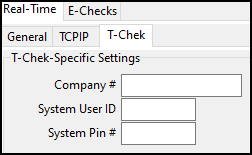
Each fuel vendor has its own setup tab with fields specific to that vendor’s integration with TruckMate.
-
Go to Setup > Vendors > Real-Time.
-
Make changes on the appropriate tab:
-
When you have finished making changes, select
Post.
Fleetone
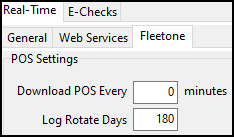
The Download POS Every field sets the interval (in minutes) for downloading POS information.
| There must be a value in this field if you are working with parent and child accounts. |
The Log Rotate Days field sets the number of days after which the system will delete the POS log file.
Comdata
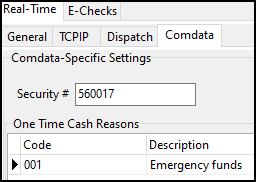
The Security # field is where your Comdata security number is entered.
On the One-Time Cash Reasons grid, you can enter reasons that a user can select when assigning a one-time cash amount to a card.
For each reason you want to add, follow these steps:
-
Below the One-Time Cash Reasons grid, select
 Insert Record. A blank record appears on the grid.
 -
In the Code column, enter an alphanumeric value.
-
In the Description column, enter a description for the code.
-
Select
Post.
QuikQ
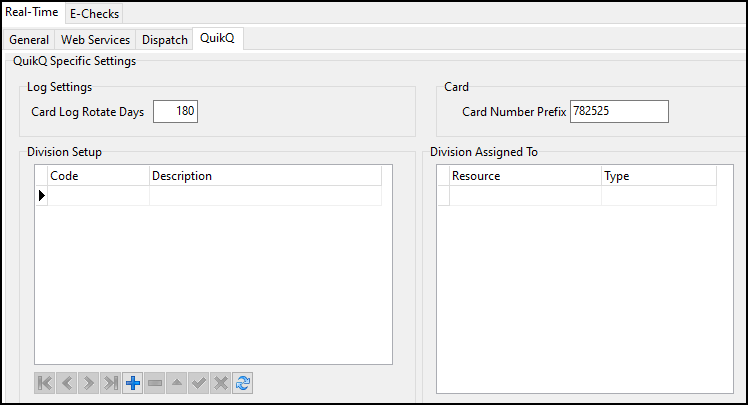
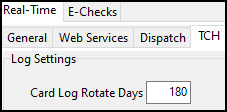
The Card Log Rotate Days field sets the number of days after which the system will delete the POS log file.
The Card Number Prefix field adds a prefix to each card number. Adding a prefix avoids situations where the first few digits of a card transaction are omitted.
You can create divisions for your TruckMate resources. This allows you to control which resources you want to export to QuikQ. The export process allows QuikQ to access your TruckMate resources.
Create a division
-
Select
Insert Record below the Division Setup grid. An empty division record appears on the grid. -
Enter a Code and a Description for that code.
-
Select
Post Edit. -
Repeat Steps 1-3 for each division you want to add.
Assign a resource to a division
-
Open Driver Profiles, Power Unit Profiles, or Trailer Profiles, depending on the resource you want to assign to a division.
-
Navigate to the resource you want to assign.
-
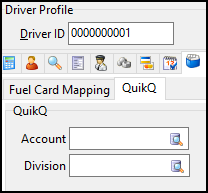
Go to the Fuel Card Management > QuikQ tab.
-
Enter an Account and Division.
-
Select
Post to save your changes. -
Repeat Steps 1-5 for each resource you want to assign to a division.
Change e-check settings
-
In Card Management, go to Setup > Vendors > E-Checks.
-
Make changes on any of these tabs:
-
When you have finished entering data, select
Post.
Standard Settings
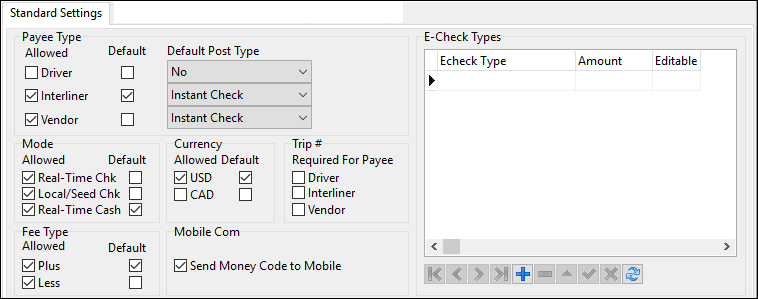
| Field | Definition |
|---|---|
Payee Type |
The payee types the user can issue e-checks to. Options are:
Select Default next to the type that will appear by default when creating an e-check. |
Default Post Type |
Posting methods available when creating an e-check. Options are:
|
Mode |
The method by which an e-check is created and handled. Options are:
Select Default to set the mode that the system will use by default. |
Currency |
Currencies that can be used to create e-checks. Options are:
Select Default next to the currency that the system will use by default. |
Trip # |
Sets whether a trip number is required when an e-check is created for a particular payee type. Options are:
|
Fee Type |
Available for Comdata, QuikQ, T-Chek, and TCH only Determines how the system will handle fees. Options are:
Select Default next to the fee type that the system will use by default. Note: For Fleet One, these fields are read-only. |
Send Money Code to Mobile |
Available for TCH only When selected, the Sent via Mobile-Comm option in the E-Checks window is selected by default. |
E-Check Types |
The types of e-checks available to the user. For each type, you can specify a default fee amount and whether the user can edit the amount in the E-Checks window. Select |
COM+/Accounting/Fees Settings
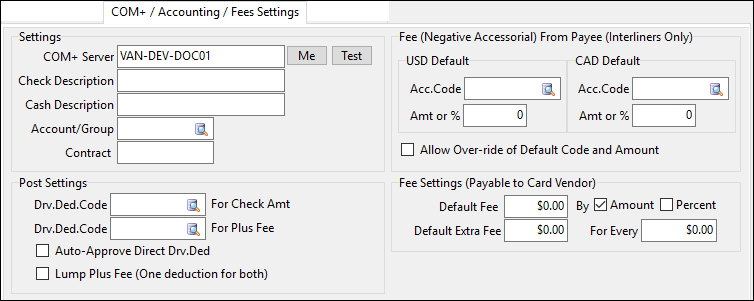
| Field | Definition |
|---|---|
COM+ Server |
Machine name of the e-check service. |
Check Description |
The default description attached to each e-check. |
Cash Description |
Available for Comdata, QuikQ, and TCH only The default description attached to each one-time cash transaction. |
Account/Group |
The default account or group to be charged by the amount of e-checks. You can select |
Contract |
Available for TCH only The contract to apply to e-checks. You can select Note: Contracts are imported on the TCH-Specific Settings pane. |
Drv. Ded. Code For Check Amt |
The default driver deduction code used for charging the e-check amount. |
Drv. Ded. Code For Plus Fee |
The default driver deduction code used for charging plus-type e-check fees. |
Auto-Approve Direct Drv. Ded. |
When selected, the system approves direct driver deductions automatically. |
Lump Plus Fee (One deduction for both) |
When selected, the default fee type is set to Plus for all Comdata e-checks. |
Fee (Negative Accessorial) From Payee (Interliners Only) |
If the payee type is Interliner, enter the following information to create a negative accessorial:
You can specify a default negative accessorial for both US dollars (USD Default) and Canadian dollars (CAD Default). |
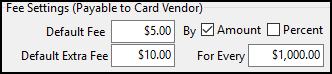
Fee Settings (Payable to Card Vendor) |
As an example, an e-check for $3,000 created with the settings in this illustration would incur a total fee of $35.
|
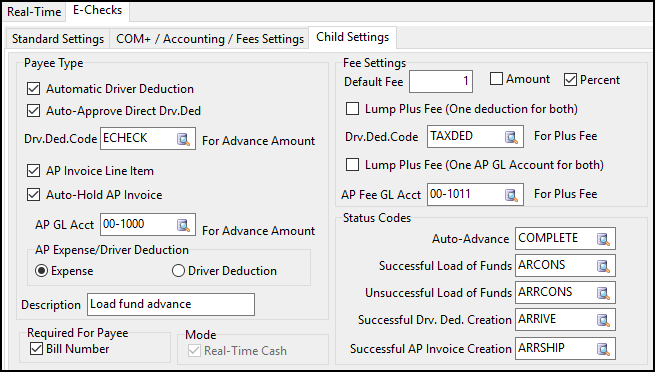
Child Settings
For more information on parent and child accounts, see Parent and child accounts.
| This tab only appears if at least one vendor has a value in the Carrier Group (Parent/Child) WSDL field on the Vendors > Real-Time > Web Services tab. |
| Field | Definition |
|---|---|
Automatic Driver Deduction |
When selected, the system creates a driver deduction for every advance automatically. |
Auto-Approve Direct Drv.Ded |
When selected, the system approves the driver deduction automatically. |
Drv.Ded.Code For Advance Amount |
The deduction code used for driver deductions. |
AP Invoice Line Item |
When selected, the system creates an AP invoice line item for every advance automatically. |
Auto-Hold AP Invoice |
When selected, the system puts the AP invoice on payment hold automatically. |
AP GL Acct For Advance Amount |
The GL expense account number. |
AP Expense/Driver Deduction |
If AP Invoice Line Item is selected, choose the type of line to create on the invoice. Options are:
|
Description |
The text that will appear on the AP invoice next to the expense. When created, the system prefixes the freight bill number to this text automatically. |
Bill Number |
When selected, a freight bill number must be associated with the advance. |
Real-Time Cash |
The default value in the Mode field for e-checks created from child accounts. |
Default Fee |
The fee charged per advance. Select an option to determine the measurement:
|
Lump Plus Fee (One deduction for both) |
When selected, the system creates a single deduction that contains the advance and the fee. |
Drv.Ded.Code For Plus Fee |
The deduction code for the fee |
Lump Plus Fee (One AP GL Account for both) |
When selected, the system creates a single AP invoice line item that contains the advance and the fee. |
AP Fee GL Acct For Plus Fee |
The AP GL account number |
Auto-Advance |
The status code (as set up in Codes Maintenance) to trigger an auto-advance in Customer Service. |
Successful Load of Funds |
The status code used with the freight bill for a successful load of funds. |
Unsuccessful Load of Funds |
The status code used with the freight bill for an unsuccessful load of funds. |
Successful Drv. Ded. Creation |
The status code used with the freight bill for a successful driver deduction creation. |
Successful AP Invoice Creation |
The status code used with the freight bill for a successful AP invoice creation. |
Change account information
For each vendor, you can create multiple accounts. Each card must be assigned to an account.
-
In Card Management, go to Setup > Accounts.
-
Make any changes in the accounts header.
-
Make any changes in the appropriate vendor-specific fields:
-
When you have finished making changes, select
Post.
|
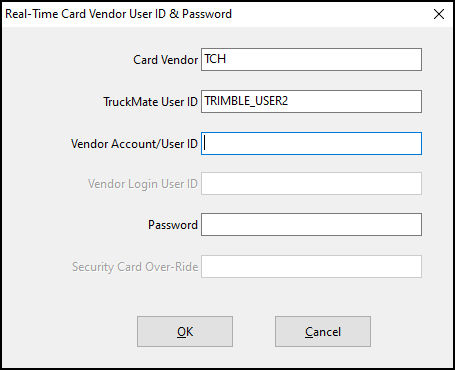
To establish communication with the TCH web service, a user ID or vendor account number and password is needed for each account and TruckMate user. Each user will be prompted when signing in to an account for the first time.
|
Accounts header

| Field | Definition |
|---|---|
Code |
The fuel vendor account code Note: If you are setting up a child account, enter the parent account code in this field as supplied by your fuel vendor. |
Active |
Select this checkbox to make the account available to use in the system. |
Vendor |
The fuel vendor attached to the account. Select The first time you add a vendor, you may be prompted to enter a Vendor Account/User ID and Password. These are provided to you by your fuel vendor. |
Description |
Account description |
CAD |
TruckMate currency code for Canadian dollars. Select Note: TCH does not accept Canadian dollars. |
USD |
TruckMate currency code for American dollars. Select |
Dual |
When selected, the account can accept both Canadian and American dollars. |
FleetOne-Specific Settings
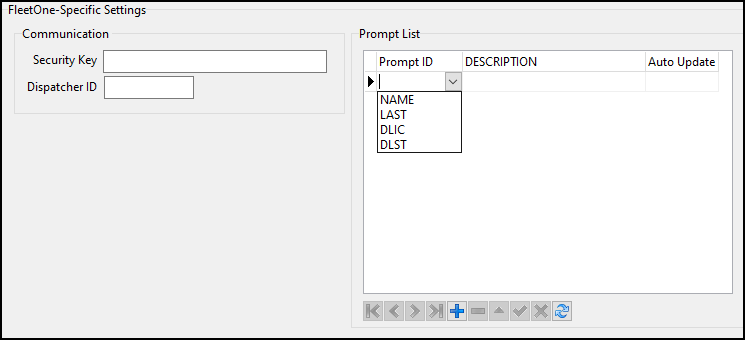
Values for the Security Key and Dispatch ID fields is provided by Fleet One.
On the Prompt List grid, you can create prompts:
-
Select
Insert Record below the Prompt List grid. A blank record appears on the grid. -
Select the PromptID dropdown list and choose a prompt type. There are four types:
-
NAME
-
LAST
-
DLIC
-
DLST
-
-
Enter a description for the prompt in the DESCRIPTION column.
-
In the Auto Update column, select either False or True.
-
Select
Post Edit.
QuikQ-Specific Settings
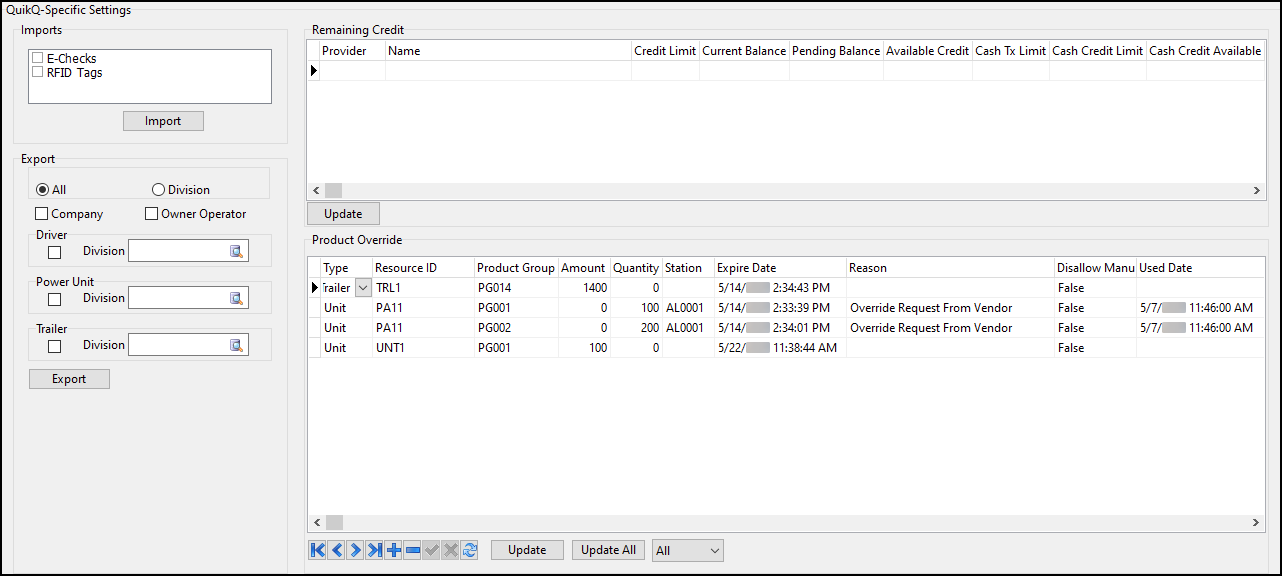
| Field | Definition |
|---|---|
Imports |
On the Imports pane, you can import e-checks and RFID tags.
|
Export |
After you set your filters, select Export. |
Remaining Credit |
Shows the remaining credit for credit providers. This grid only supports up to five credit providers. Select Update to refresh this grid. |
Product Override |
On this grid, you can create limits for specific resources. For example, you can limit a trailer to a specific credit amount, station, and expiration date. The Used Date column shows whether the override has been used. Select Update to refresh the currently selected override. Select Update All to refresh the entire grid. |
T-Chek-Specific Settings

| Field | Definition |
|---|---|
Account Type |
Sets the types of purchase options allowed for cards on this account. Options are:
|
Real-Time Groups |
On the T-Chek server, groups are optional and available only for informational purposes. If you choose to set up identical groups in your system (recommended) and on the T-Chek server, select this option to ensure that both locations reflect card updates accurately. |
TCH-Specific Settings (card-based account)
If you are setting up a card-based account, do not select Parent/Child Account.
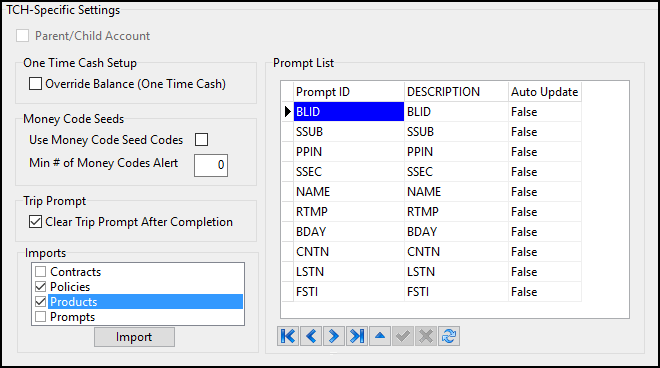
These fields are available for card-based accounts.
| Field | Definition |
|---|---|
Override Balance (One Time Cash) |
For a one-time cash load, select this option if you want to override the current card balance with the new cash amount. If you do not select this option, the system adds the cash amount to the current card balance. |
Use Money Code Seed Codes |
Select this option if you are using seed codes to generate money codes. |
Min # of Money Codes Alert |
Enter the minimum number of seed codes a user must enter when creating an e-check. |
Clear Trip Prompt After Completion |
When selected, the system clears the trip number after the trip completes. |
Imports |
The following items are available from the TCH web service. Select one or more to import them.
|
TCH-Specific Settings (parent/child account)
If you are setting up a parent or child account, follow these steps.
-
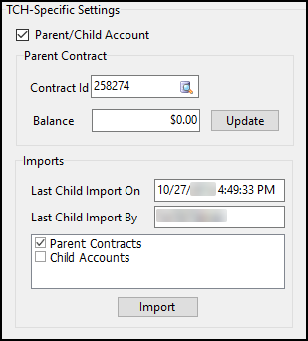
Select the Parent/Child Account and Parent Contracts checkboxes.
-
Select Import. The system imports all parent contracts from the EFS server.
-
Select Update. If there is only one parent contract ID, it appears in the Contract Id field. The current balance appears in the Balance field.
If there is more than one parent contract ID, enter it in the Contract Id field or select
 Pick List to search for and select a contract ID. Select Update again to retrieve the current balance.
 -
To import child accounts, select Child Accounts and select Import. You can view child account information on the Child tab.
Create groups
If you are using Comdata, TCH, or T-Chek as your fuel vendor, you can create groups that you can assign multiple cards. All the cards in a group share the same properties and options.
Types of groups you could create include:
-
Drivers and non-drivers (such as employees)
-
Canadian drivers and American drivers
Although it is optional, Trimble recommends using groups. They can save you time when importing new cards.
-
In Card Management, go to Setup > Groups.
-
Make entries in the Groups header.
-
Make entries in the vendor-specific fields:
-
When you have finished entering data, select
 Post.
Post.
Groups header
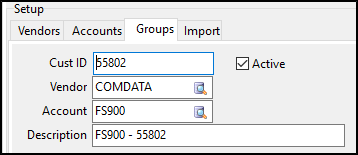
| Field | Definition |
|---|---|
Cust ID/Group Number/Policy Number |
The group code. The field name varies depending on the vendor. |
Active |
When selected, this group is available for use in the system. |
Vendor |
The group’s fuel vendor. You can select |
Account |
The group’s fuel vendor account. You can select |
Description |
Group description |
Comdata
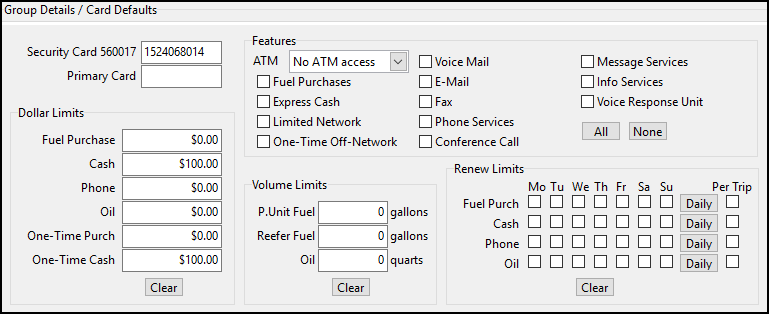
| Field | Definition |
|---|---|
Security Card 560017 |
The unique 10-digit password used for all transactions across all the Comdata accounts for a carrier and its associated companies. |
Primary Card |
The primary card’s number. Any number of secondary cards can be attached to the primary card. |
Features |
Sets the types of purchases a driver can make with a fuel card. Select All or None to select or clear all options. The ATM dropdown field’s options include:
|
Dollar Limits |
The maximum amount allowed towards certain types of purchases over the period set in the Renew Limits section. Select Clear to reset all amounts to zero. |
Volume Limits |
The maximum amount allowed towards certain types of products over the period set in the Renew Limits section. Select Clear to reset all amounts to zero. |
Renew Limits |
Sets when the values in the Dollar Limits and Volume Limits sections are refreshed. |
T-Chek
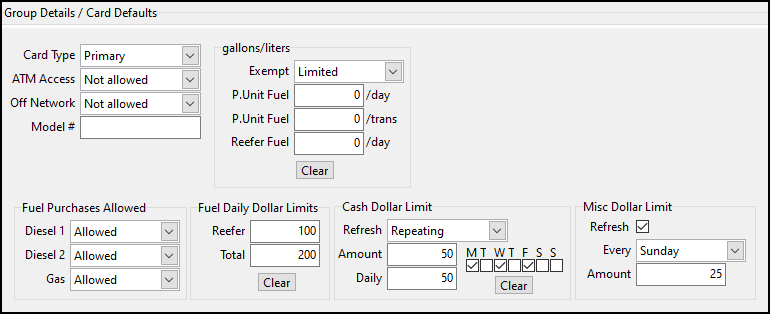
| Field | Definition |
|---|---|
Card Type |
The card type for the group. Options are:
|
ATM Access |
The level of ATM access allowed for fuel cards. Options are:
|
Off Network |
Level of off-network access allowed for fuel cards. Options are:
|
Model # |
The ID of the network of fueling stations that the cardholder can use depending on the value in the Off Network field. |
gallons/liters |
Limits the amount of fuel that can be purchased in a given period by a fuel card in this group. |
Fuel Purchases Allowed |
The types of fuel that can be purchased with a fuel card in this group. |
Fuel Daily Dollar Limits |
Sets how much can be spent on a card towards fuel. |
Cash Dollar Limit |
The amount of cash a driver or employee can withdraw at an ATM using a card in this group. |
Misc Dollar Limit |
The amount of miscellaneous cash available to a card in this group. |
TCH
TCH has four vendor-specific group tabs:
General
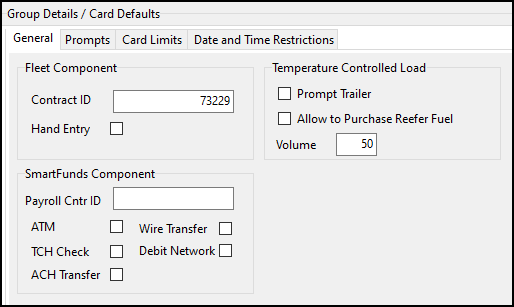
| Field | Definition |
|---|---|
Contract ID |
The policy number as assigned by TCH. |
Hand Entry |
When selected, a card number can be entered by hand at POS locations. |
Payroll Cntr ID |
ID that links a SmartFunds card to the cardholder’s payroll record. If an ID has been entered in this field, these options are available:
|
Prompt Trailer |
When selected, the cardholder must enter trailer information when using a card at POS locations. |
Allow to Purchase Reefer Fuel |
When selected, the cardholder can purchase reefer fuel for temperature-controlled loads. |
Volume |
Maximum volume of reefer fuel that the cardholder can purchase on a card if Allow to Purchase Reefer Fuel is selected. |
Prompts
You can specify the prompts that the cardholder must provide when using a card at POS locations.
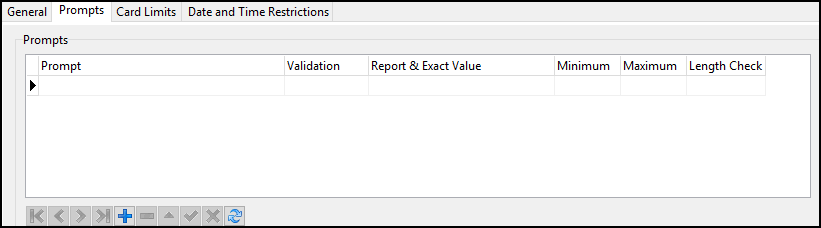
| Field | Definition |
|---|---|
Prompt |
Prompt name |
Validation |
Validation to be used with a selected prompt. If the entry does not meet the validation requirement, the cardholder cannot use the card. Options are:
|
Report & Exact Value |
Entry required in the following validation cases:
|
Minimum |
The minimum number of characters required for ALPHA, ALPHANUMERIC, and NUMERIC entries. |
Maximum |
The maximum number of characters allowed for ALPHA, ALPHANUMERIC, and NUMERIC entries. |
Length Check |
Options are:
|
Card Limits
On this tab, you can restrict card usage to specific products. You can also apply amount and time limits for each product.
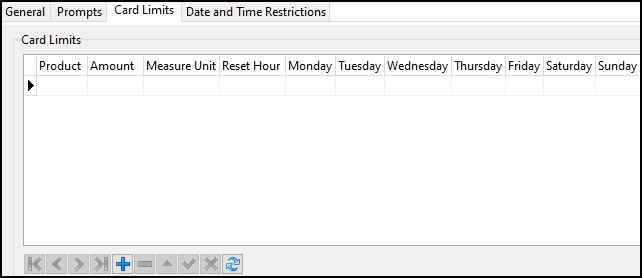
| Field | Definition |
|---|---|
Product |
Product name |
Amount |
The maximum amount of the product that can be purchased within a given time period. |
Measure Unit |
The measurement unit used with the value in the Amount column. |
Reset Hour |
The number of hours that must pass before the system will reset the amount of product that can be purchased. Alternately, enter 0 in this column and, in each of the day columns, select True or False to set whether the system will reset the amount on that day. |
Date and Time Restrictions
Use this tab to restrict card usage to specific dates and times.

| Field | Definition |
|---|---|
Day |
The day of the week on which card usage is restricted. |
Begin Date |
The date the card usage restriction period begins. |
Begin Time |
The time the card usage restriction period begins. |
End Date |
The date the card usage restriction ends. |
End Time |
The time the card usage restriction ends. |