View log data and point of sale information
The Log and POS (point of sale) tabs have grids that track your card activity.
View log data
The Log grid provides a regularly-updated list of Card Management processes.
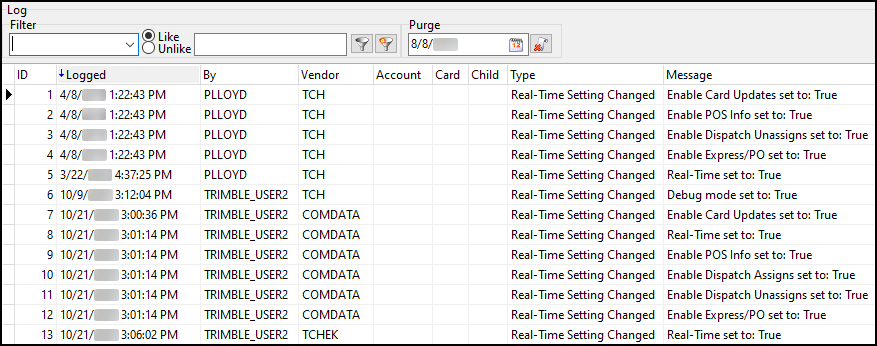
All the types processes appear on the grid by default. To view a subset of this data:
-
In Card Management, select Go > Log.
-
In the Filter dropdown menu, select the type of data you want to filter.
-
Do one of the following:
-
To retrieve records that match the search string, select Like.
-
To retrieve records that do not match the search string, select Unlike.
-
-
In the field to the right, enter a search string (letters, numbers, or both).
-
Select
 Apply Filter. The grid displays all log records that fit the selected criteria.
To cancel the filter and display all log records, select  Cancel Filter.


View point of sale data
The POS grid shows all the POS transactions made by fuel cards.
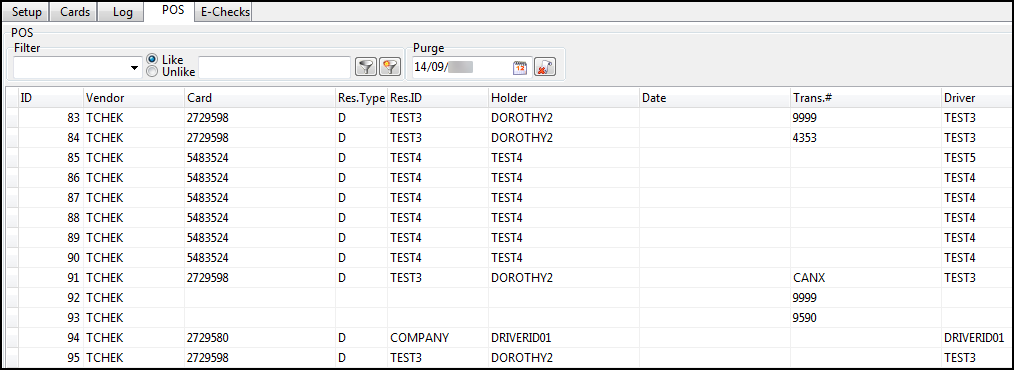
You can filter these results.
-
In Card Management, select Go > POS.
-
In the Filter dropdown menu, select the column you want to filter.
-
Do one of the following:
-
To retrieve records that match the search string, select Like.
-
To retrieve records that do not match the search string, select Unlike.
-
-
In the field to the right, enter a search string (letters, numbers, or both).
-
Select
Apply Filter. The grid displays all log records that fit the selected criteria.
To cancel the filter and display all log records, select Cancel Filter.