Working with a single card
On the Cards tab of Card Management, you can view, add, and update information for a single card. Depending on your fuel vendor, you have two choices for data entry:
-
You can add and update individual cards.
-
You can assign a card to a group, which has shared properties and options.
Look up a fuel card
-
In Card Management, select Go > Cards.
-
Select
 Find. The Select Card window opens.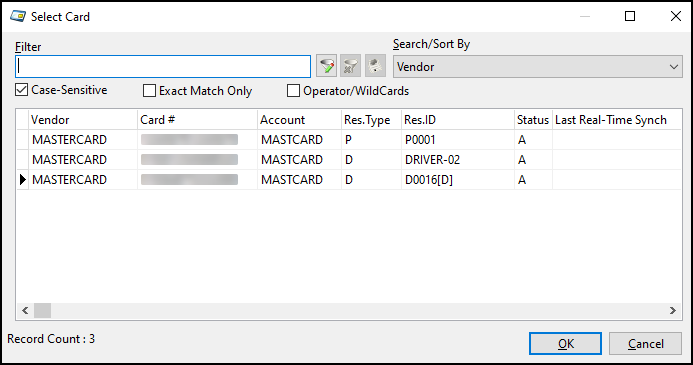
-
Select a card and then select OK. The Cards tab populates with the card’s information.
Create a new card manually
You can create a new card manually if either of the following is true:
-
You are using a non-real-time fuel vendor.
-
Your fuel vendor is Fleet One and an initial set of card data has already been imported.
If neither of these is true, you must import card data from a file provided by your vendor. You can then update information for individual cards. If you try to create a new card without first importing card data, the system displays an error message.
To add a card manually:
-
On the Cards tab, select
 Insert. The tab reloads with blank fields.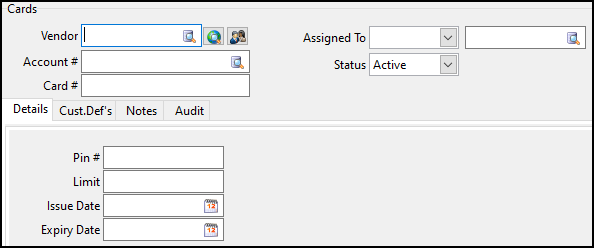
-
Enter a fuel vendor in the Vendor field. You can select
 Pick List to search for and select an active fuel vendor.
To view the fuel vendor’s web site in your default browser, select
 Go to vendor’s website.
To view the vendor’s profile, select
 Go to vendor profile.
 -
In the Account # field, enter the account code. To search for and select an account code, select
Pick List. -
In the Card # field, enter the card number.
If you are creating a new card, you may have to follow a specific format as defined during setup.
-
In the Assigned To field, select the resource type for the card. The options are:
-
Driver
Only the specified driver can use the card. -
Employee
Only the specified non-driver employee can use the card. -
Power Unit
Only the operator of the specified power unit can use the card.
To search for and select a resource ID, select
Pick List. -
-
Select a status from the Status dropdown menu:
-
Active
Card is available for use -
Block
Card is blocked and unavailable for use -
Lost
Card is lost and unavailable for use -
Delete
Card has been deleted and is unavailable for use
-
-
Do one of the following:
-
If you are setting up a new Fleet One card, enter information on the Fleet One-specific Details tabs.
-
If you are using a non-real-time fuel vendor, enter information in the Details tab fields:
Field Definition Pin#
Personal Identification Number (PIN). You can enter up to four digits.
Limit
Dollar limit
Issue Date
Card issue date
Expiry Date
Card expiration date
-
-
When you have finished entering data, select
 Post.
Post.
Assign a card to a group
If you are using Comdata, TCH, or T-Chek as your fuel vendor, you can assign a card to a group. All the cards in a group have shared settings.
-
In Card Management, go to the Cards tab.
-
Look up a card.
-
On the Details tab, enter the group code in the appropriate field:
-
Comdata: Cust ID (Group).
-
TCH: Policy Number
-
T-Chek: Group #
The system populates fields with data automatically.
-
-
Select
Post
Look up and convert resource IDs
You can map resource IDs on the real-time vendor’s server to the resources available in your system.
-
On the Cards tab, look up a card.
-
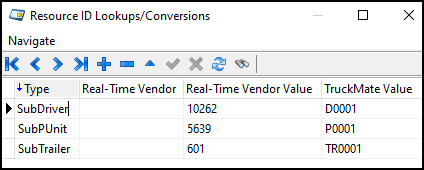
Go to Tools > Resource ID Lookups/Conversions. The Resource ID Lookups/Conversions window opens.
The system scans the values for the selected fuel card. If there are any resources that do not have an equivalent in TruckMate, they appear on the grid.
You must provide a resource from your TruckMate database to substitute for the card’s real-time vendor value.
-
Double-click the TruckMate Value field in the row of the TruckMate resource that you want to map to the vendor’s resource.
Create or remove card overrides
| This feature is available for TCH cards only. |
An override is a transaction that is allowed even though it does not meet the requirements set by the card and the policy. You can set the number of overrides allowed for a card. You can remove overrides, regardless of the number of outstanding transactions on the card.
-
On the Cards tab, look up a TCH card.
-
On the Details > General tab, do one of the following:
-
Create overrides:
-
In the No of Overrides field, select a number greater than 0.
-
If you want overrides to apply to all locations, select Override All Locations.
-
-
Remove overrides:
-
Select
 Remove Overrides. You can also set the value in the No of Overrides field to 0 and clear Override All Locations if it is already selected.
-
-
-
To save your changes, select
Post
Transfer existing card data to a new card number
| This feature is available for TCH cards only. |
You can to transfer information from an expiring or expired TCH card to a new card.
-
On the Cards tab, look up a TCH card.
-
On the Details > General tab, enter the number of the card want to transfer information to in the New Card # field. You can select
Pick List to search for an active card. -
Go to Tools > Transfer Card. A confirmation message appears.
-
Select Yes.
Enter details for real-time fuel cards
-
On the Cards tab, look up a card.
-
On the Details tab, make entries in the fields provided. Each real-time fuel vendor has their own unique fields:
-
When you have finished entering data, select
Post.
Comdata
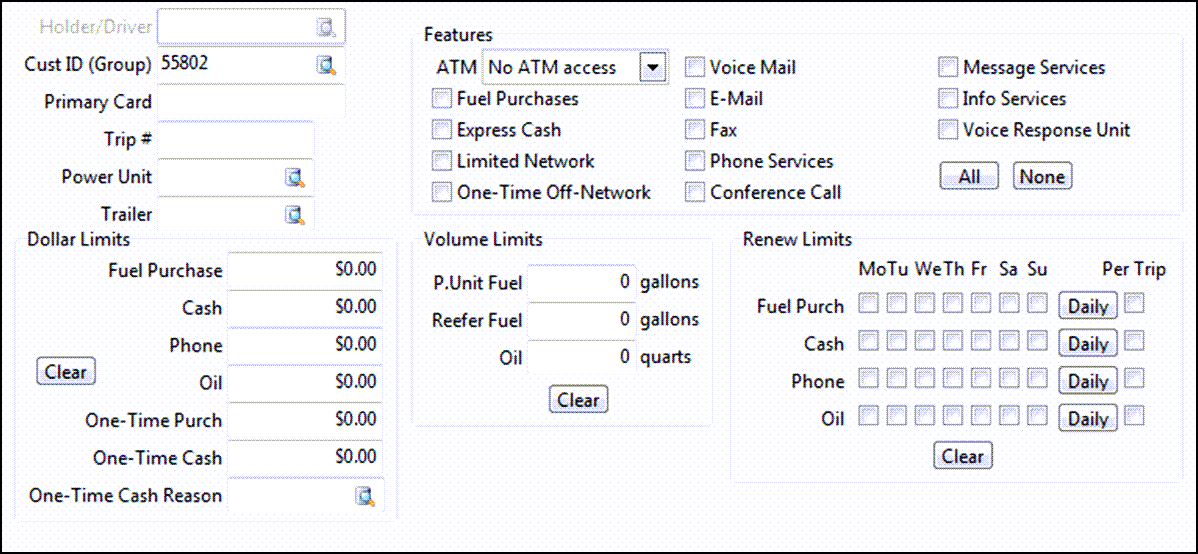
Required field: *
Read-only field: §
| Field | Definition |
|---|---|
Holder/Driver § |
The card user’s ID. If the card is assigned to a power unit, you can select If the card is assigned to a driver or employee, the value in this field is the driver’s or employee’s ID. |
Cust ID (Group) |
The group code. To search for and select a group code, select |
Primary Card |
If your company has multiple fuel cards, you can transfer funds from the primary card to any of the secondary cards. If an inquiry is done on a secondary card, the primary' card’s number is shown in this field. |
Trip |
Trip number associated with the card |
Power Unit |
ID of a power unit associated with the card |
Trailer |
ID of a trailer associated with the card |
Driver |
ID of a driver associated with the card |
Features |
Types of features for which a driver can use a fuel card. Select All or None to select or clear all options. |
Dollar Limits |
Maximum amount allowed towards certain types of purchases over the period set in the Renew Limits section. Select Clear to reset all amounts to zero. |
Volume Limits |
Maximum amount allowed towards certain types of product over the period set in the Renew Limits section. Select Clear to reset all amounts to zero. |
Renew Limits |
Sets when the values in the Dollar Limits and Volume Limits sections refresh. |
Fleet One
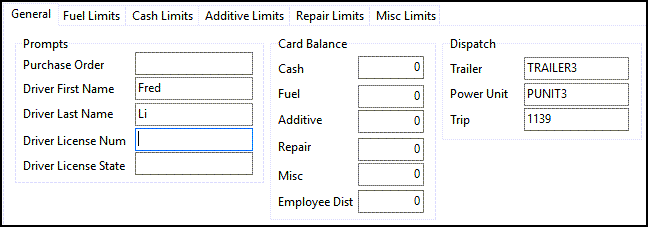
Fleet One has five Details subtabs:
-
General
Shows general information about the card and the driver. -
Fuel Limits
Shows details such as fuel resets, restrictions, and product codes. -
Cash Limits
Shows details such as cash resets, restrictions, and product codes. -
Additive Limits
Shows additive details such as additive resets, restrictions, and product codes. -
Repair Limits
Shows details such as repair resets, restrictions, and product codes. -
Misc Limits
Shows details such as miscellaneous cash resets, restrictions, and product codes.
QuikQ
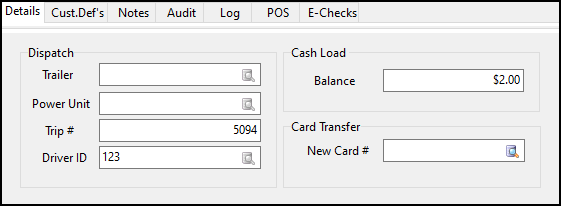
These fields are all read-only:
| Field | Definition |
|---|---|
Trailer |
Shows the trailer that is dispatched on the trip. |
Power Unit |
Shows the power unit that is dispatched on the trip. |
Trip # |
Shows the trip number. |
Driver ID |
Shows the ID of the driver that is dispatched on the trip. |
Cash Load Balance |
Shows the driver’s real-time cash load balance. |
Card Transfer New Card # |
Shows the card’s new number after a transfer. |
T-Chek

| Field | Definition |
|---|---|
Holder/Driver |
The card user’s ID. If the card is assigned to a power unit, you can look up the ID of the driver currently operating the power unit by selecting If the card is assigned to a driver or employee, the value in this field is the driver’s or employee’s ID. |
Group # |
The group code. To search for and select a group code, select |
Card Type |
The card type. Options are:
|
ATM Access |
Sets the level of ATM access for the card. Options are:
|
Off Network |
Level of off-network access allowed for fuel cards. Options are:
|
Model # |
ID of the network of fueling stations that the cardholder can use, depending on the value in the Off Network field. |
Exempt |
Exemption level for fuel cards. Options are:
|
Power Unit Fuel (/day) Power Unit Fuel (/transaction) |
The amount of fuel that a cardholder can purchase in one day or one transaction. |
Reefer Fuel (/day) |
The amount of reefer fuel that a cardholder can purchase in one day. |
Trip # Power Unit Trailer Hub |
The fields in the Dispatch section can only be adjusted if you have dispatch set up for the fuel vendor. These fields show details about the trip and trip resources associated with the card. |
Trip Limit Balance |
Dollar amount available on the card for the specified trip |
Dash Cash Balance |
Dash Cash amount available |
Diesel 1 Diesel 2 Gas |
The values in the Fuel Purchases Allowed section specify which types of fuel can be purchased with the card. Options are:
|
Fuel Daily Limits Reefer |
The amount that can be applied towards fuel purchases for a reefer trailer. |
Fuel Daily Limits Total |
Total amount that can be applied towards fuel purchases. The difference between this value and the value in the Fuel Daily Limits Reefer field is the amount that can be applied towards power unit fuel purchases. |
Cash Dollar Limit Refresh |
Sets when the system will refresh the value in the Cash Dollar Limit Amount field. Options are:
|
Cash Dollar Limit Amount |
Cash allowance amount. Note: The amount is not cumulative. If a driver or employee does not withdraw the allowance, they will not receive an addition to that allowance. |
Daily |
Maximum amount of the cash allowance that can be withdrawn in one day. For example, if the value in the Cash Dollar Limit Amount field is $100, and the value in this field in $50, a driver can withdraw up to $50 two times in a single day. |
Refresh/Every |
When selected, the system refreshes the Miscellaneous Dollar Limit Amount on the day specified in the Every field. |
Miscellaneous Dollar Limit Amount |
Cash allowance amount. Note: The amount is not cumulative. If a driver or employee does not withdraw the allowance, they will not receive an addition to that allowance. |
TCH
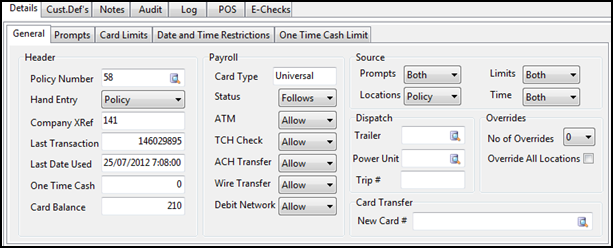
TCH has five subtabs:
General
Required field: *
Read-only field: §
Field |
Definition |
Policy Number * |
Policy number as assigned by TCH |
Hand Entry |
Determines whether a cardholder can enter the card number by hand at POS locations. Options are:
|
Company Xref |
Allows the company to use a cardholder, group, or any other reference as a mutual cross-reference for the card between TCH and the company. |
Last Transaction § |
ID of the last transaction that took place with the card |
Last Used Date § |
Date of the last card transaction |
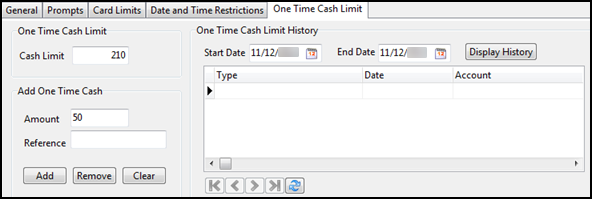
One Time Cash § |
Amount on the card allowed for a one-time cash transaction |
Card Balance § |
Current card balance. This is calculated by subtracting the amount of used funds from the card limit. |
Card Type § |
Card type as defined by TCH. The card type cannot be changed. The types are:
|
Status |
Card status. Options are:
|
ATM TCH Check ACH Transfer Wire Transfer Debit Network |
Sets whether the card can be used with certain networks or for creating certain checks or transfers. Options are:
|
Prompts Locations Limits Time Values |
The options for the Source section fields set which definitions are used for that field. Options are:
|
Trailer |
ID of a trailer associated with the card. To search for and select a trailer ID, select |
Power Unit |
ID of a power unit associated with the card. |
Trip # |
Trip number associated with the card. |
No of Overrides |
The number of times a transaction is allowed that does not meet the requirements set by the card and the policy. Valid values are 0 through 9. |
Override All Locations |
When selected, the card can be used at any location, regardless of any location controls on the card or in the policy. |
New Card # |
The number of the card that will receive all the setup options for the current card. Once this happens, the system cancels the current card. |
Prompts
On the Prompts tab, you can set prompts that the cardholder must respond to when the card is used. Validations and restrictions can be applied to those prompts. To add a prompt, select at the bottom of the page.
Required field: *
Read-only field: §
| Field | Definition |
|---|---|
Prompt * |
List of available prompts |
Validation |
Validation to be used with a selected prompt. If the entry does not meet the validation requirement, the cardholder cannot use the card. Options are:
|
Report and Exact Value |
Entry required in the following validation cases:
|
Minimum |
Minimum number of characters required for an alphabetic, numeric, or alphanumeric entry |
Maximum |
Maximum number of characters required for an alphabetic, numeric, or alphanumeric entry |
Length check |
Options are:
|
Override |
Options are:
|
Card Limits
| Field | Definition |
|---|---|
Product |
When selected, the user can specify a product that can be purchased with the card. |
Amount |
Maximum amount that can be purchased within a given time |
Measure Unit |
Measurement unit used with the value in the Amount field |
Reset Hour |
Number of hours that must pass before the system will reset the amount of product that can be purchased. Alternately, enter 0 in this column and choose one or more days in the day columns. |
Override |
Options are:
|
Date and Time Restrictions
| Field | Definition |
|---|---|
Day |
The day of the week when card usage is restricted. |
Begin Date |
The date the card usage restriction period begins. |
Begin Time |
The time the card usage restriction period begins. |
End Date |
The date the card usage restriction ends. |
End Time |
The time the card usage restriction ends. |
Override |
Options are:
|