Fuel Card Management
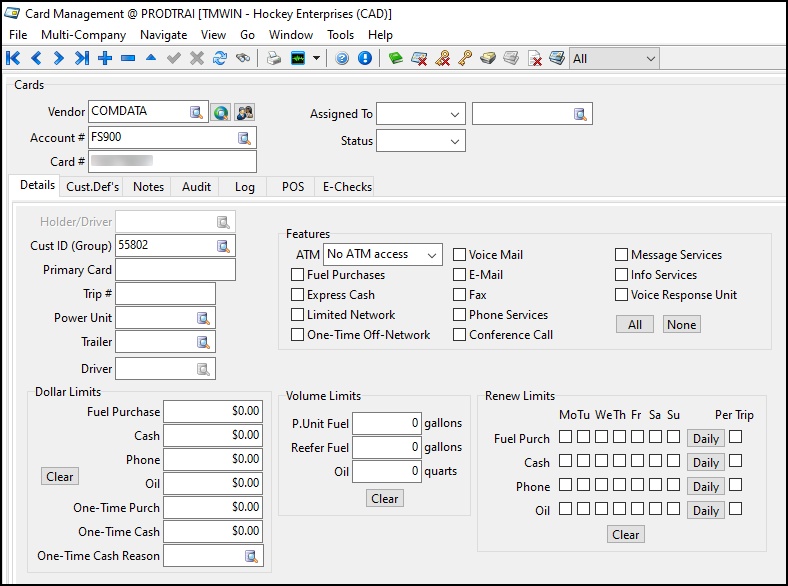
You can use the Card Management program to track and manage cards given to drivers or supplied with power units.
In Card Management, you can:
-
Receive real-time or scheduled updates on purchases made by the cardholder, down to the dollar amount and location
-
Specify when and where cardholders can use their cards (for example, for fuel purchases from certain fueling stations)
-
Approve extra funds if necessary
Card Management offers two levels of usage. The level you should use depends on the degree of accuracy you need from cardholder purchase updates:
-
Non-real-time: You do not need real-time card usage updates. You can manage with a scheduled update at the end of each workday.
-
Real-time: You need real-time card usage updates from a fuel vendor.
You can get real-time updates from other TruckMate applications, such as Dispatch and Driver Profiles. You can also send resource updates to a fuel vendor automatically. Typical examples include:
-
A driver is assigned a card. When the driver is assigned to a trip, Dispatch updates the card record with the driver’s trip number, power unit, and trailer.
-
A card is assigned to a power unit. Dispatch updates the card record with each trip number, driver ID, and trailer associated with the power unit.
-
To access Card Management:
| From this location | Go to |
|---|---|
TruckMate Menu and TruckMate Task List |
Fuel Management > Fuel Card Management |
Windows Start Menu |
TruckMate > Fuel Card Management |
Windows Explorer |
C:\Program Files (x86) > TruckMate > CardMgmt.exe |
Card Management is divided into these categories:
-
Setup
-
Cards
-
Log
-
POS
-
E-Checks
-
Child
-
RFID
|
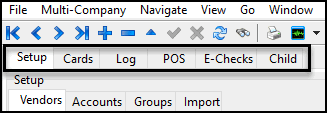
By default, only one category displays at a time in the Card Management window. You can access each category individually by selecting it from the Go menu.
To access all categories in the window area at once, go to View > Tabs. Select a tab to view that category’s information.
This table describes menu and toolbar options in Card Management.
| Menu | Menu option | Toolbar icon | Keyboard shortcut | Description |
|---|---|---|---|---|
Navigate |
Find |
|
CTRL+F5 |
Searches for different types of records, depending on the active tab. For example, if the Vendors tab is active, select Find to search for a vendor ID. |
View |
Tabs |
n/a |
CTRL+T |
Toggles the tab display at the top of the window. |
Status Bar |
n/a |
CTRL+S |
Toggles the status bar at the bottom of the window. |
|
Go |
Setup |
n/a |
CTRL+1 |
Displays the Setup tab. |
Cards |
n/a |
CTRL+2 |
Displays the Cards tab. |
|
Log |
n/a |
CTRL+3 |
Displays the Log tab. |
|
POS |
n/a |
CTRL+4 |
Displays the POS tab. |
|
E-Checks |
n/a |
CTRL+5 |
Displays the E-Checks tab. |
|
Child |
n/a |
CTRL+6 |
Displays the Child tab. |
|
Tools |
Diary |
|
CTRL+D |
Opens the Diary for the cardholder. |
Clear/De-Assign |
|
n/a |
Removes/de-assigns the currently configured cardholder. Available only when the Cards tab is active. |
|
Reset Card’s Pin Number |
|
n/a |
Resets the Personal Identification Number (PIN) of the selected fuel card. |
|
Reset My User ID/Password |
|
n/a |
Displays the Real-Time Card Vendor User ID & Password window. In this window, you can set up your fuel card password. |
|
Resource ID Lookups/Conversions |
|
n/a |
Displays the Resource ID Lookups/Conversions window. In this window, you can map resource IDs on the vendor’s server onto TruckMate resource IDs. |
|
Remove Card Override |
|
n/a |
Removes overrides on the card. This feature is only available for TCH cards. |
|
Transfer Card |
|
n/a |
Transfers information from an expiring or expired card to a new card. This feature is only available for TCH cards. |
|
Transfer RFID Tag |
|
n/a |
Transfers an RFID (radio-frequency identification) tag to a new ID. |


