TruckMate 2025.4 New Features: Operations
Released: January 16, 2026
Last updated: January 16, 2026
Framework
Added option to copy Dawgs (TM-182036)
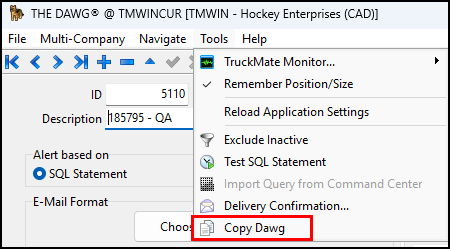
You can now copy existing Dawgs. There are two ways to copy a Dawg:
-
Go to Tools > Copy Dawg
-
Select the
 Copy Dawg icon on the toolbar.
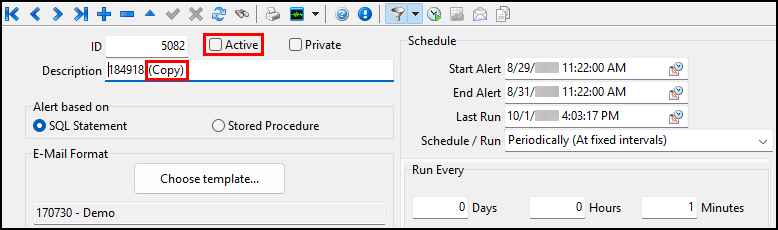
All of the settings from the original Dawg are copied. There are only two differences between the original and the copy:
-
The Active checkbox will be cleared on the copy.
-
The Description of the copy will have "(Copy)" appended to it.
Expanded Dawg file format support (TM-182037)
Support for additional export file formats has been added to The Dawg.
Crystal report file exports are created using TruckMate’s integration with SAP Crystal Reports. The file categories and their supported types include:
-
Crystal Report attachments & Crystal Report export files:
-
CSV, DOC, HTML, PDF, RTF, TSV, TXT, XLS, XLSX, XML
-
-
Results files:
-
CSV, TXT
-
-
Non-Crystal Report email attachments:
-
CSV, HTML, TXT
-
Standardized TruckMate logging folders (TM-183781)
A new standard default logging structure has been added to TruckMate. This will be the standard for SaaS (Software as a Service) moving forward.
| Existing settings that already save logs and data to specific folders will not be changed. This standard is for new installations. |
Logs
-
ART Services
The default log path is now based on the database name for the connection, an ART subfolder, and the application name. For example: C:\ProgramData\TruckMate\Logs\dbname\ART\ConnectedDock -
TruckMate Services using MadWinServiceHost (MWSH)
The default log path is now based on the database name for the connection, an MWSH subfolder, and the application name. For example: C:\ProgramData\TruckMate\Logs\dbname\MWSH\FBImporter -
Back Office applications
The default log path is now based on the database name for the connection and the application name. For example: C:\ProgramData\TruckMate\Logs\dbname\BillingRegister -
Operations applications
The default log path is now based on the database name for the connection and the application name. For example: C:\ProgramData\TruckMate\Logs\dbname\MobileCommAPI
|
EDI will log to separate folders for FTP, Tx, Dump, and Multiprocess. For example:
|
Application Data
Applications and services which write application data will now default to a standard "Data" location based on the database name and application name. For example: C:\ProgramData\TruckMate\Data\dbname\ValUtil
These applications and services include:
-
ValUtil
-
WatchDawg
-
DB2CreateWiz
-
STE Files
-
Soap API
-
MobileComm
There are two exceptions:
-
LoginLog
This feature logs an application login when the appropriate command line parameter is passed on opening. Since the database name is not connected or known when the log is written, this will be written based on the application name. For example: C:\ProgramData\TruckMate\Data\CSERV\Cserv.exe-loginlog.log 20251201 084616.log -
SQLExec
To allow for more security around who can view SQLExec logs, these are now written to a top-level SQLExec folder without the common TruckMate program data path. For example: C:\ProgramData\TruckMate\SQLExec\dbname
Added an EDI multi-process tier distributor (TM-184718)
An option has been added to EDI Communications Manager called Enable tier distributor (multi-process).
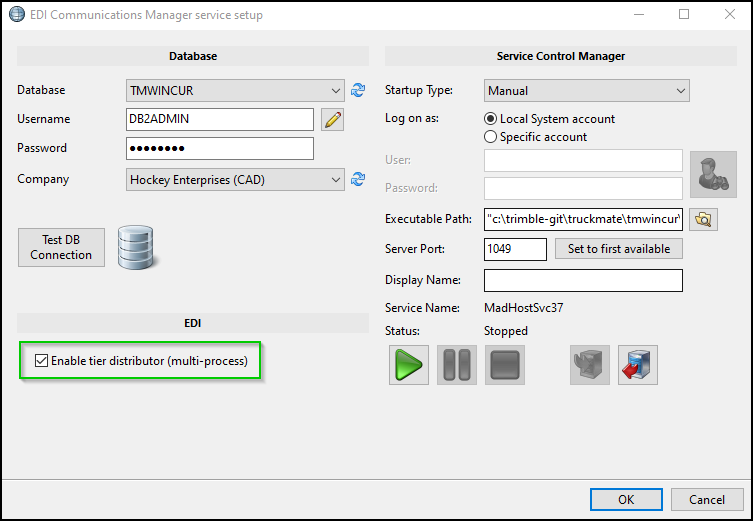
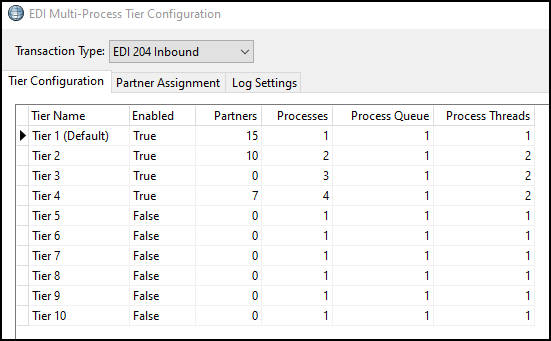
This option enables scalable architecture for processing EDI transactions. You can configure independent processing tiers for different transaction sets and trading partners based on the priority and quantity of transactions.
Each EDI transaction type (204 Inbound, for example) has its own Tier Configuration. Each tier configuration includes 10 tiers.
Added SQL Query Analysis Agent to SQL Execute (TM-185202)
SQL Query Analysis Agent has been added to SQL Execute. For more information, see SQL Query Analysis Agent.
Mobile communications
Added endpoints to the Mobile Comm REST APIs (TM-169706)
More endpoints have been added to the Mobile Communications REST APIs:
-
/trailerSensors
-
Adds (POST) trailer sensor records
-
-
/reeferSensors
-
Adds (POST) reefer sensor records
-
-
/dailyHours
-
Adds (POST) daily hours for a driver
-
| This functionality is still in beta. |
Dispatching operations
Added Switch Zones to terminal plans (TM-164882)
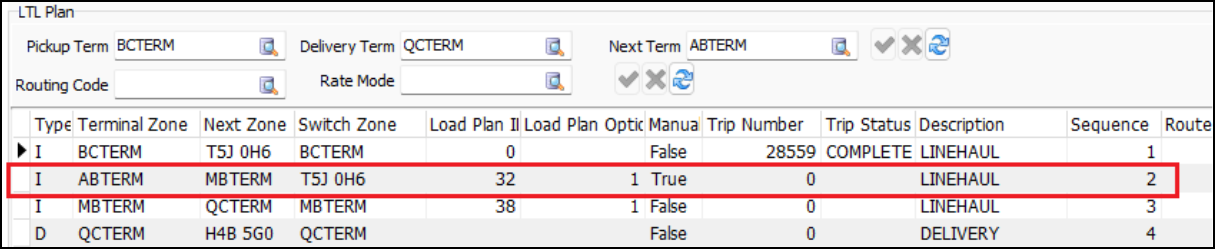
A Switch Zone column has been added to terminal plans. Freight bills can now be put in a DOCKED status at non-terminal locations. When this occurs, the system inserts a sequence for the switch zone into the terminal plan. The zone code appears in the Switch Zone column.